Suggested edits | Rodeo Docs
Suggested edits let you propose changes to a page instead of making them, so a writer can polish a client newsletter while the editor still decides, change by change, what actually goes out.
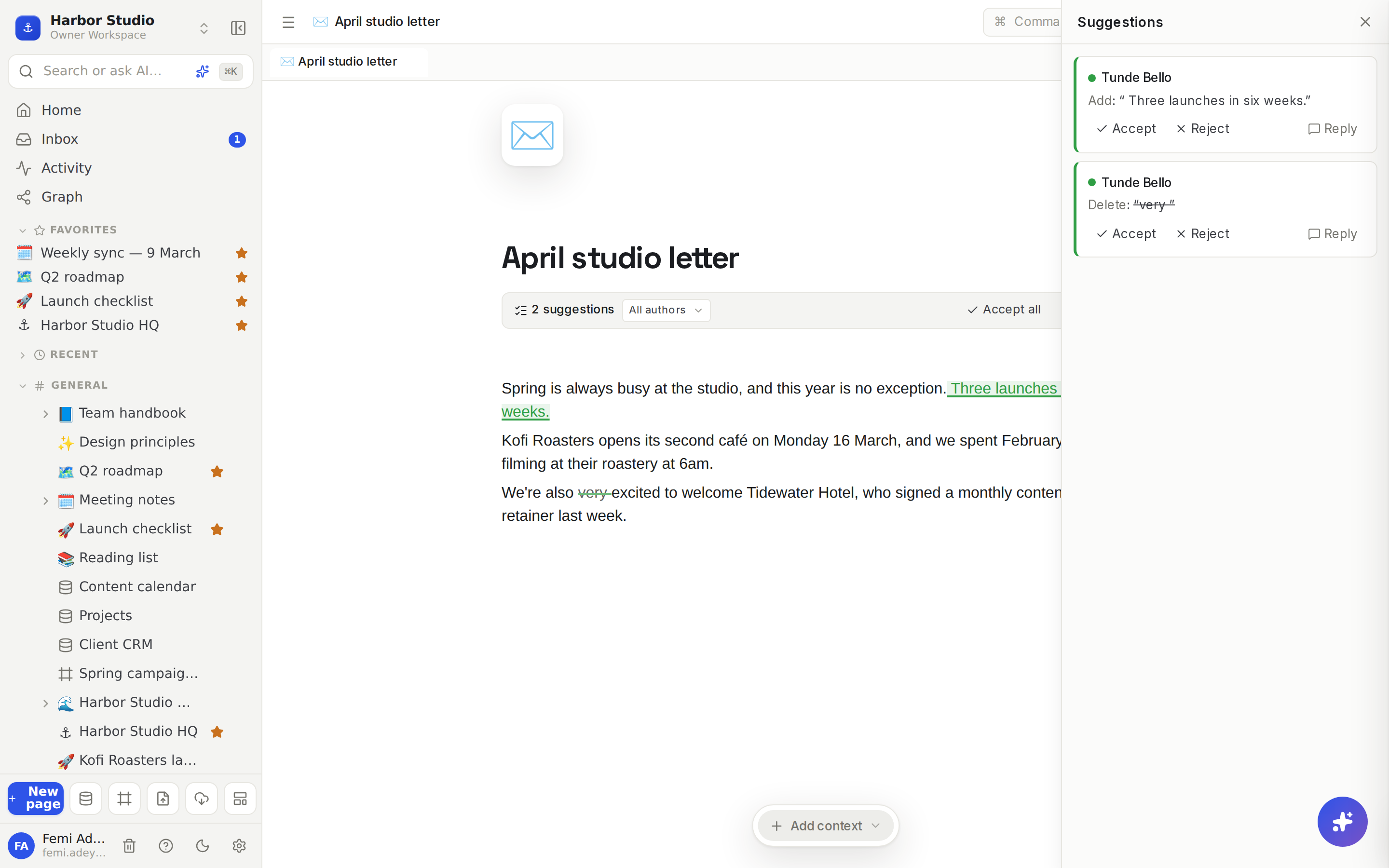
While you're suggesting, everything you type is marked as a suggestion in your colour: new text is underlined, removed text is struck through, and moved or reformatted blocks are marked too. The page doesn't really change until someone who can edit accepts it.
Do it
Suggest changes
Open the page and hover its title. In the row of buttons above it, click Suggest. It turns into Suggesting.
Edit as usual: type, delete, move blocks or change their formatting. Each change is recorded as a suggestion with your name.
Click Suggesting again to go back to editing directly.
If you were shared the page as Can comment, you're always in suggesting mode: the button says Suggesting and can't be switched off. See Sharing and access requests.
Review suggestions
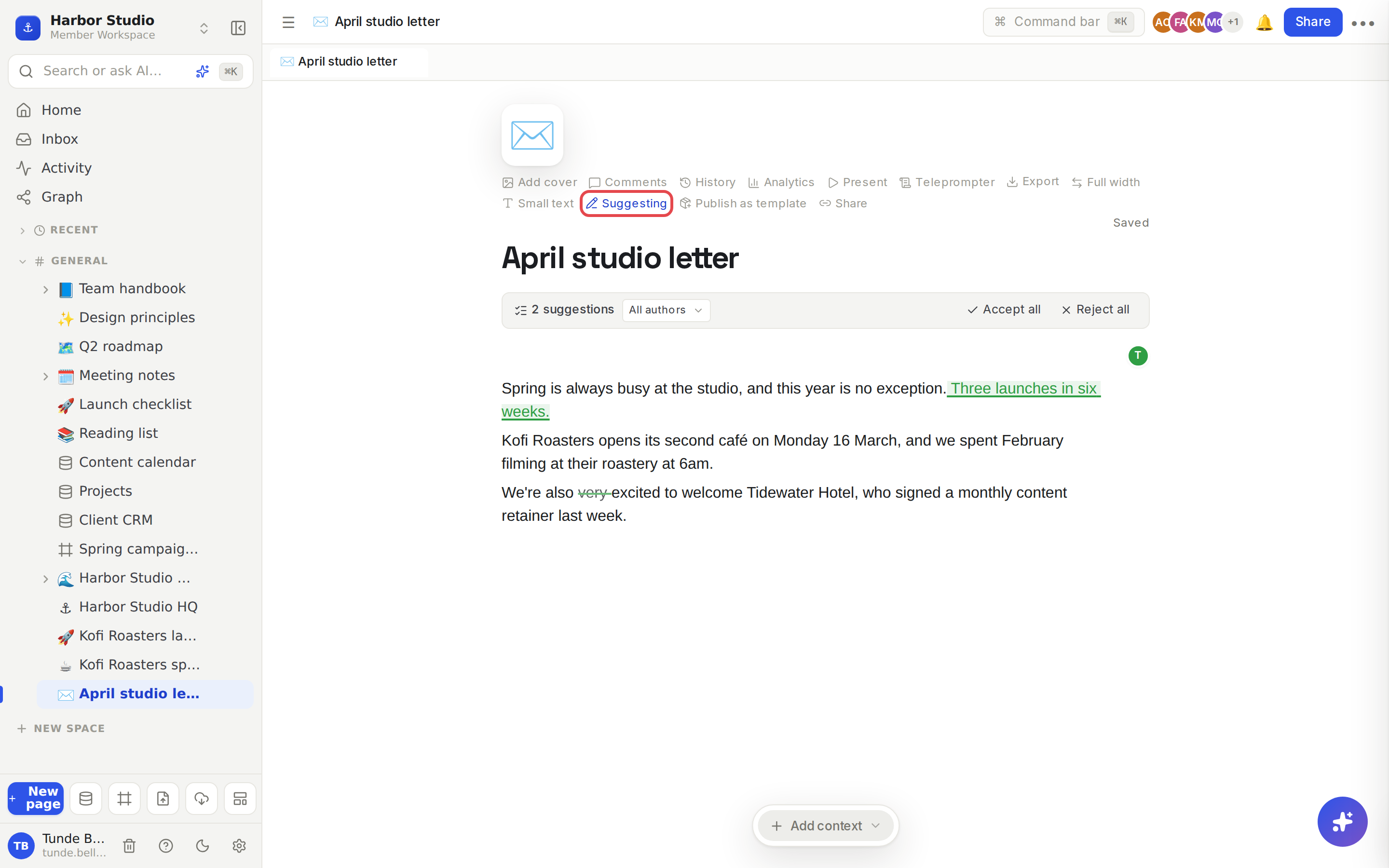
When a page has suggestions, a review bar appears above the text, for example "2 suggestions".
To decide on everything at once, click Accept all or Reject all.
To review one person's changes, pick their name in the All authors menu first. Accept all and Reject all then apply only to them.
To go one by one, click the count to open the Suggestions panel. Each card shows who made it, what kind of change it is (Add, Delete, Add block, Delete block, Format block or Move block) and the text involved.
Click Accept or Reject on each card.
Accepted text becomes ordinary page content. Rejected text goes back to how it was.
Discuss a suggestion
Click Reply on a card to open a comment thread on that suggestion, so you can ask the author why before you decide. Everyone who joins the thread is notified of later replies. See Comments.
Tips and limits
Who can do what: people with edit access can suggest, accept and reject. People with comment access can suggest and reply, but not accept or reject.
Changed your mind? After Accept all, press ⌘Z (Ctrl+Z on Windows) once to bring every accepted suggestion back as a suggestion.
Accepting while suggesting switches you back to editing first, so the accepted change is a normal edit.
AI suggests too. In suggesting mode the AI button in the formatting toolbar says Suggest, and its rewrite arrives as a suggestion from "Rodeo AI on behalf of" you. See Editor AI: transform and generate.
Notifications are bundled. The page's creator, and the workspace's owners and admins who can open it, get one inbox item per suggesting session, such as "Tunde Bello suggested edits" with "3 suggestions". Clicking it opens the page with the Suggestions panel. See Inbox and notifications.
Database row pages don't have suggesting mode.
Suggested edits work on every plan.
Ideas
Client copy approval. Share the newsletter draft with Kemi at Kofi Roasters as Can comment. Her wording changes arrive as suggestions, and Tunde accepts the ones that fit the brand voice.
An editor's pass. Ada switches on Suggest to tighten Tunde's case study. He reviews her cards one by one and learns the house style as he goes. See Looks and house style.
Safer policy changes. Propose edits to the "Expense policy" page as suggestions, so its owner signs off every change before it becomes the rule. See Wiki and page verification.
Troubleshooting
I don't see Accept or Reject. You have comment access. Only people who can edit the page can resolve suggestions.
The Suggest button is missing. You're on a database row page, or you have view-only access.