Members, roles and invites | Rodeo Docs
Invite your team by email or with a link, and give each person a role that matches what they should do, so a new designer can start editing on day one while a client only ever sees the pages you share with them.
Every person in a workspace has one role:
Role | What they can do |
|---|---|
Owner | Full control, including deleting the workspace. Each workspace has exactly one owner. |
Admin | Manage members, settings, and all content |
Member | Create and edit every page in the workspace, apart from private spaces they haven't been added to |
Guest | Access only the specific pages shared with them |
Do it
Invite someone by email
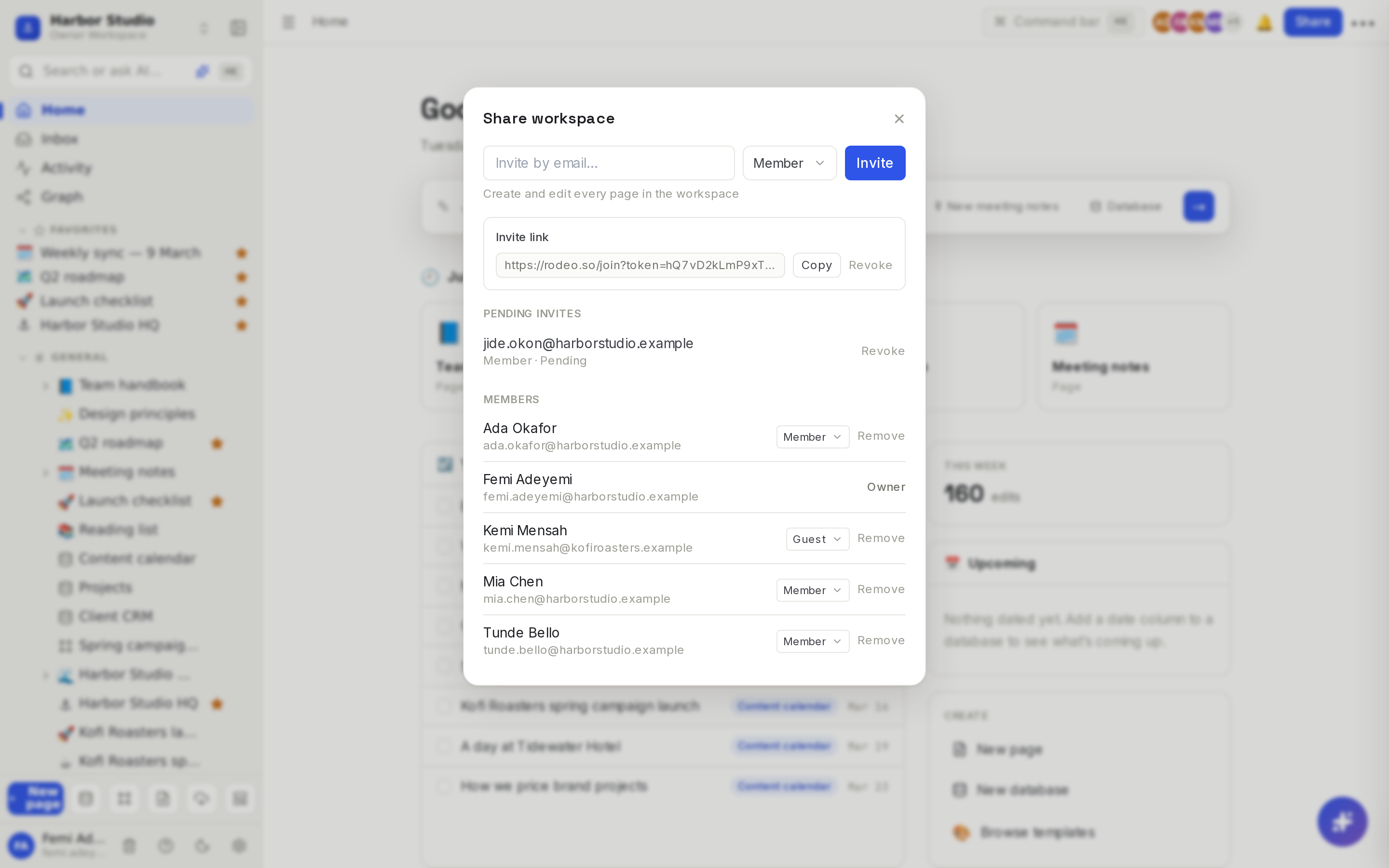
Click Share at the top right of the window. This opens Share workspace. You can also go to Members & settings at the bottom of the sidebar.
Type their address into Invite by email….
Pick a role from the menu next to it: admin, member or guest. A line under the field says what that role can do.
Click Invite.
If they already have a Rodeo account, they're in straight away and Rodeo says, for example, "Ada Okafor was added." If not, they get an email and Rodeo says "Invite sent to … — they'll join when they sign in." Their invite waits under Pending invites until they sign in with that address.
Share an invite link
In Share workspace, pick the role the link should give.
Under Invite link, click Create link.
Click Copy and send the link to your team, for example in your group chat.
Click Revoke when you no longer want the link to work.
Anyone who opens the link and signs in joins with that role.
Change a role or remove someone
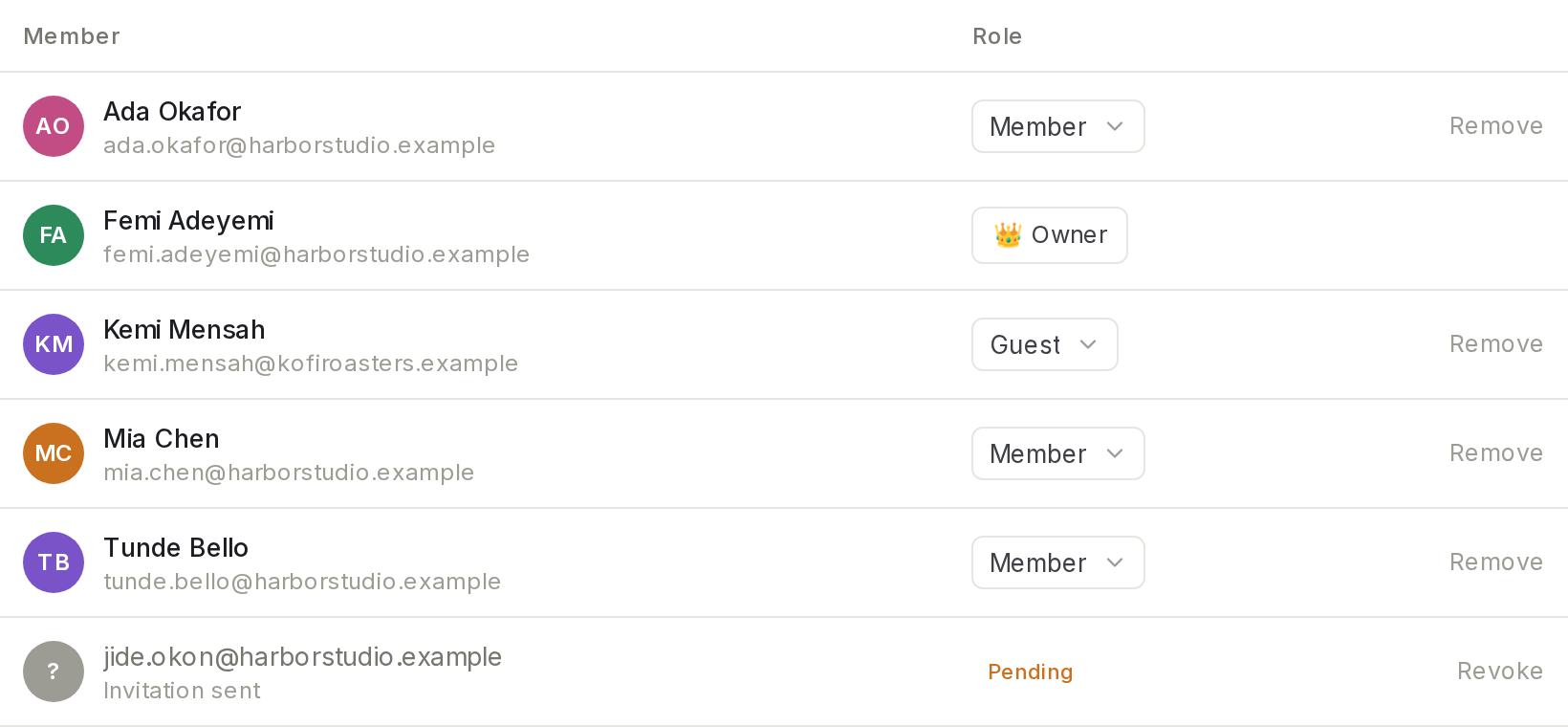
Click Members & settings at the bottom of the sidebar. The Members tab lists everyone, with pending invites marked Pending.
To change a role, pick a new one from the menu in the Role column.
To remove someone, click Remove, then Remove member. They lose access to the workspace at once.
To cancel an invite that hasn't been accepted, click Revoke on its row.
Transfer ownership or leave
Open the workspace menu at the top of the sidebar and choose Workspace settings. Under Danger zone:
The owner can Transfer ownership: choose a member and click Transfer. They become the owner and you become an admin.
Everyone else can Leave workspace and lose access to its pages.
Tips and limits
Only owners and admins can invite people, create links or change roles. Everyone else sees who's in the workspace, read only.
The owner can't be removed or demoted. Transfer ownership first.
Members per plan: Free up to 3, Starter up to 10, Team up to 50, Business unlimited, and the Founders' Deal up to 10. Over the limit, Rodeo says "You've reached your plan's member limit. Upgrade to add more." See Plans and limits.
Guests per plan: Free includes 3 guests; Starter, Team, Business and the Founders' Deal have unlimited guests. Guests never take a member seat.
Email invites expire after 14 days. Invite the address again to send a fresh one.
Invite links don't expire on their own. They work until you revoke them, so share them only where you'd share a key.
Use the invited address. An invite is accepted when someone signs in with the email it was sent to. See Sign up and sign in.
Ideas
Onboard a new hire in one step. Ada invites jide.okon@harborstudio.example as a member before his first day, so the team handbook and content calendar are waiting when he signs in.
Freelancers as guests. Invite a freelance photographer as a guest, then share only the shot list with them. They never see the client CRM. See Sharing and access requests.
A team link for the studio chat. Create a member link, paste it in the studio's group chat for a week of onboarding, then revoke it.
Troubleshooting
My teammate says they never got the invite. Ask them to check spam, or create an invite link and send it to them directly. They can also sign in with the invited address: the invite is accepted as they sign in.
I can't see the Invite field. Only owners and admins can invite. Ask one of them to invite your teammate or to make you an admin.
Someone joined but sees an empty workspace. They probably signed in with a different address from the one you invited. Invite the address they actually use.