Calendar view | Rodeo Docs
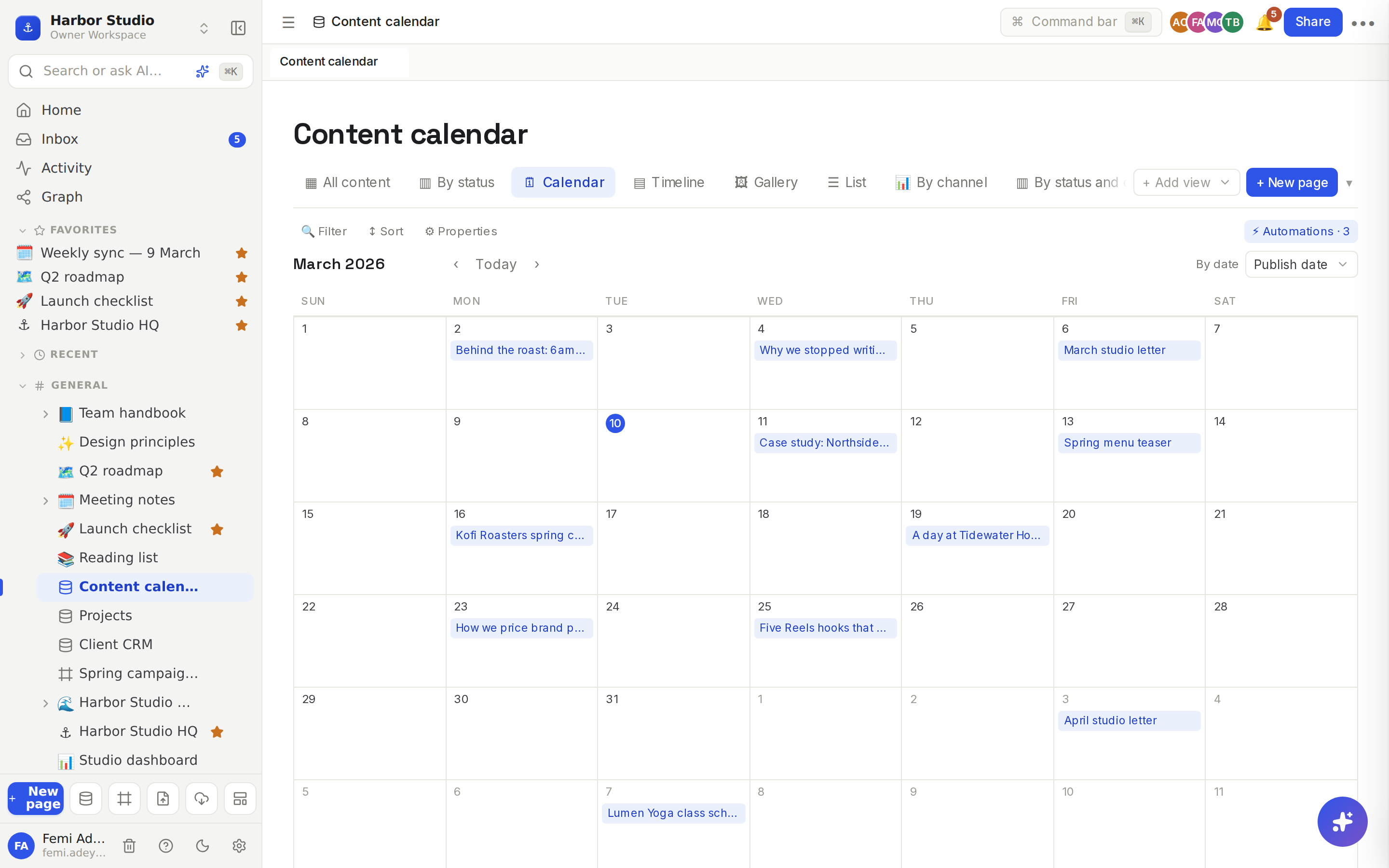
The calendar view puts each row on a month grid by one of its dates, so a content plan, a launch schedule or a list of deadlines reads like the calendar on your wall.
Do it
Make a calendar
Your database needs at least one Date property. Add one if it doesn't have one. See Properties.
Click + Add view and choose 🗓 Calendar.
The calendar uses the first date property. To use another, pick it next to By date at the top right, for example "Review date" instead of "Publish date".
Find your way around
The month and year sit at the top left. Click ‹ and › to move a month back or forward, and Today to come back to this month.
Today's date is circled.
Days from the months before and after fill out the grid in a lighter shade.
Add and open rows
Add a row on a day: hover the day and click + (Add here). The new row gets that date.
Open a row: click its name on the calendar. Its page opens in a side panel. See Row pages and row templates.
Move a row to another day: open it and change its date.
Tips and limits
Up to four rows show on each day. Busier days show "+2 more" (or however many); filter the view or open the table to see them all.
Rows without a date don't appear on the calendar. Keep a table view, filtered to an empty date, to catch them. See Filters, sorts and grouping.
Weeks start on Sunday.
Single days only. A row shows on its one date. For spans of time, use a Timeline view.
Big databases: rows load 100 at a time; if a month looks sparse, click Load more rows under the calendar.
Filters apply, so you can make one calendar per channel or per person.
The calendar view works on every plan.
Ideas
The content calendar. Show every post by Publish date. Femi sees the month at a glance and spots the empty Thursday.
Client reviews. Add a "Next review" date to the Client CRM and give it a calendar view, so no client goes a month without a check-in.
A team holiday planner. One row per day off, with a Person property and a date. Mia checks the calendar before she books a shoot.