Callouts and columns | Rodeo Docs
Callouts make the one thing people must not miss stand out in a tinted box, and columns put related content side by side, so a page reads like a well-designed brief rather than a long scroll.
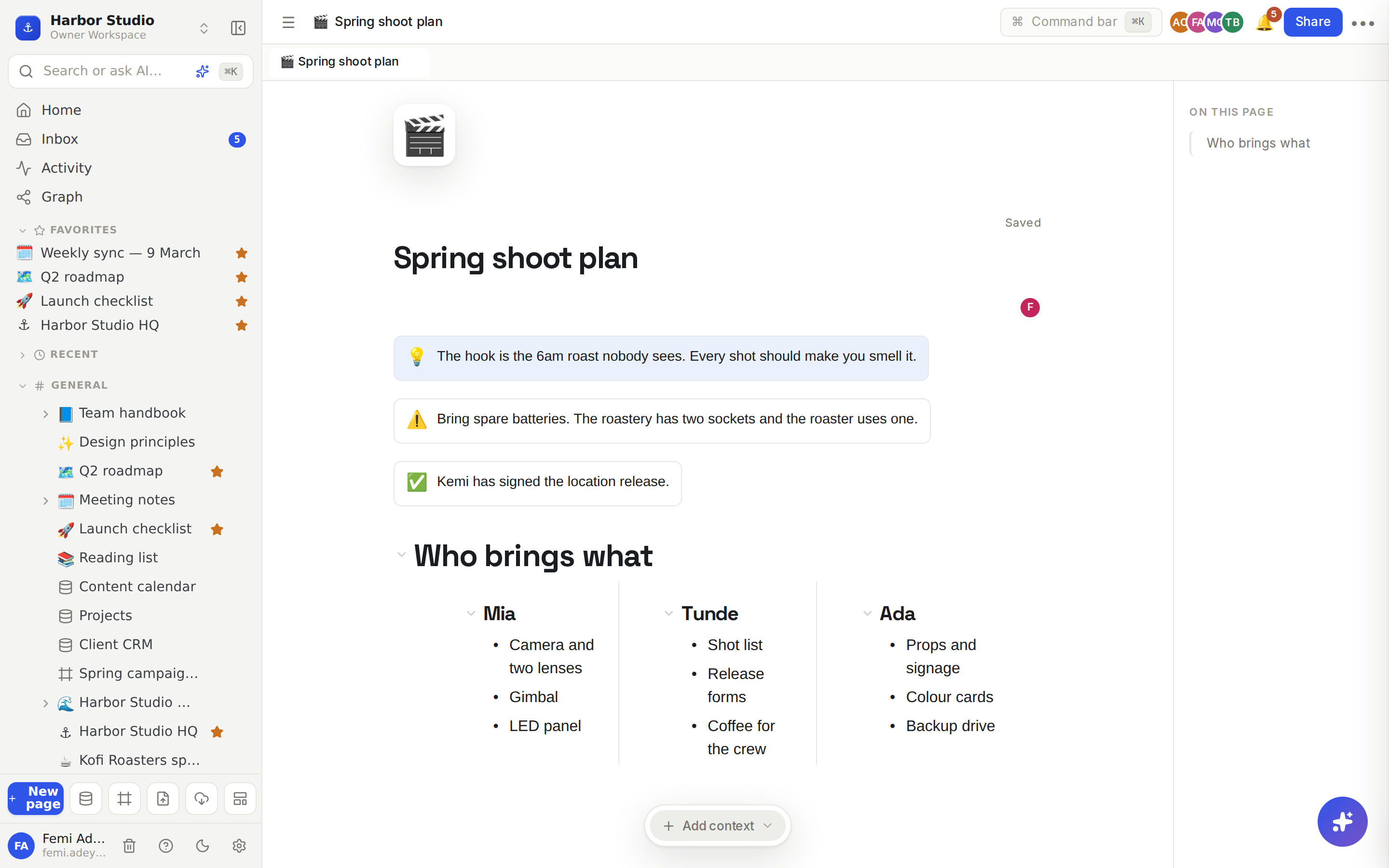
Do it
Add a callout
Type /callout (or /note, /tip) and choose Callout. A box with a 💡 appears and your cursor is inside it.
Type your message.
Click the emoji to pick a different one.
To change the tint, click the colour button at the far right of the callout and choose one of the six swatches: grey, blue, green, amber, pink or purple.
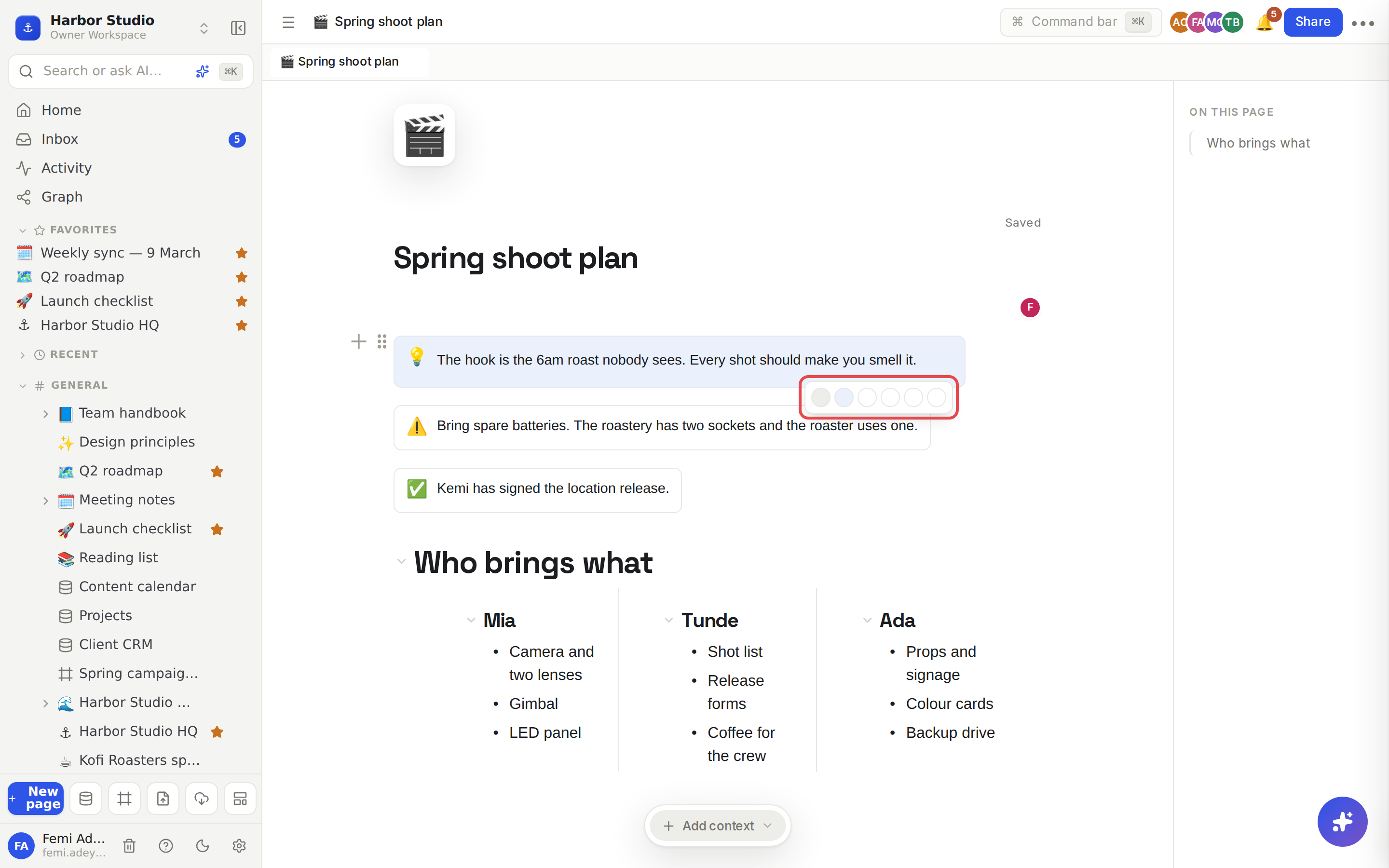
The colour button is easy to miss: it stays invisible, even when you hover it. Move your pointer to the right-hand end of the callout, level with the first line of text, and click there.
Lay content out in columns
Type /columns and choose 2 columns or 3 columns. Your cursor lands in the first column.
Type, or add any block with /: headings, lists, images, even another callout.
Click into the next column to fill it.
Each column holds ordinary blocks, so everything you can do on a page works inside a column.
Tips and limits
Columns share the width equally. Two columns are half each, three are a third each.
Columns stack on small screens. On a phone-sized window they sit one above the other, so nothing gets squashed.
Callouts hold text. Bold, links, mentions and dates all work inside one. For a list or an image beside a note, put the callout and the list in columns.
Emoji choice. The callout's emoji picker offers a set of 40 common emoji.
Callouts and columns work on every plan.
Ideas
A launch brief at a glance. A 📣 callout with the launch date at the top, then 2 columns for "In scope" and "Out of scope", so Kemi agrees the boundaries before work starts.
Shoot-day kit list. 3 columns, one per person, each with a check list of what they bring. Put the one thing that always goes wrong in an amber ⚠️ callout above it.
Before and after. In a case study, put the old logo in the left column and the new one in the right, with a green ✅ callout underneath summarising the result.
Troubleshooting
I can't find the colour button on my callout. It's invisible until your pointer is on it. Hover the right-hand end of the callout's first line and click when it highlights.