Nest pages inside pages | Rodeo Docs
Pages in Rodeo nest inside each other as deep as you like, so a client, a project or a whole handbook can live under one page, with its brief, plans and meeting notes tucked neatly underneath.
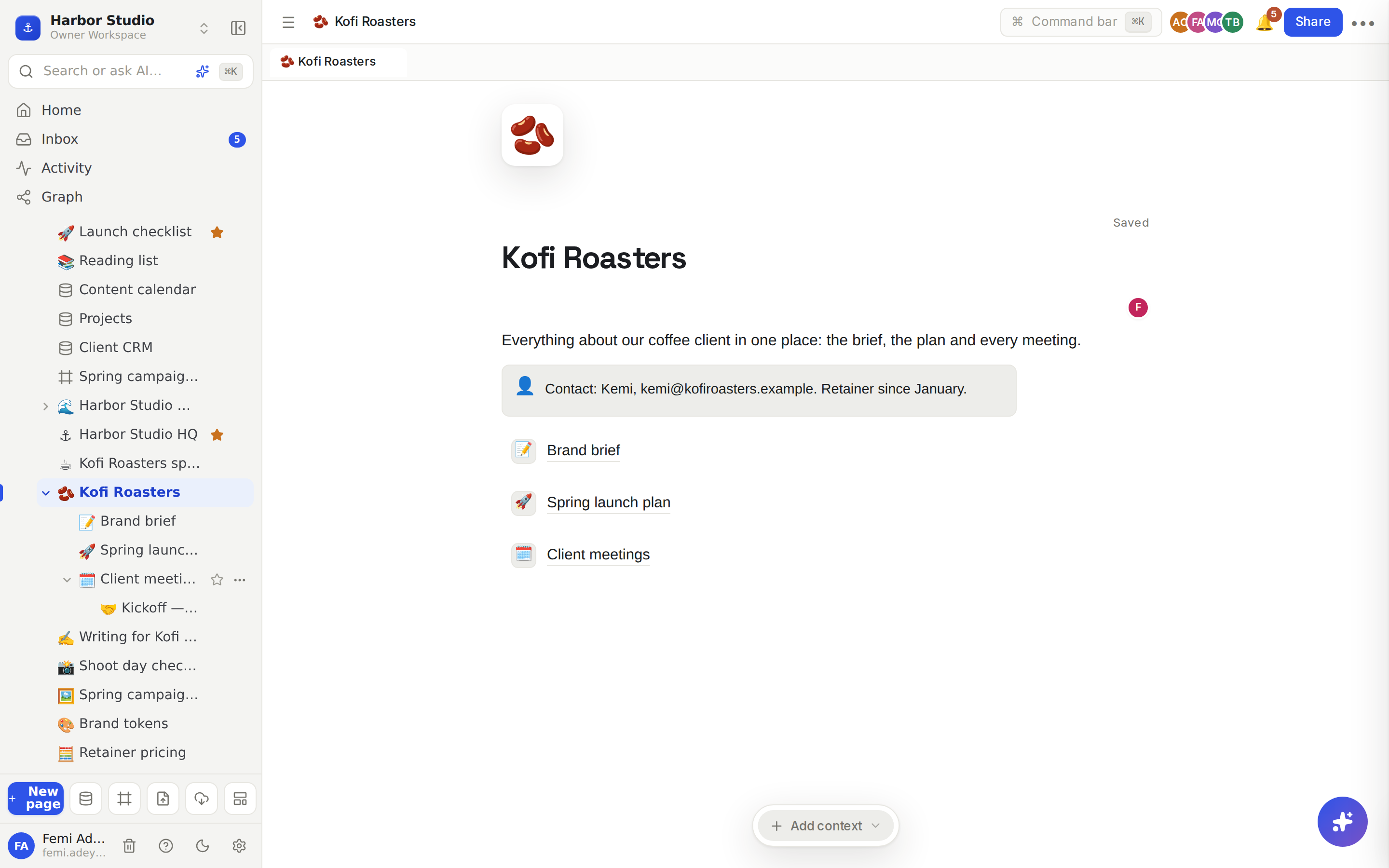
A sub-page is a page that lives inside another page. It shows up twice: under its parent in the sidebar, and as a link row in the parent page's body, so readers can find it from either place.
Do it
Create a page
You can start a page from several places:
Click New page at the bottom of the sidebar.
Hover a space's name in the sidebar and click + (Add page) to create a page in that space.
Press ⌘K (Ctrl+K on Windows) and choose New page.
Type a title where it says Untitled, press Enter, and start writing. Rodeo saves as you type.
Put a page inside another
Hover the parent page in the sidebar and click More actions (⋯).
Choose Add sub-page. Rodeo creates it, unfolds the parent and opens the new page.
Or, from inside the parent page itself, type /page and choose Page ("Create a sub-page inside this one"). Rodeo adds the link row where your cursor is and opens the new page.
Add sub-database in the same menu puts a database inside the page instead. See Database basics.
Move and reorder pages
Hover a page in the sidebar and grab the drag grip that appears on its left.
Drag it up or down to reorder it.
To nest it, drop it below the page you want as its parent and drag slightly to the right. To bring it back out, drag it to the left.
Its sub-pages always move with it.
Open a sub-page
Click its arrow in the sidebar to unfold the parent, then click the sub-page.
Or click its row in the parent page's body. It opens in a side panel, so you keep your place. See Peek and tabs.
The path at the top of the screen shows where you are, for example "Kofi Roasters / Client meetings". Click any part of it to go back up.
Tips and limits
No depth limit. Nest pages as deep as your structure needs.
More actions also has Rename, Copy link, Move to space and Move to trash. Move to space is offered on top-level pages; the page's sub-pages go with it. See Spaces.
Favourites. Click the star beside a page in the sidebar to pin it under Favorites.
Export. Hover the page title and click Export to download the page as Markdown (.md) or HTML (.html).
Trashing a parent trashes its sub-pages too, and restoring it brings them all back. See Trash.
Linking is not nesting. To point at a page without moving it, mention it with @. See Page mentions and links.
Pages and nesting work the same on every plan.
Ideas
One page per client. "Kofi Roasters" holds the brand brief, the launch plan and a "Client meetings" page with one sub-page per call, so a new teammate learns the whole account in ten minutes.
A handbook with chapters. "Team handbook" holds "Onboarding", "Rituals" and "Expense policy", each with its own sub-pages. Turn it into a verified wiki later. See Wiki and page verification.
A project archive. When a project wraps, drag its page under an "Archive" page, so the sidebar stays short and nothing is lost.
Troubleshooting
I can't see "Move to space". It only appears on top-level pages. Drag the page out to the top level first, then move it.
My sub-page vanished from the sidebar. Its parent is probably folded. Click the arrow beside the parent to unfold it, or press ⌘K and search for the page.