AI contexts for pages | Rodeo Docs
A context tells Rodeo what a page is for, such as meeting notes, a video script or a product spec, and gives that page AI actions made for the job, so the right tool is one click away instead of a prompt you have to write each time.
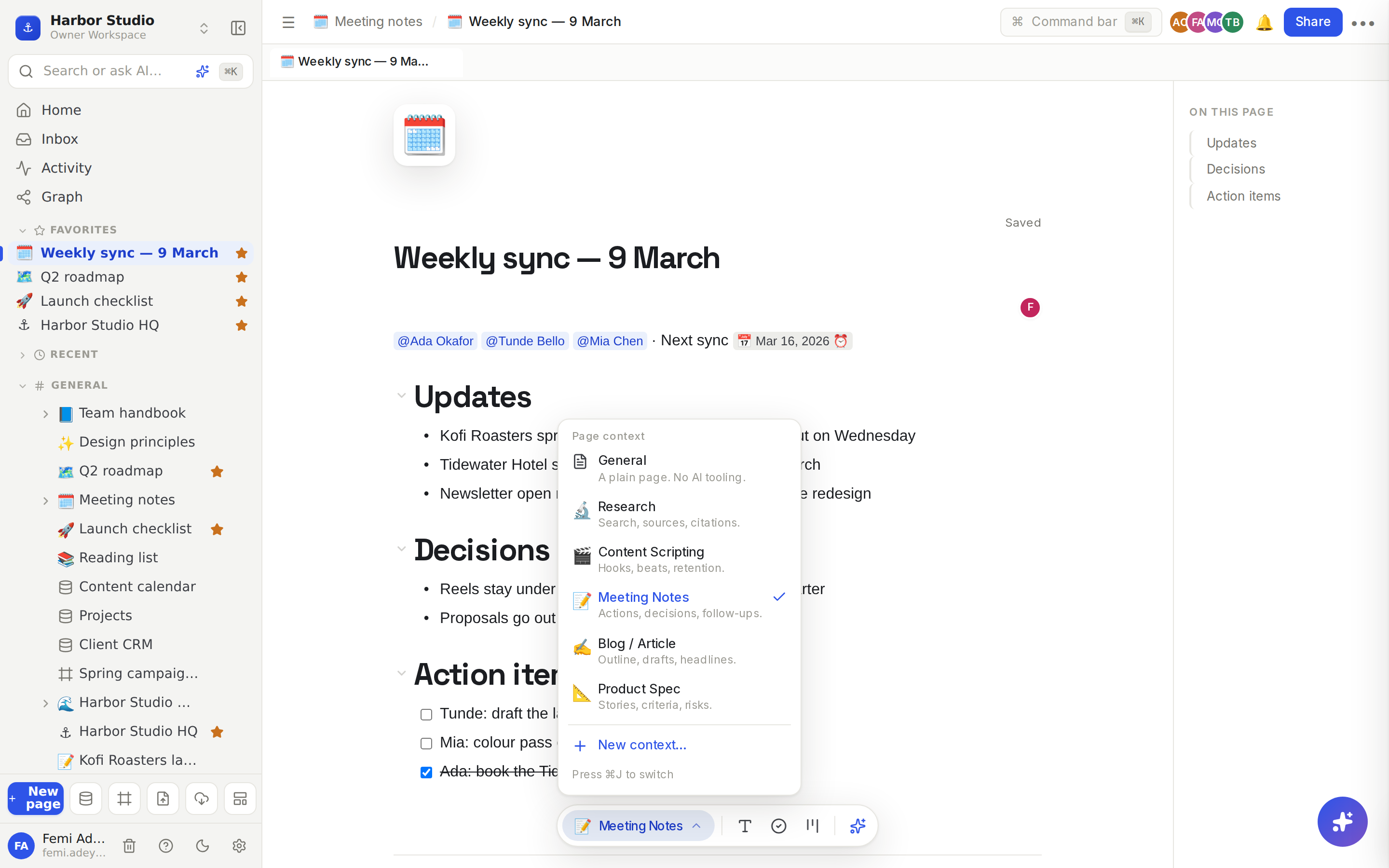
When a page has a context, a small bar floats at the bottom of it with the context's name, its tools, and an Ask Claude button. Every page starts as General: a plain page with no AI tooling.
Do it
Give a page a context
Open a page you can edit. At the bottom, click Add context, or press ⌘J (Ctrl+J on Windows).
Under Page context, pick one:
Context | Made for | Its actions |
|---|---|---|
🔬 Research | Search, sources, citations. | Find & collect sources, Summarize a source, Extract key claims, Find counterarguments, Synthesize a review |
🎬 Content Scripting | Hooks, beats, retention. | Generate hook variants, Beat / scene breakdown, Rewrite for platform, Tighten for retention, Generate CTA |
📝 Meeting Notes | Actions, decisions, follow-ups. | Summarize meeting, Extract action items, List decisions, Draft follow-up email |
✍️ Blog / Article | Outline, drafts, headlines. | Outline, Draft a section, SEO title & description, Headline variants |
📐 Product Spec | Stories, criteria, risks. | User stories, Acceptance criteria, Edge cases, Risks & open questions |
The context is saved with the page, so everyone who opens it gets the same tools. To switch or remove it, open the picker again and choose another context or General.
Run an action
Tool buttons next to the context's name write into the page. Hover one to see its name, such as Extract action items, and click it.
Ask Claude (the sparkle button) lists the actions that answer in a card without touching the page, such as Draft follow-up email.
Many actions are also in the / menu, grouped under the context's name.
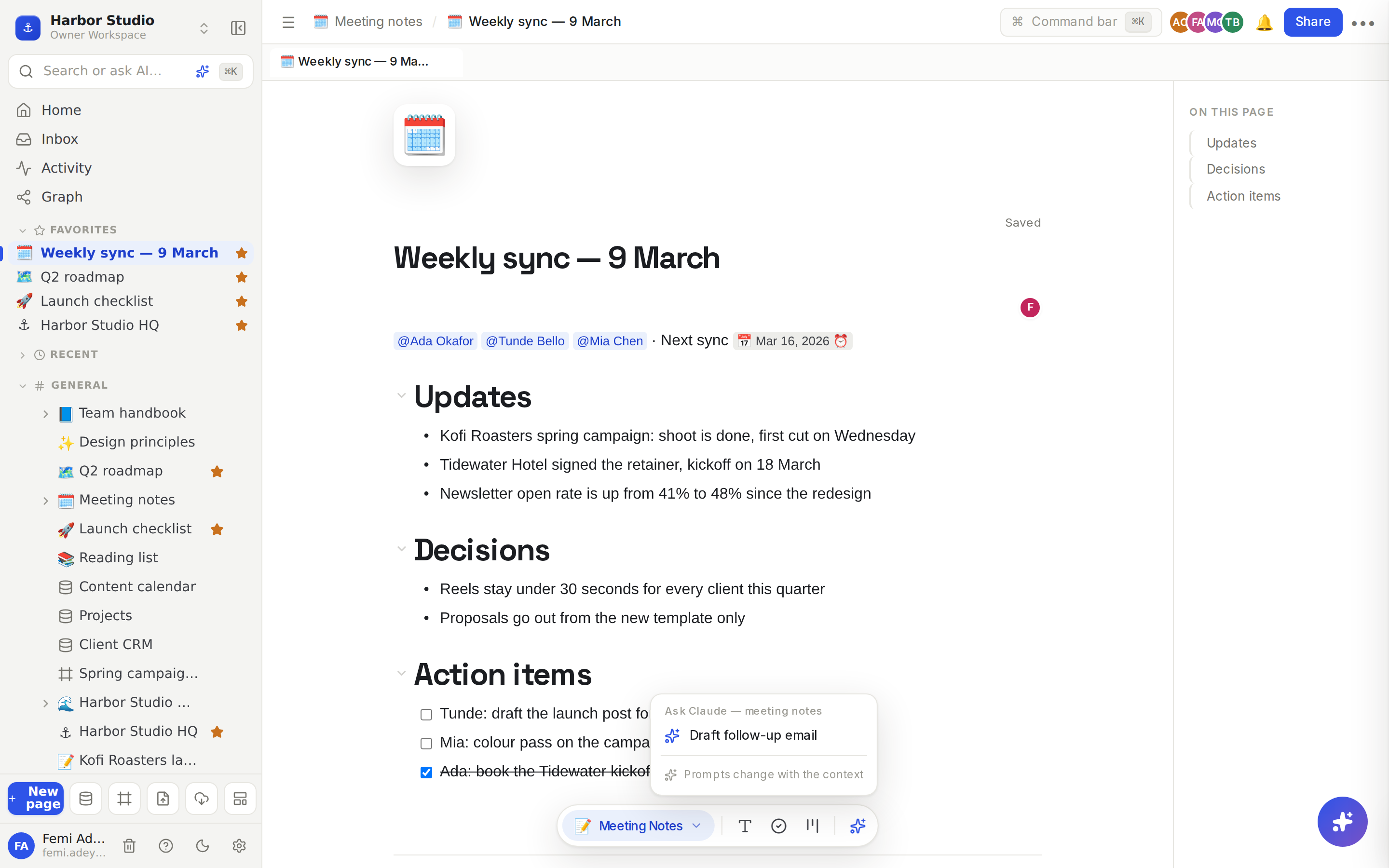
While it runs, the result card says Working…. Then:
Actions that write to the page add their result and say Added to page. Press ⌘Z to undo it.
Actions that answer in the card show the text with a Copy button.
Actions that need input from you, like Draft a section, first ask for it in a box: type it and press Enter.
Actions that work on a selection, like Summarize a source, use the text you've selected.
Make your own context
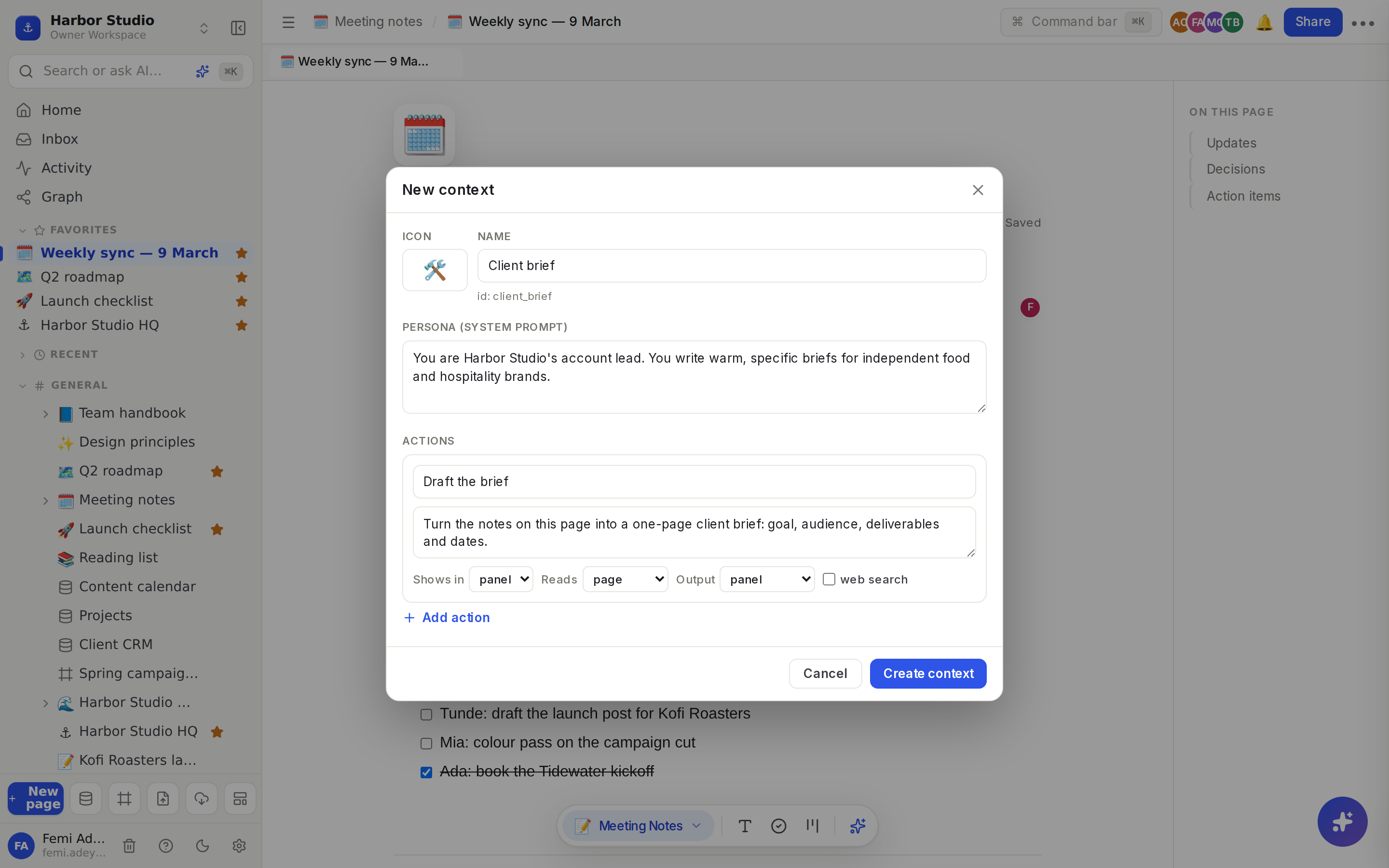
Open the picker and click New context….
Give it an Icon and a Name, such as "Client brief".
Under Persona (system prompt), describe who the AI should be, for example "You are Harbor Studio's account lead…".
Under Actions, give each one a label and an instruction, then choose:
Shows in: panel, slash or both.
Reads: the whole page, the selection, or a prompt you type.
Output: answer in the panel, append to the page, replace the selection, or add newBlocks.
web search, to let the action look things up.
Click Add action for more, then Create context.
Your context appears in everyone's picker in this workspace, marked custom.
Tips and limits
The bar only shows for people who can edit the page.
Actions read up to 24,000 characters of the page or selection.
Pace: a workspace can run up to 60 context actions a minute. If you go faster, Rodeo says "You're going a bit fast — try again in a moment."
Find & collect sources writes a sourced section from a web search.
Contexts are available on every plan.
Ideas
Meeting notes that tidy themselves. Set your weekly sync template to Meeting Notes, so after each sync one click runs Extract action items and Draft follow-up email. See Templates.
Scripts that hold attention. Mia gives every Reel script the Content Scripting context and uses Generate hook variants before each shoot.
A house context for proposals. Femi makes a "Proposal" context with a persona in the studio's voice and actions for "Scope summary" and "Risks", so every proposal starts the same way.