Rodeo web clipper extension | Rodeo Docs
The Rodeo Clipper is a browser extension that saves the article you're reading, or just the part you selected, into your workspace in two clicks, cleaned up, with its images and a link back, so research stops living in bookmarks you never open again.
Do it
Install and sign in
Add Rodeo Clipper to Chrome, Edge or Firefox.
Click the Rodeo Clipper button in your browser's toolbar ("Clip to Rodeo"). Pin it so it's always one click away.
Click Sign in to Rodeo. Rodeo opens in a new window and asks whether to let the clipper in. Click Allow access.
You need to be signed in to Rodeo in the same browser. You stay signed in to the clipper after you restart the browser.
Clip a page
On any web page, click the Rodeo Clipper button.
Choose the Workspace. The clipper remembers your last choice.
Under Save to, choose where it goes:
Clips, your own database of clipped pages (the default);
Page: and a page's name, to save the clip as a new page inside that page;
Database: and a database's name, to add the clip as a new row.
Add Tags, separated by commas, if you're saving to a database. Your Clips database suggests the tags you've used before.
Under Clip, choose Whole page or Selection. For a selection, highlight the text on the page first.
Click Clip. When it says Saved., click Open in Rodeo to see it.
The clip keeps the article's text, headings, lists, links and images, and drops menus, ads and sidebars. It starts with a line saying where it was clipped from.
Your Clips database
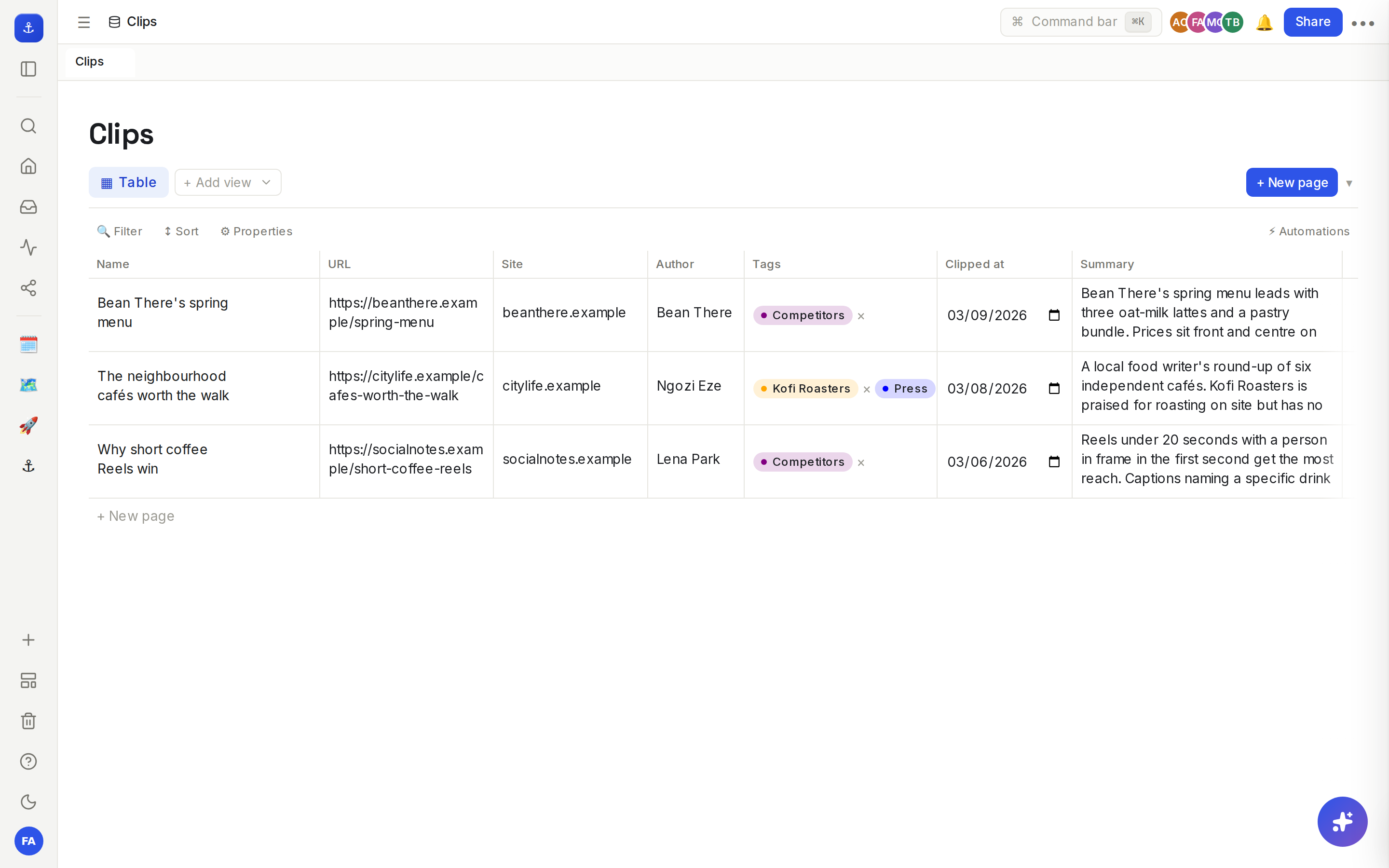
The first time you clip into Clips, Rodeo creates a database called "Clips" for you, with these properties:
Property | What it holds |
|---|---|
Name | The page's title |
URL | The link to the original |
Site | The site's name |
Author | The byline, when the page has one |
Tags | The tags you added |
Clipped at | When you clipped it |
Summary | A two-sentence summary, written by AI when the clip arrives |
Excerpt | The start of the clip's text |
Open any row to read the full clip. Add views, filters and more properties like any database. See Database basics.
Tips and limits
Who can see your clips. If you have a private space of your own, your Clips database goes there and only you can see it. Otherwise it goes where your workspace members can see it, and the clipper tells you first: "Your Clips database will be visible to members of this workspace." Click Clip anyway to go ahead.
Clips are capped at 2 MB. A very long page is refused with "This page is too large to clip (over 2 MB). Try clipping a selection instead."
Images are kept. Rodeo copies a clip's images into your workspace, so the clip still works if the original site changes.
Only web pages. Pages that start with http or https can be clipped. Browser settings pages and extension stores can't.
Saving to another database fills its URL, Site, Author, Tags and Clipped at properties when it has matching ones. New tags are added as options if you can change that database.
The Summary is only written for clips saved into Clips.
Requirements: Chrome 116 or later, Edge, other Chromium browsers, or Firefox 140 or later.
Sign out from the clipper's window. It forgets your sign-in on that browser.
The clipper works on every plan.
Ideas
A swipe file for every client. Mia clips competitors' menus and campaigns with the tag "Kofi Roasters", then adds a board view of Clips grouped by tag. See Board view.
Press coverage in one place. Ada clips every article that mentions a client into a "Press" database with the client as a tag, ready for the monthly report.
From clip to board. Drag clipped pages from the sidebar onto a research board and wire them into a chat. See Nodes and wires.
Troubleshooting
"Couldn't find readable content on this page. Try clipping a selection instead." The page isn't laid out like an article. Highlight what you want, choose Selection and clip again.
"Select some text on the page first, or switch to clipping the whole page." You chose Selection with nothing highlighted.
"Rodeo can't clip this page." Browser pages and extension stores can't be read by extensions. Clip a normal web page.
"Couldn't read this page. Reload it and try again." The page changed while loading. Reload it, then clip.
The page or database I want isn't under Save to. The list shows pages and databases you can edit in that workspace. Check the workspace, or ask for edit access.
"You aren't a member of any Rodeo workspace yet." Sign in to Rodeo with the account your team invited, then sign in to the clipper again.