Database automations | Rodeo Docs
Automations are "when this happens, do that" rules on a database, so routine updates, reminders and even AI-written values happen on their own every time a row changes.
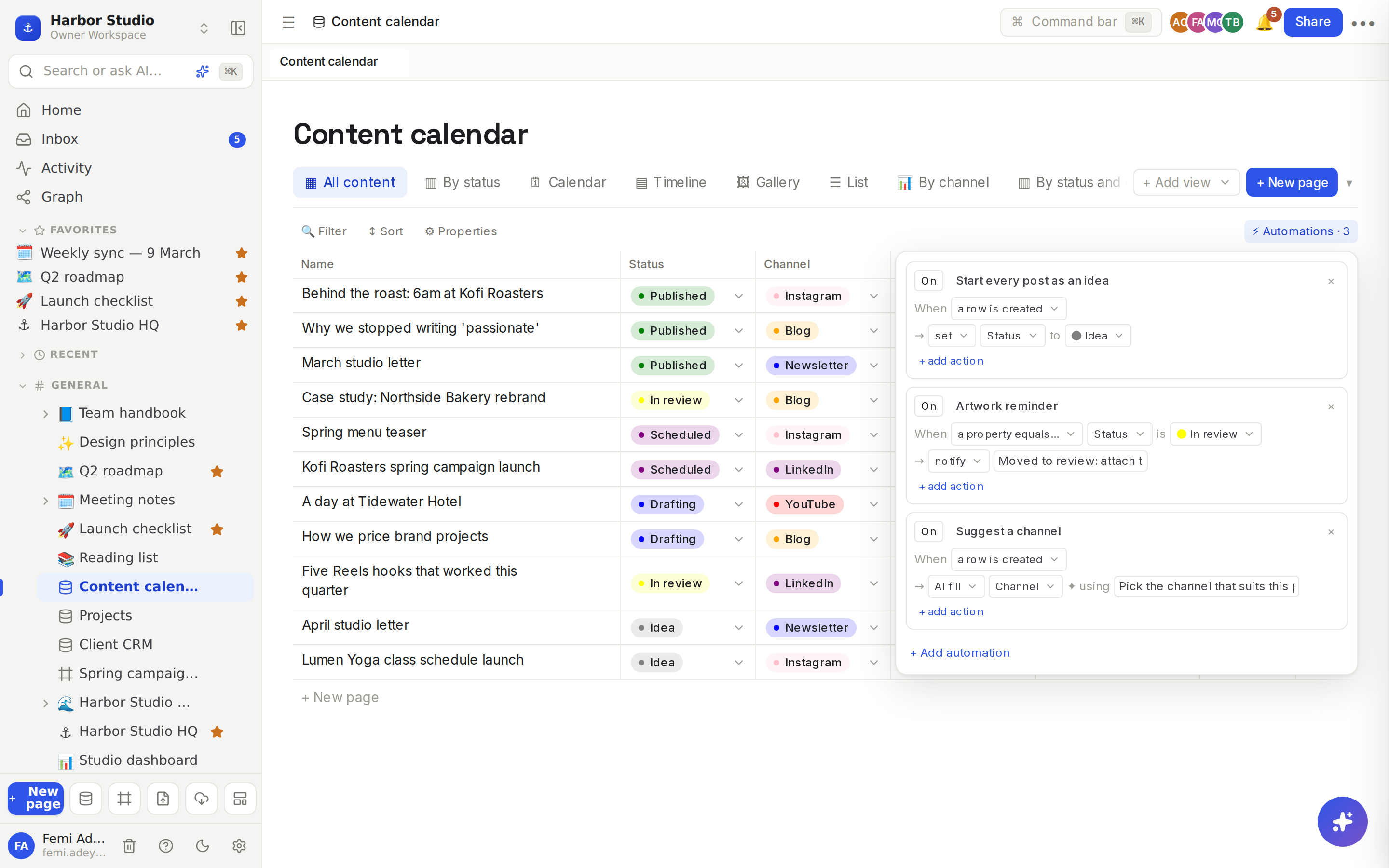
Do it
Create an automation
Open the database and click ⚡ Automations at the right of the toolbar.
Click + Add automation. A new rule called "Untitled automation" appears, switched off.
Click its name to rename it, for example "Start every post as an idea".
Next to When, choose the trigger.
Next to →, choose an action and fill it in.
To do more than one thing, click + add action. Extra actions start with and.
Click Turn on. The button changes to On.
The ⚡ Automations button shows how many rules a database has, for example ⚡ Automations · 3.
Triggers
When | Runs |
|---|---|
a row is created | Each time a row is added, from any view, a form, a button or the API. |
a row is updated | Each time a row is changed. |
a property equals… | When the chosen property becomes the chosen value. |
a property changes | When the chosen property changes on an existing row. |
a property equals… fires only on the change into the value, for example the moment Status becomes In review, not every time someone edits a row that's already in review. For a select or status you pick the option from a list; for a checkbox you pick checked or unchecked; anything else, you type the exact value.
Actions
Action | Does |
|---|---|
set a property to a value | Writes the value into the row. Pick an option for a select or status, checked or unchecked for a checkbox, or type a value. |
notify with a message | Sends an inbox notification with your message, linked to the row, to the person whose change triggered the rule. They also get it by email unless they've chosen a digest. |
AI fill a property ✦ using an instruction | Asks AI to fill in the property from the row's other values, following your instruction. |
AI fill
AI fill reads the row's properties, follows your instruction, and writes the answer into the property you chose, for example "Summarise the brief in one sentence" into a text property. When the property is a select, status or multi-select, the AI picks one of its existing options.
AI fill runs just after the row is saved, so saving never waits for it; the value appears a moment later. It needs AI to be available in your workspace. See Ask AI.
Tips and limits
Complete rules only. A rule can't be switched on until its trigger and every action are filled in; the switch says "Choose a trigger and an action to turn this on". Editing an active rule into an incomplete state switches it off.
No loops. Changes made by an automation don't trigger other automations, so rules can't set each other off.
Every change counts. Rules run however a row changes: in any view, on its page, from a form, from a button, or through the API.
Forms and notify. Public form responses are saved as the person who published the form, so a notify rule on a row is created tells the publisher about every new response. See Forms.
Delete a rule with × at the top right of it. Turn it off instead to keep it for later.
Changing a property's type updates the rules that set it, and the change summary tells you how many. See Properties.
Plans. Automations work on every plan. Pricing lists Basic automations on Free and Starter, and Advanced automations on Team, Business and the Founders' Deal. See Plans and limits.
Ideas
Every post starts as an idea. When a row is created, set Status to Idea, so new posts never sit in No Status. It applies to every new row, even a card added straight into another board column, so it suits teams that always start at Idea.
New enquiry alerts. On the Client CRM, when a row is created, notify "New enquiry from the website". Every public form response lands in Femi's inbox, because he published the form.
Smart tagging. When a row is created in the Client CRM, AI fill Industry using "Pick the industry from the client's name and contact email", so new leads arrive sorted.