AI meeting notes and transcripts | Rodeo Docs
Record a meeting, or upload one you recorded elsewhere, and Rodeo writes the notes for you: a transcript with who said what, a summary, the decisions and the action items, which you can turn into tasks in one click.
Do it
Start a meeting page
Do one of these:
On Home, click 🎙 New meeting notes.
Press ⌘K (Ctrl+K on Windows), type meeting and choose New meeting notes.
On any page, type /meeting and choose Meeting notes.
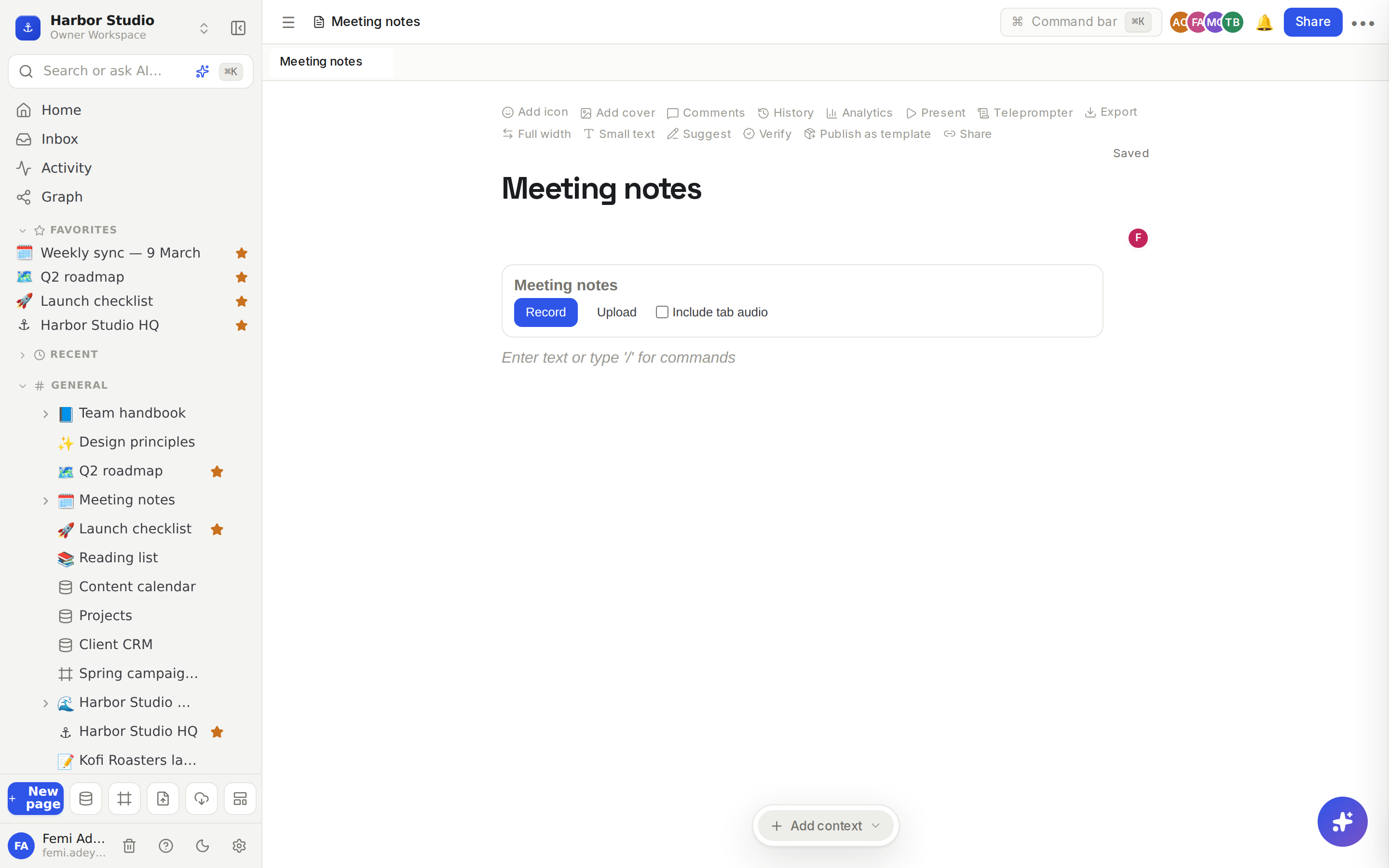
You get a Meeting notes block with Record and Upload.
Record
To capture the other people on a video call in your browser, tick Include tab audio first; you'll be asked to share the call's tab, so tick Share tab audio there. In the desktop app the option is Include call audio.
Click Record. The first time, Rodeo shows Before you record: you're responsible for telling everyone they're being recorded. Click I'll tell everyone.
While it records, the block shows a timer and a line you can copy into the call's chat: "Heads up: I'm recording this call to take notes with Rodeo." Click Copy to paste it.
Click Stop when the meeting ends.
You can leave the page while recording: a Recording box stays in the corner of the app with its own Stop button.
Upload a recording
Click Upload and choose an audio file, or an MP4 video. M4A, MP3, WAV and WebM work too.
Get the notes
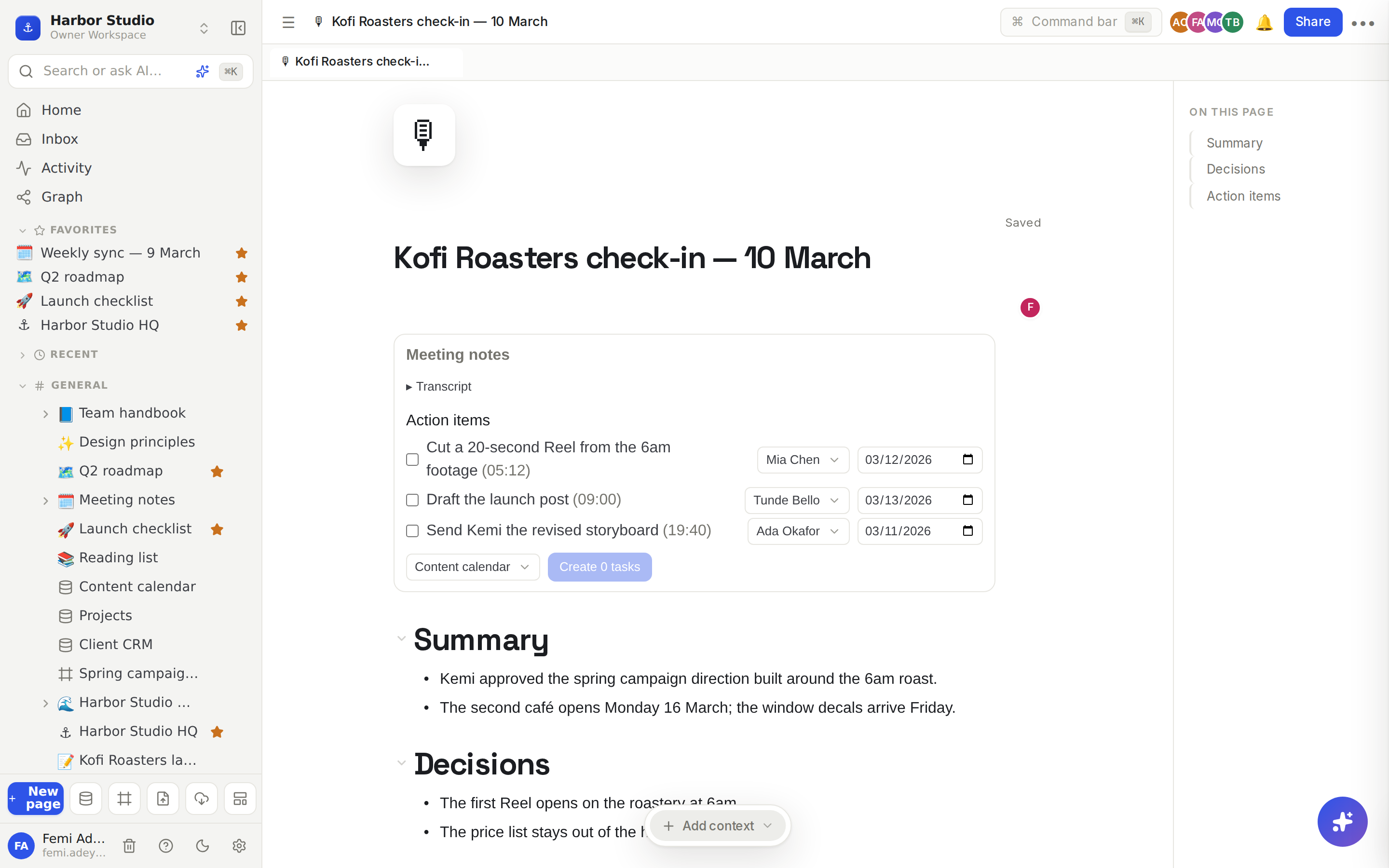
The block shows its progress: Queued for transcription, Transcribing, then Writing the notes. When it's done:
Summary, Decisions and Action items are written onto the page under the block as ordinary text, so you can edit them.
Transcript opens the full transcript. Rename each speaker, or link them to a workspace member, so the notes say who said what.
Action items in the block can become real tasks: tick the ones you want, pick an assignee and due date for each, choose a tasks database, and click Create tasks. Each task links back to the moment in the meeting it came from.
Tips and limits
Meeting minutes per month: Free 120 per workspace, Starter 300 per member, Team 600 per member, Business 1,200 per member, and the Founders' Deal 600 per member. The block shows how many minutes are left this month. See Usage.
Recording sets aside 60 minutes of your allowance when it starts, then charges only the real length once the transcript is ready. Cancelled or failed meetings give their minutes back. So you need at least 60 minutes left to start a recording.
Up to 4 hours per meeting. A recording stops at the 4-hour limit on its own.
Uploads up to 500 MB.
Tasks need a database with a checkbox or status property and a date property, such as a content calendar. See Database basics.
Audio is deleted after transcription by default. The transcript and notes stay.
Meeting notes need edit access to the page.
Meeting notes are available on every plan.
Ideas
Client check-ins that write themselves. Ada records the Kofi Roasters call with tab audio on, then sends Kemi the summary and decisions straight from the page.
Action items straight to the calendar. After the weekly sync, tick the action items, assign Tunde and Mia, and click Create tasks to drop them into the content calendar with due dates.
Interviews as a research library. Upload customer interview recordings into one "Research" page each, then ask Ask AI "What do regulars say about the morning rush?" across all of them.
Troubleshooting
"Meeting notes aren't set up for this workspace yet." Recording and transcription aren't switched on for your workspace yet. Email hello@rodeo.so and we'll sort it out.
"Rodeo isn't allowed to use your microphone." Allow microphone access for rodeo.so in your browser's site settings, then click Record again.
Only my voice was recorded. Tick Include tab audio before recording and tick Share tab audio when you pick the call's tab.
It says limit reached. You've used this month's meeting minutes, or have fewer than 60 left for a recording. Upload a shorter file, wait for next month, or upgrade.
The notes failed. Click Retry in the block, or Cancel to give the minutes back.