Rodeo desktop app for Mac and Windows | Rodeo Docs
The Rodeo desktop app gives your workspace its own window on Mac and Windows, with a real menu bar, keyboard shortcuts for everything, notifications for mentions, and a shortcut that opens quick capture over whatever you're doing, so an idea goes into Rodeo before it's gone.
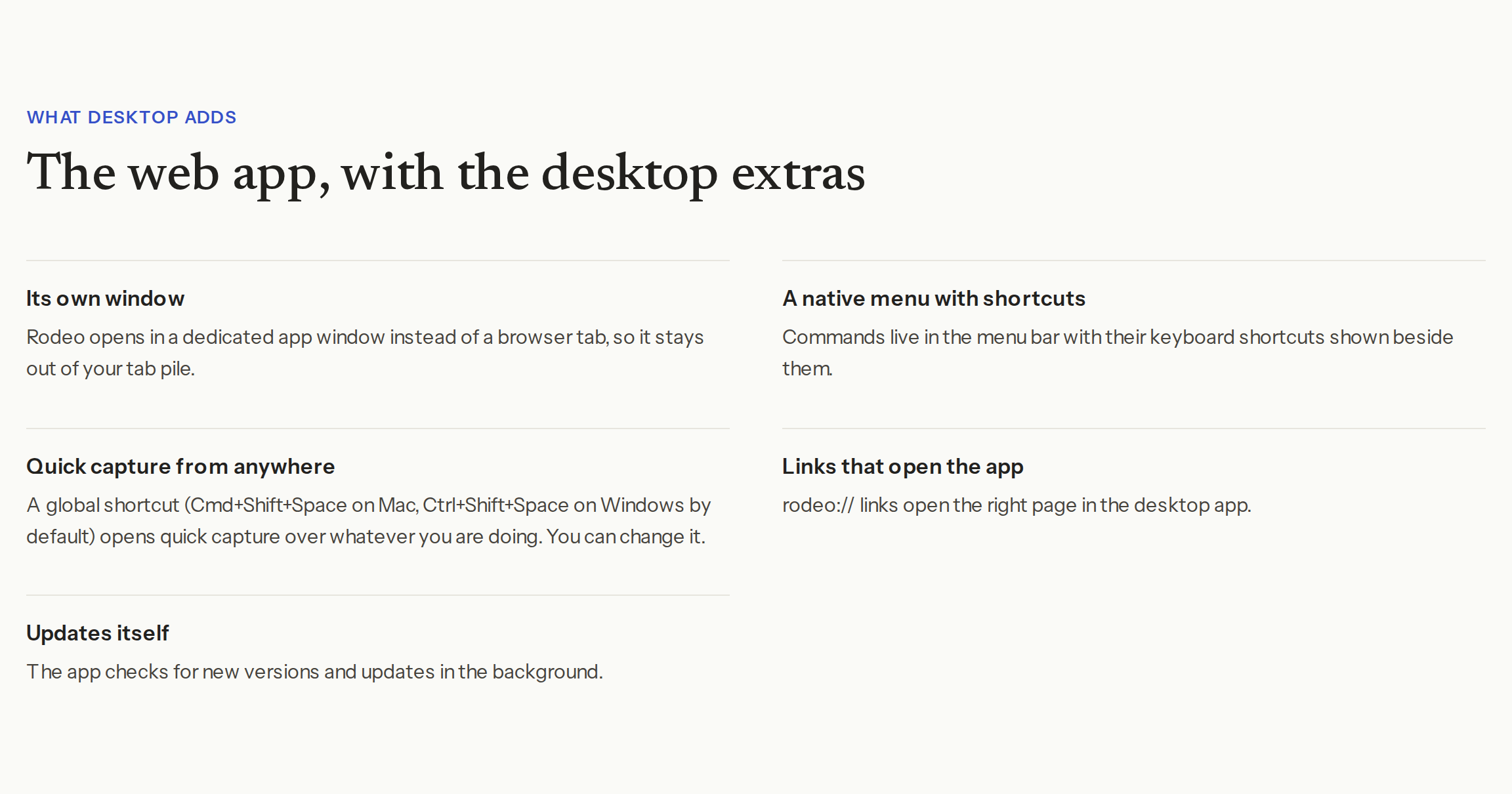
It's the same Rodeo as the web app, with the same pages, databases, boards and AI, plus the extras below. You don't lose anything by switching between them.
Do it
Install it
Go to rodeo.so/download. The page offers the download for your computer, with a link to the other platform under Also available.
Mac: open the downloaded file and drag Rodeo into your Applications folder. Windows: run the installer.
Open Rodeo and sign in. Email links work as usual. With Google, sign-in finishes in your normal browser and then hands you back to the app. See Sign up and sign in.
Rodeo reopens where you left off each time you start it.
Capture from anywhere
Press Cmd+Shift+Space on a Mac or Ctrl+Shift+Space on Windows, from any app. You can also choose File → Quick Capture.
A small window opens over what you're doing. Type into "Jot something down…". Pick the workspace if you have more than one.
Press Enter to save. The note goes onto your workspace's Quick notes page and the window hides. Shift+Enter starts a new line; Esc closes without saving.
To change the shortcut, open Settings (Cmd+, or Ctrl+,), go to the Desktop tab, click the shortcut under Quick capture, and press the new keys. If another app already uses them, Rodeo says Shortcut unavailable and keeps the old one.
Use the menu
Every command lives in the menu bar with its shortcut beside it. On Windows, use Ctrl for Cmd.
Menu | Highlights |
|---|---|
File | New Page (Cmd+N), New Database (Cmd+Shift+N), New Meeting Notes, New Tab (Cmd+T), New Window (Cmd+Shift+W), Quick Capture, Share…, Copy Page Link (Cmd+Shift+C), Add or Remove Favorite (Cmd+Shift+F), Move to Trash, Close Tab (Cmd+W), Reopen Closed Tab (Cmd+Shift+T) |
View | Toggle Sidebar (Cmd+\), Toggle Dark Mode, Zoom In, Zoom Out, Actual Size |
Go | Search Pages…, Ask Rodeo AI…, Back (Cmd+[), Forward (Cmd+]), Home (Cmd+Shift+H), Inbox (Cmd+Shift+I), Trash, Switch Workspace… |
Window | Next Tab (Ctrl+Tab), Previous Tab (Ctrl+Shift+Tab), Go to Last Tab (Cmd+9) |
On Windows, Back and Forward are Alt+Left and Alt+Right. Cmd+K still opens the command menu, as on the web. See Keyboard shortcuts.
Get notified
When someone mentions you, replies to you or assigns you something, the app shows a system notification, and its icon shows your unread count. Click a notification to jump to it. See Inbox and notifications.
Open links in the app
Links that start with rodeo:// open the right page in the desktop app, even when it isn't running.
Record calls for meeting notes
On the desktop app, Meeting notes can Include call audio: it records the sound from your computer, such as the other people on a video call, as well as your microphone. Call audio needs macOS 13 or later on a Mac.
Tips and limits
Requirements: macOS 13 (Ventura) or later, as one download for both Apple silicon and Intel Macs; or Windows 10 or later, 64-bit (x64).
Updates are automatic. The app checks for new versions and updates in the background. To check now, choose Check for Updates… (in the Rodeo menu on a Mac, the Help menu on Windows).
Help. Help → Rodeo Help opens the Rodeo guide at rodeo.so/guide in your browser.
Billing opens in your browser. Upgrading from the app takes you to checkout in your normal browser.
Same account, same data. Everything you do in the app is in the web app too, and the other way round.
The desktop app is free on every plan.
Ideas
A capture habit. Tunde keeps quick capture on Cmd+Shift+Space and empties the Quick notes page into the content calendar every Friday.
Two windows, side by side. Ada opens New Window to keep the client brief on one screen and the launch board on the other.
Call notes without a bot. Femi starts New Meeting Notes before a client call, turns on Include call audio, and gets a summary of both sides when it ends.
Troubleshooting
Windows warns about the installer. If Windows SmartScreen stops it, click More info, then Run anyway.
Google sign-in opened my browser and nothing happened. Finish signing in there. The browser hands you back to the app when it's done; if it asks, allow it to open Rodeo.
The quick capture shortcut does nothing. Another app may have taken it. Pick a new one under Settings → Desktop.
"Call audio isn't available on this system. Recording microphone only." Your Mac is older than macOS 13, or your system didn't allow audio capture. The meeting is still recorded from your microphone.