Editor AI: rewrite, translate and draft | Rodeo Docs
Editor AI rewrites the text you select, or writes new content from a prompt, right inside the page, so tightening a caption, fixing a client email or drafting a checklist takes one click instead of a trip to another app.
There are two ways to use it:
Transform works on text that's already there: select it, pick what to do, and the result replaces your selection.
Generate adds new content: insert an Ask AI block, describe what you want, and it writes it into the page.
Do it
Transform a selection
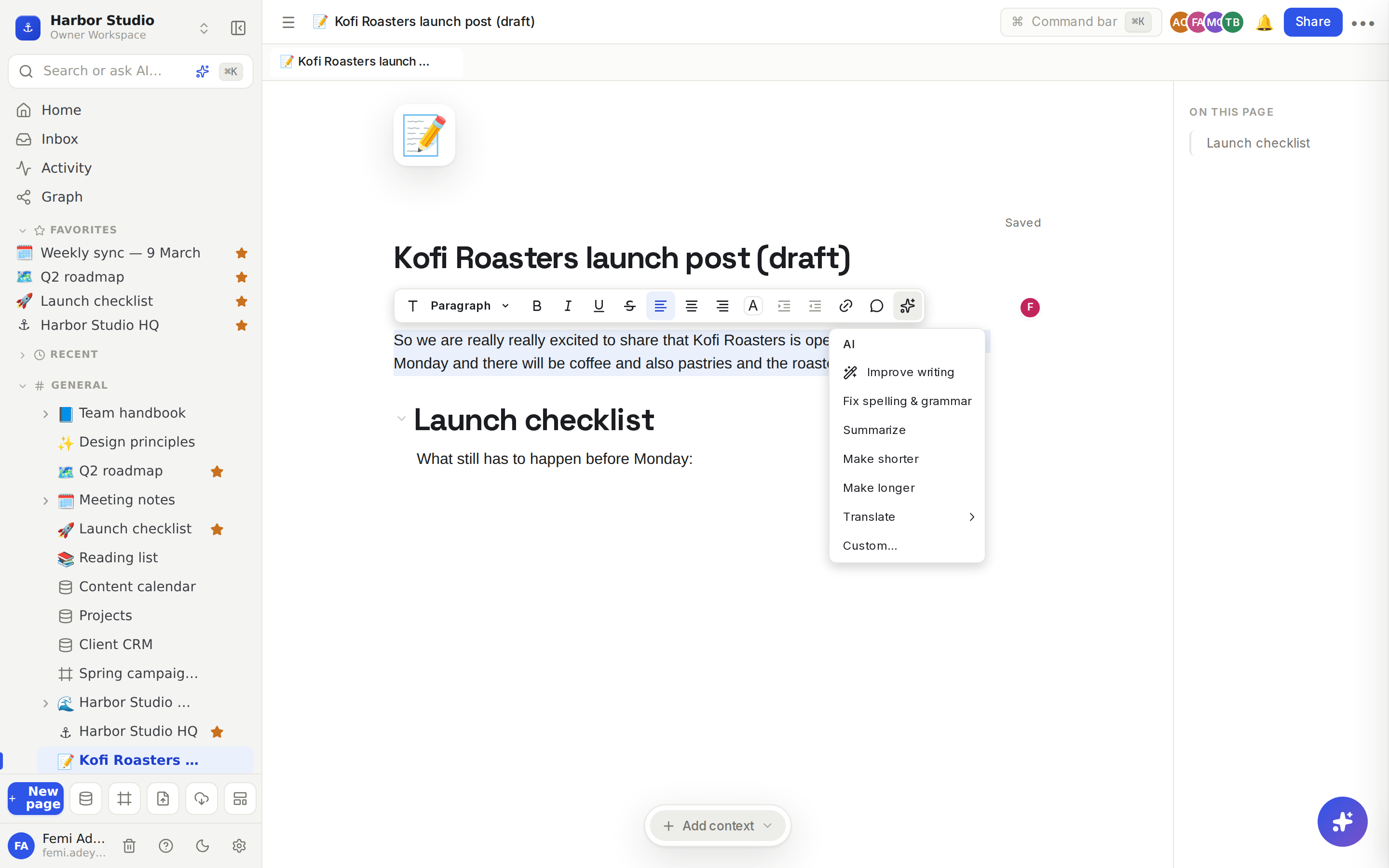
Select the text you want to change. The formatting toolbar appears.
Click AI (the sparkle button at the end of the toolbar).
Choose what to do:
Choice | What you get |
|---|---|
Improve writing | Clearer, smoother wording with the same meaning |
Fix spelling & grammar | Corrections only |
Summarize | A short summary of the selection |
Make shorter | A tighter version |
Make longer | A fuller version |
Translate | The selection in Spanish, French, German, Portuguese, Yoruba, Arabic, Chinese or Japanese, or Other… to type any language |
Custom… | Anything you describe, such as "turn this into three bullet points" |
The button shows AI… while it works, then your selection is replaced with the result.
Don't like it? Press ⌘Z (Ctrl+Z on Windows) to undo.
Generate with the Ask AI block
On an empty line, type /ai and choose Ask AI. A Rodeo AI box appears.
Describe what you want, for example "Draft a three-point launch checklist for the Kofi Roasters café opening".
Click Generate. The result appears in the block.
Click Regenerate for another take, or Edit prompt to change what you asked.
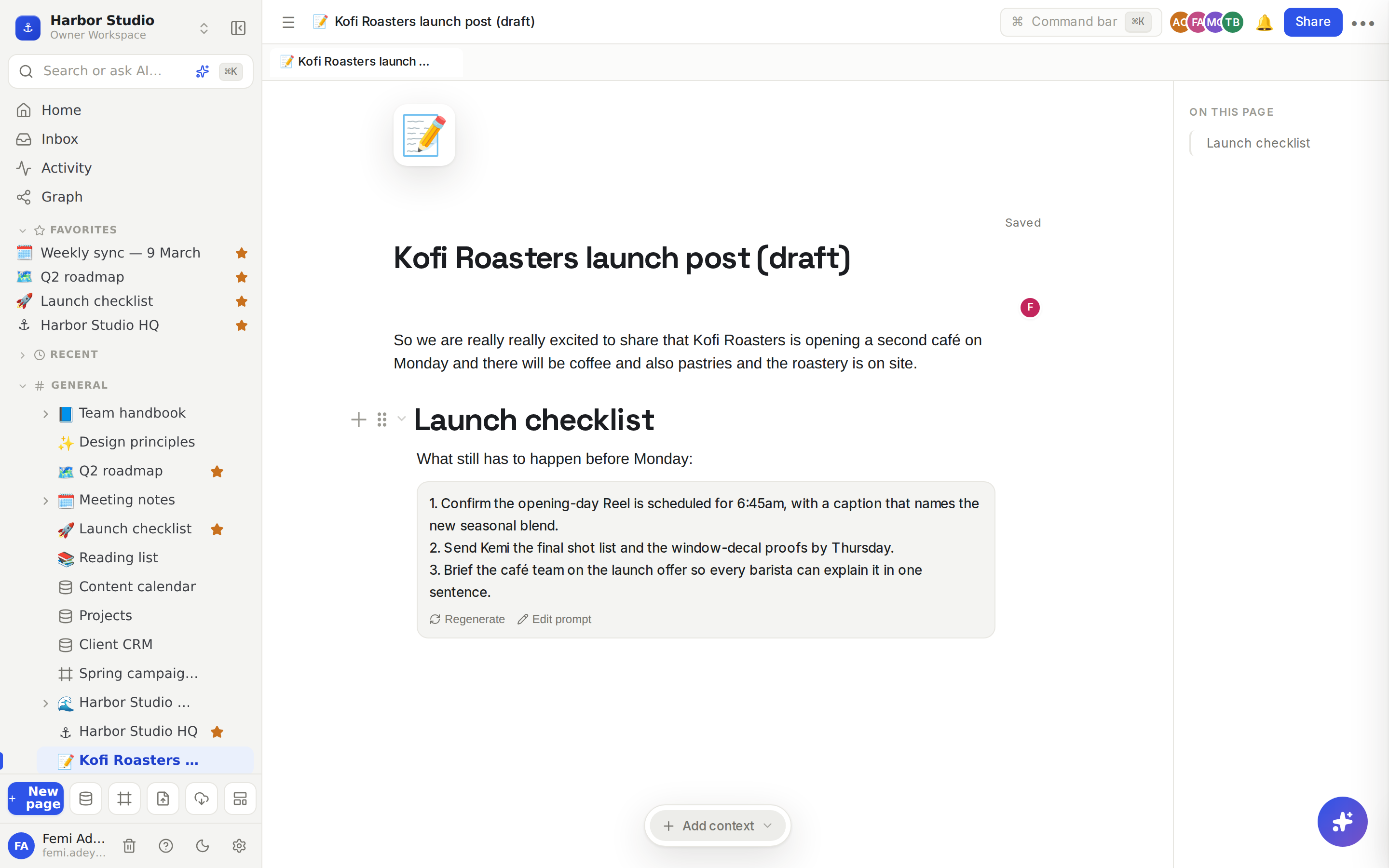
The prompt and the result are saved with the page, so the block is still there next time. More in The AI block.
Tips and limits
The AI button only appears when AI is available in your workspace, and only when you can edit or comment on the page.
In suggesting mode, the button says Suggest and the rewrite arrives as a suggested edit from "Rodeo AI on behalf of" you, for a teammate to accept or reject. People with comment access get this too. See Suggested edits.
Transform only sees your selection, not the rest of the page. Select a whole section if the AI needs it to get the tone right.
If nothing happens, the AI couldn't answer this time and your text is left exactly as it was. Try again in a moment.
Pace: each person can make up to 30 AI requests a minute.
Want AI actions made for a particular kind of page, like a script or a product spec? See Contexts.
Ideas
Translate for a local audience. Tunde writes the Kofi Roasters launch post in English, then selects it and chooses Translate → Yoruba for the Lagos community page.
One caption, three lengths. Select a caption and use Make shorter for Instagram, then undo and use Make longer for the newsletter.
A first draft for every meeting. Add an Ask AI block to your meeting template with the prompt "Draft an agenda for a client check-in", so each new meeting page starts with something to edit. See Templates.
Troubleshooting
I don't see the AI button. You have view-only access to the page, or AI isn't available in this workspace. Ask someone with edit access, or try Ask AI instead.
The Ask AI block says "AI isn't available right now." It couldn't generate this time. If your workspace is on the Founders' Deal, check whether this month's allowance is used up in Usage. Otherwise click Generate again in a moment.
The result replaced more than I wanted. Press ⌘Z to undo, then select only the words you want changed.