Ask AI: answers from your workspace | Rodeo Docs
Ask AI answers questions from your own workspace, like "What did we decide about Reels?", and shows exactly which pages the answer came from, so you get the decision in seconds and can check it in one click.
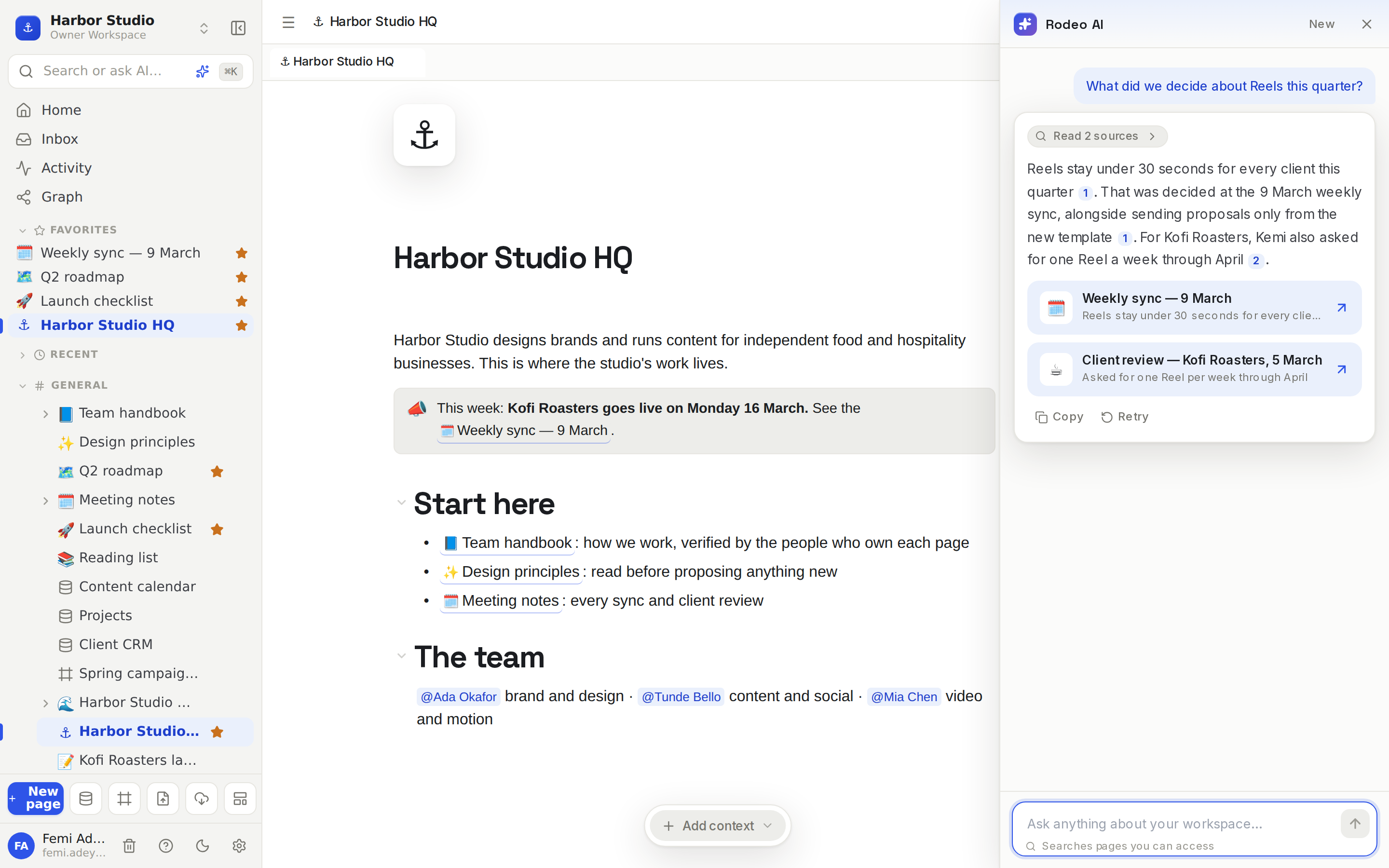
Rodeo keeps a search index of your pages. When you ask, it finds the passages most related to your question among the pages you can open, and writes an answer using only those, citing each one.
Do it
Ask a question
Click the sparkle button at the bottom right of any page (it says Ask AI when you hover it). The Rodeo AI panel opens on the right.
Type your question in "Ask anything about your workspace…" and press Enter. Use Shift+Enter for a new line.
Or click one of the starter questions, such as "What did we decide recently?".
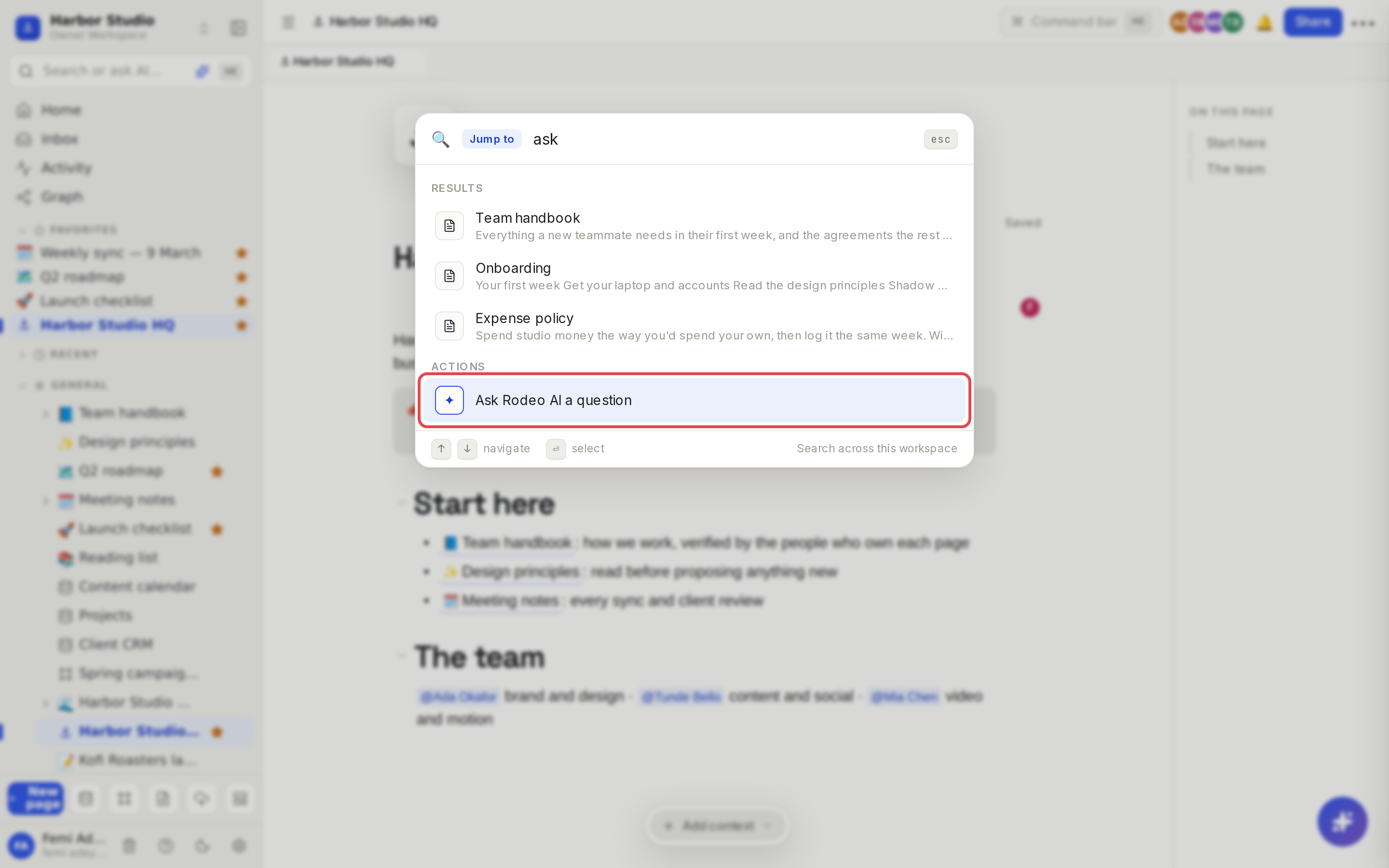
You can also press ⌘K (Ctrl+K on Windows), type ask and choose Ask Rodeo AI a question.
Read and check the answer
Numbers like [1] in the answer are citations. Click one to open the page it came from.
The line above the answer says how many pages were read, for example Read 2 sources. Click it to see them.
The cards under the answer show each source page with a snippet. Click a card to open the page.
Copy puts the answer on your clipboard. Retry asks again.
Start over or close
Click New at the top of the panel to clear the conversation, and ✕ or Esc to close it.
Tips and limits
It only reads what you can open. Answers and citations come only from pages you have access to. A guest asking the same question gets an answer from just the pages shared with them. See Sharing and access requests.
Each question stands alone. Ask AI doesn't remember your previous question, so include the details each time: "What did Kofi Roasters ask for in the 5 March review?" works better than "What did they ask for?".
Up to 4 source pages are cited in one answer.
No answer? If nothing related turns up, it says "I couldn't find anything relevant in the pages you can access." Try the words your team actually uses on the page.
New pages take a moment. Pages are added to the search index in the background, so a page you wrote a minute ago may not be found straight away.
Stale sources are flagged. If a source is a wiki page whose verification has expired, its card says "This source expired …". See Wiki and page verification.
AI usage per plan: each question counts as one AI request. Free, Starter, Team and Business have no monthly cap. The Founders' Deal includes 200 AI requests a month per workspace, shared by Ask AI and editor AI; it resets on the 1st. See Usage.
Pace: each person can make up to 30 AI requests a minute.
One workspace at a time. Answers draw only on the workspace you're in. See Plans and limits for how AI fits each plan.
Ideas
The decision log you never wrote. "What did we decide about Reels this quarter?" pulls the answer from the weekly sync, with a link to the meeting.
Onboarding on demand. A new hire asks "How do I get an expense approved?" and gets the answer from the handbook's expense policy, with the page to read in full. See Wiki and page verification.
Client prep in a minute. Before a call, Ada asks "What has Kofi Roasters asked for since February?" and opens the cited review notes on her way in.
Troubleshooting
It says "AI isn't available right now." AI couldn't answer this time. If your workspace is on the Founders' Deal, you may have used this month's 200 requests; they reset on the 1st. Otherwise, wait a moment and click Retry.
It didn't find a page I know exists. The page may be in a space or shared page you can't open, or it may be too new to be indexed yet. Try again in a minute.
The answer is wrong. Click the citation and check the source page. If the page itself is out of date, fix it, so the next answer is right too.