Database properties | Rodeo Docs
Properties are a database's columns: typed fields like a status, a date, an owner or a budget, so every row carries the same facts and every view can sort, filter and chart by them.
Do it
Add a property
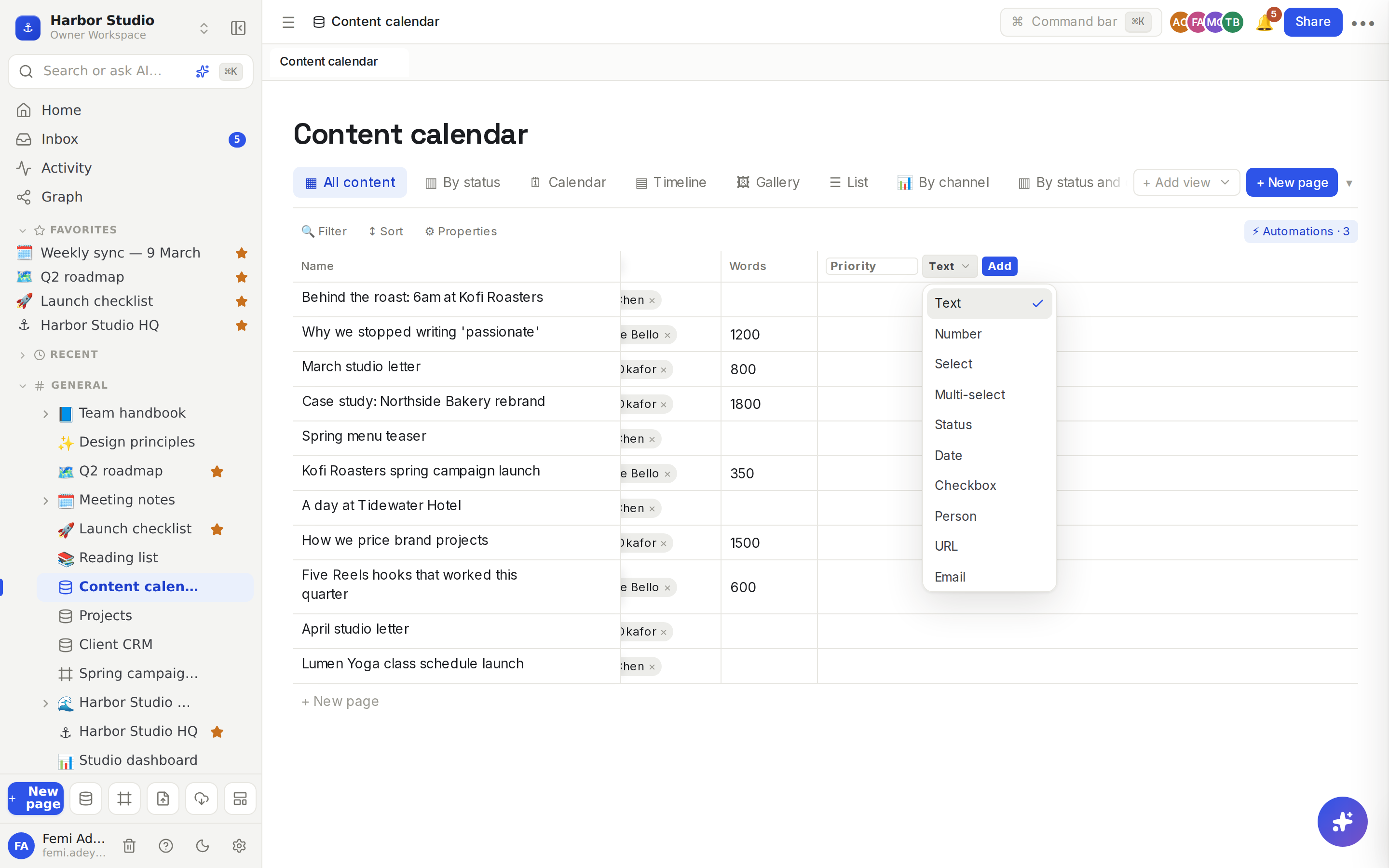
In a table view, click + at the right end of the header row.
Type a Name, for example "Owner".
Pick the type from the list next to it.
Click Add. The new column appears in every view.
The property types
Type | Holds | Good to know |
|---|---|---|
Text | Any text | The first column, Name, is always text: it's the row's title. |
Number | A number | Can be summed in a Chart view and in rollups. |
Select | One option | Coloured options; a board can group by it. |
Multi-select | Several options | Shown as tags. Type a new tag with New tag…. |
Status | One option | Like Select, for stages such as Idea → Published. |
Date | A date | Drives the Calendar view and Timeline view. |
Checkbox | Yes or no | Filter with is checked and is unchecked. |
Person | One or more members | Adding someone sends them a notification. |
URL, Email, Phone | Text | Typed for clarity and for forms. |
Files & media | Uploaded images | The first one becomes the card cover in a Gallery view. |
Created time, Last edited time | When the row was made or changed | Filled in for you. |
Created by, Last edited by | Who made or changed the row | Filled in for you. |
Relation | Links to rows in another database | |
Rollup | A total over linked rows | |
Formula | A value computed from other properties | See Formulas. |
Edit a property
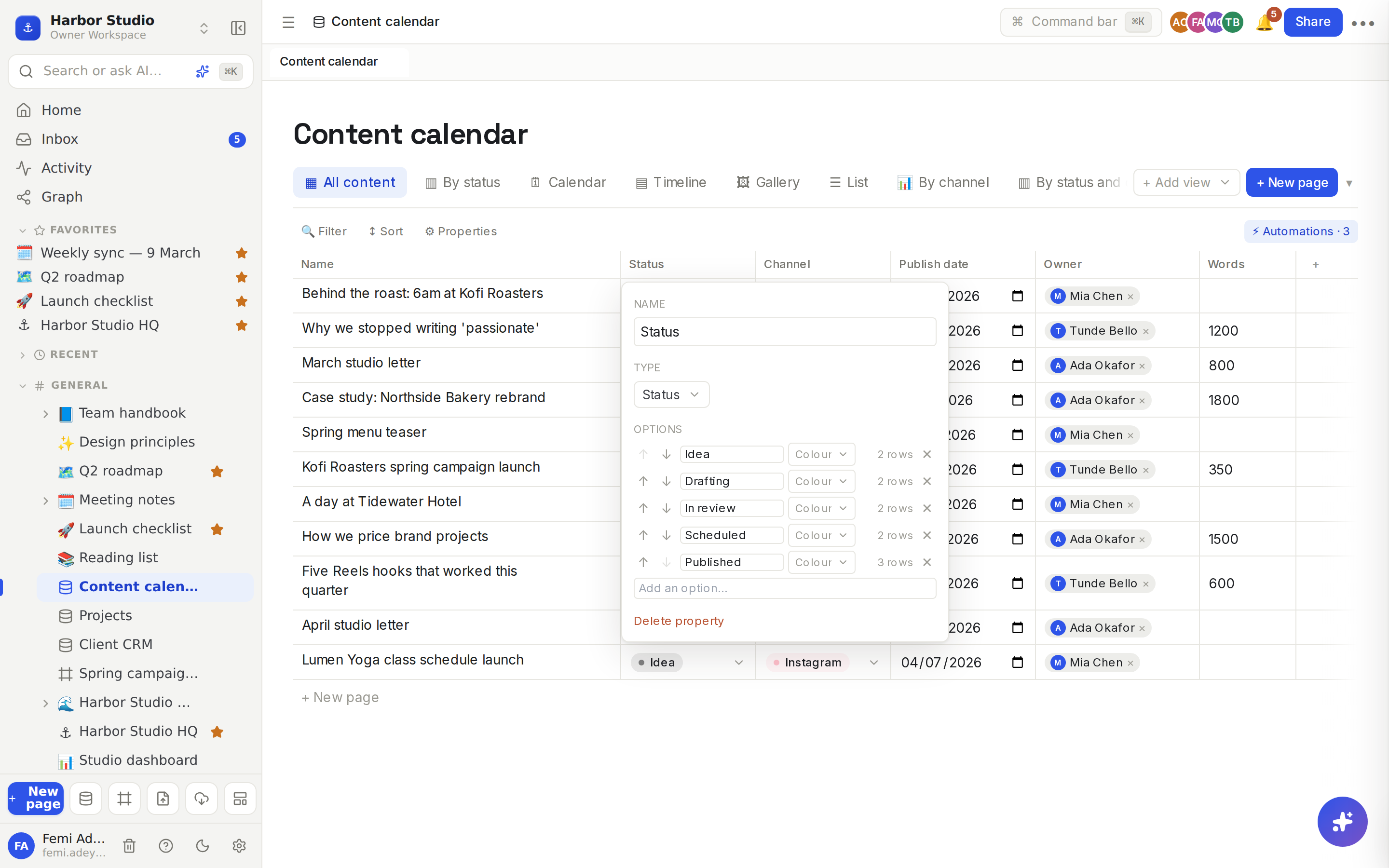
Click a column's name in the header. The property menu opens:
Name: rename it. Formulas that use the old name are updated for you.
Type: change it (see below).
Options (select, status and multi-select): rename an option in place, change its Colour (Gray, Brown, Orange, Yellow, Green, Blue, Purple, Pink or Red), reorder with the arrows or by dragging, add one in Add an option…, or remove one with ✕. Each option shows how many rows use it, and removing a used option asks first, because those cells are cleared.
Formula (formula properties): edit the expression. See Formulas.
Delete property: removes the property and every value in it, after a confirmation that says how many cells are filled. It's also cleared from every view's filters, sorts and grouping.
Press Esc or click outside to close the menu.
Change a property's type safely
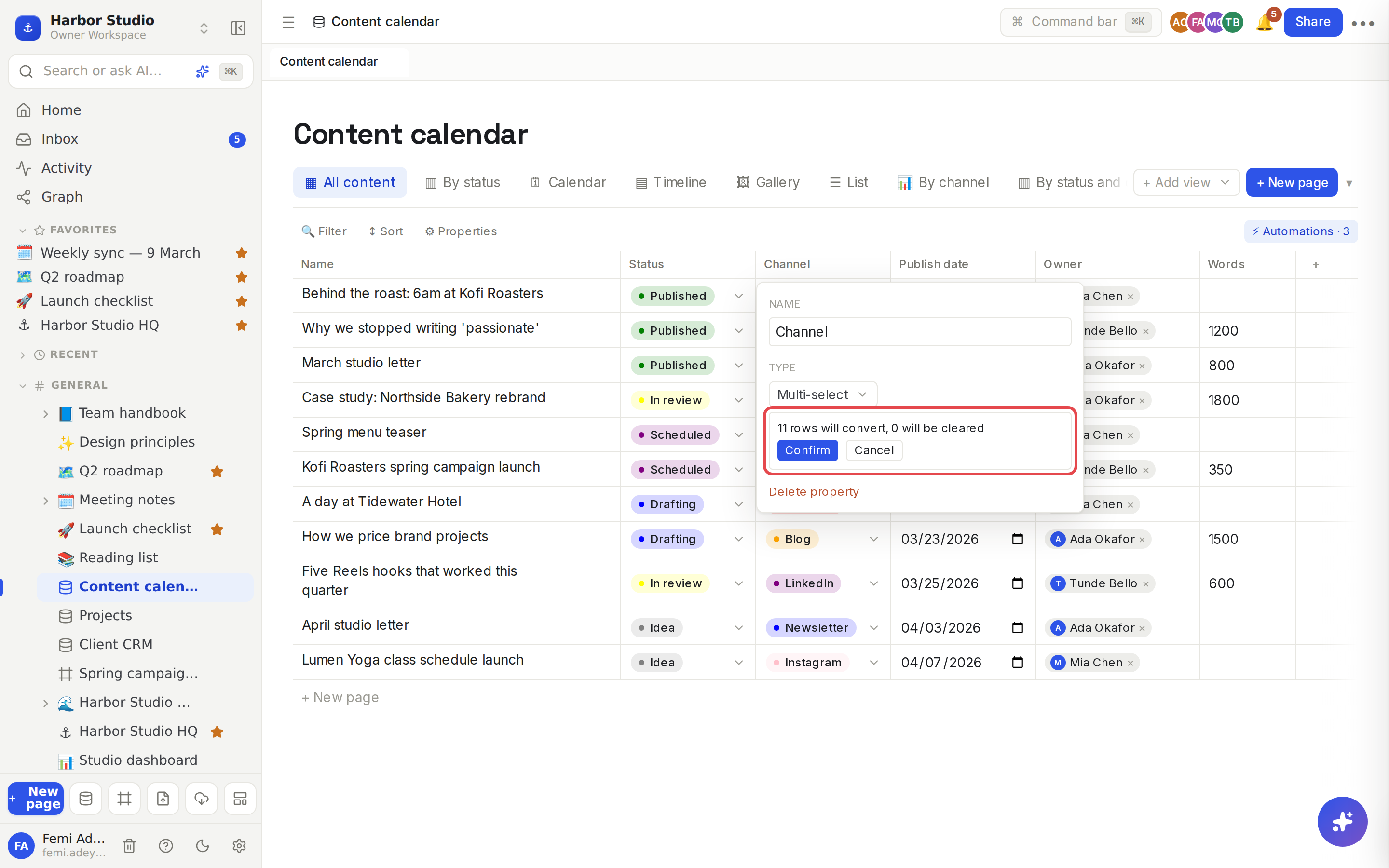
Open the property menu and pick a new Type.
Rodeo checks every row first and tells you what will happen, for example "11 rows will convert, 0 will be cleared", with a sample of any values it can't convert and any new options it will create.
Click Confirm to convert, or Cancel to leave it alone.
How values convert:
Text to Select or Status makes an option for each distinct value. Text to Multi-select splits values at commas.
Text to Number keeps the values that are numbers.
Text to Date keeps dates written as year-month-day, like 2026-03-16.
Text to Checkbox reads true, yes, 1, x and ✓ as checked, and false, no, 0 or blank as unchecked.
Row templates and automations that set this property are converted too, and the summary says how many.
Tips and limits
The title property can be renamed but not retyped or deleted, and it stays pinned on the left of a table.
Relation, Rollup and Formula need setting up, so you can add them as new properties but not convert an existing property into one.
Files & media accepts PNG, JPEG, GIF and WebP images up to 10 MB each.
Dates are single days, picked from the date picker. For a span, add a second date property; the timeline uses it as the end.
Assignments notify. When you add someone to a Person property, they get an "assigned you" notification in their Inbox, and by email unless they've chosen a digest. See Inbox and notifications.
Every property type works on every plan.
Ideas
A status everyone agrees on. Make Status options Idea, Drafting, In review, Scheduled and Published, colour them, and the board columns follow in that order.
Ownership with a nudge. Add an Owner person property to the content calendar; whoever is added hears about it straight away.
Clean up an import. After Import from CSV, every column is text. Convert "Retainer" to Number and "Stage" to Status, and read the summary before you confirm.