Present a page as slides or a teleprompter | Rodeo Docs
Any page can become a slide deck in one click, or roll past on a full-screen teleprompter, so the doc you wrote is the deck you present and the script you read, with nothing to copy across.
Do it
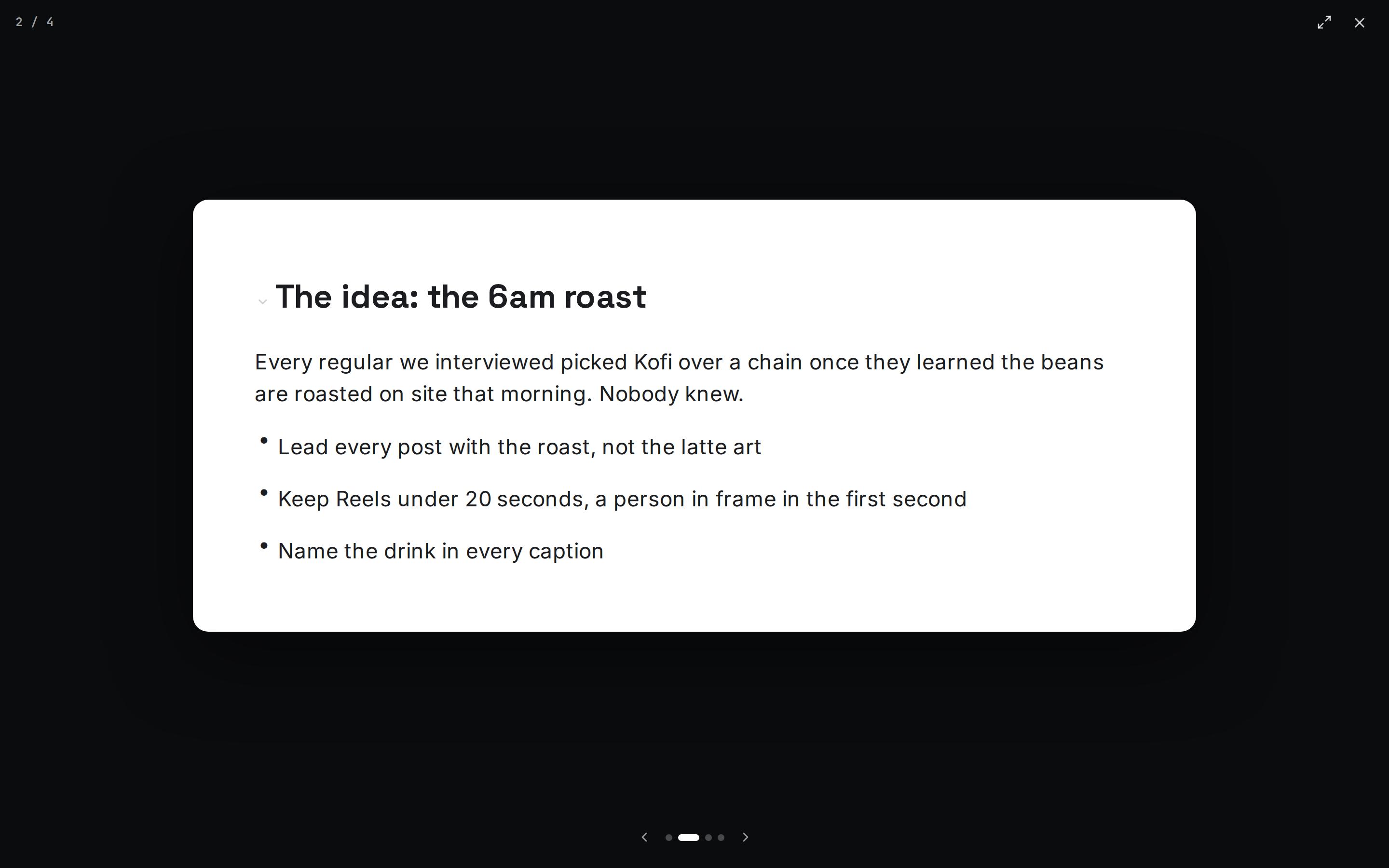
Present a page as slides
Write the page with a heading for each slide (Heading 1 or Heading 2).
Press ⌘⇧P (Ctrl+Shift+P on Windows), or hover the title and click Present.
Move through the slides with the arrow keys, Space or Enter, or click the right or left edge of the screen. Home and End jump to the first and last slide.
Click the full-screen button at the top right to fill the screen, and the × to stop. Esc also stops; in full screen, the first Esc leaves full screen and the second stops.
How Rodeo splits the page:
If the page has dividers (---), each divider starts a new slide, and headings stay on the slide they're on.
Otherwise, each Heading 1 or Heading 2 starts a new slide. Anything above the first heading becomes the opening slide.
Read from the teleprompter
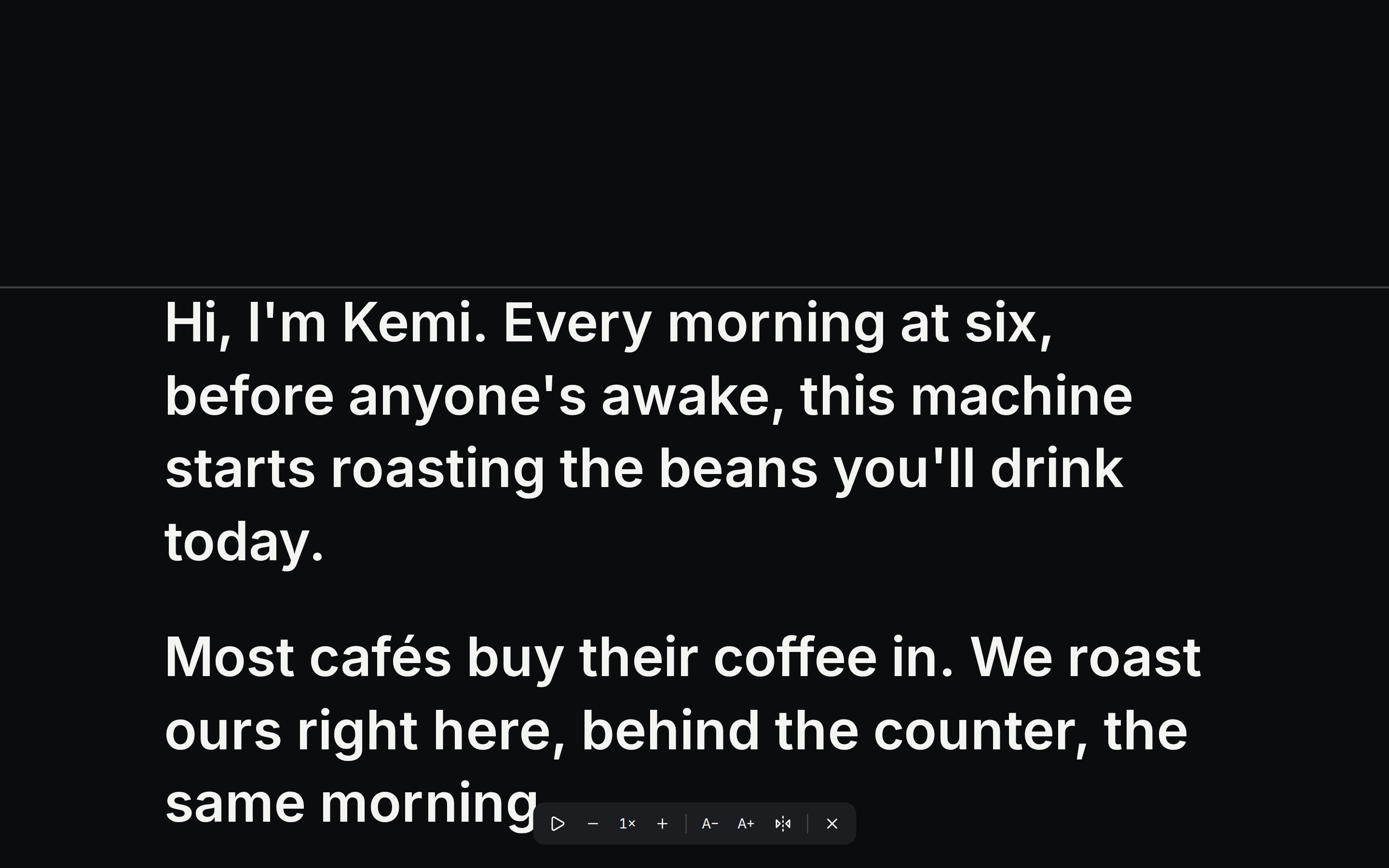
Hover the title and click Teleprompter. The page's text fills the screen in large type, with a reading line a third of the way down.
Press Space (or click Play). After a 3-2-1 countdown, the text scrolls up.
Adjust while you read with the controls at the bottom, or the keys below.
Press Esc, or click Close teleprompter, to finish.
Key | In the teleprompter |
|---|---|
Space | Play or pause |
↑ / ↓ | Faster / slower |
→ / ← | Next / previous paragraph |
+ / − | Larger / smaller text |
M | Mirror the text, for a glass prompter |
Esc | Close |
Tips and limits
Formatting carries over to slides: headings, lists, bold, images and quotes look the same as on the page. HTML blocks run on their slide too. See Embeds and HTML.
An empty page shows "Nothing to present yet", with a hint to add headings or dividers.
The teleprompter reads text only. Headings, lists and paragraphs become plain paragraphs; formatting and images are left out.
Teleprompter speed goes from 0.25× to 4×, and text size from 32 to 120 pixels. Rodeo remembers your speed, size and mirror setting in this browser.
Scrolling stops at the end of the script.
Anyone who can open the page can present it or read it on the teleprompter.
Present and teleprompter work on every plan.
Ideas
The pitch is the brief. Write the Kofi Roasters pitch as a page with a Heading 2 per slide. Present it on the call, then share the same page afterwards as the written proposal.
Monday planning without a deck. Put a divider between each client's update in the weekly sync and present it on the studio TV, one client per slide.
Record a Reel in one take. Mia writes the script on a page, Kemi reads it from the teleprompter on a laptop beside the camera, mirrored for the glass rig.