Nodes and wires on a board | Rodeo Docs
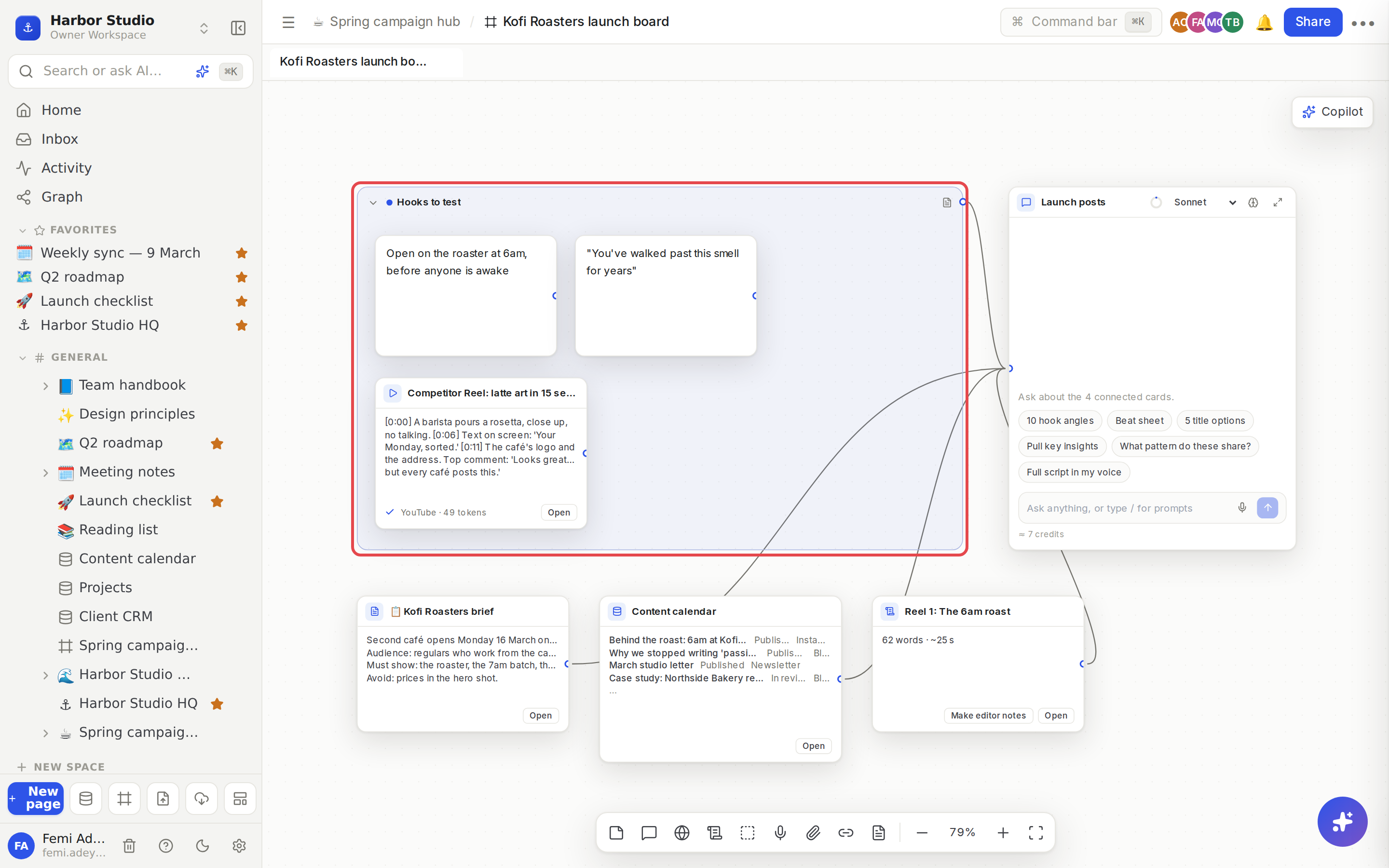
Everything on a board is a card, and a wire from a card into a chat is how you tell the AI "read this": a chat reads exactly the cards wired into it and nothing else, so you always know what an answer is based on.
Do it
Know your cards
Card | What it is | How to add it |
|---|---|---|
Note | Plain text you write on the board. Edited live with your teammates. | N, or double-click empty canvas |
Group | A frame that holds cards, with a name. | G, or select cards and press ⌘G |
Source | A link, file, image or voice note, read into text the AI can use. See Sources. | L, U, V or ⌘V |
Page | A live preview of a Rodeo page or database row: its icon, title and first lines. | Drag it from the sidebar, or paste its link |
Database | A live preview of a database's first rows. | Drag it from the sidebar, or paste its link |
Script | A page for a script, kept under the board. See Scripts and editor notes. | S |
Chat | An AI conversation that reads the cards wired into it. See AI chats and credits. | C, or R for a research chat |
Write a note
Double-click empty canvas, or press N.
Type. Press Esc when you're done.
To edit it later, double-click it, or select it and press ↵.
Group cards
Select the cards (hold Shift as you click) and press ⌘G. Or press G for an empty group and drag cards into it.
Double-click the group's name to rename it.
Click the arrow beside the name to collapse the group to its title bar, and again to open it.
Drag a card into a group and drop it so its middle is inside the frame: it joins the group and moves with it from then on. Drag it out to take it out. Deleting a group leaves its cards on the board.
Wire cards into a chat
Every card except a chat has a small round handle on its right edge. A chat has one on its left.
Press the handle on the right of a card.
Drag to the chat and let go on it. A wire appears.
To remove a wire, click it and press Delete.
Wiring a group wires everything in it, so you can wire ten sources with one wire and add an eleventh by dropping it into the group.
Wires only run into chats: from a note, group, source, page, database or script. You can't wire a chat into a chat, a card into itself, or the same card into the same chat twice. One card can feed as many chats as you like.
Open a card
Double-click a card, or select it and press ↵:
a source opens in the reader, with its full text;
a page or script opens in the side peek, ready to read or edit;
a database opens in a new tab.
Page and database cards also have an Open button.
Resize and arrange
Select a note, chat or group and drag the handles on its corners to resize it. Drag any card by its body (or a chat by its title bar) to move it.
Tips and limits
Pages stay pages. A page or database card is a live window onto the real thing. Edit the page and the card updates. Nothing is copied.
People only see what they can open. If a teammate can't open a page on the board, its card says "Private page" and shows nothing else. A chat reads pages, databases, rows and scripts with the access of the person who sends the message, and skips anything they can't open.
Pasting a Rodeo link to a page, row or database makes a live card for it rather than a web source. A board can't be placed on a board.
What a chat reads from a database: its rows as a table, up to 500 rows.
A chat can have up to 200 cards wired into it.
A board holds up to 5,000 cards.
Cards and wires work the same on every plan.
Ideas
One group per angle. Make a group for each campaign angle ("Behind the scenes", "Regulars", "Price"), wire each group into its own chat, and compare what each chat suggests.
Your brief in every answer. Drag the client brief page onto the board and wire it into every chat, so each reply respects what Kofi Roasters asked for.
Plan against the calendar. Wire the content calendar database into a chat and ask which weeks are thin, then send the answer back to the board as a note.
Troubleshooting
The wire won't connect. Start from the handle on the right of the card and drop on a chat. Wires only run into chats.
A card says "Private page" or "You can't open this page, or it was deleted." You don't have access to that page, or it's in the trash. Ask its owner to share it with you. See Sharing and access requests.