Rodeo keyboard shortcuts | Rodeo Docs
Keep your hands on the keys: these are all of Rodeo's shortcuts, from formatting a heading to zooming a board, so you can move as fast as you think.
On Windows and Linux, use Ctrl for ⌘, Alt for ⌥, and Shift for ⇧.
Everywhere
Keys | Does |
|---|---|
⌘K | Open the command menu: search pages, or run a command such as New page, Toggle dark mode or Sign out |
Esc | Close the open menu, dialog or peek |
⌘-click a page link or database row | Open it as a full page instead of in peek |
Writing in the editor
Keys | Does |
|---|---|
| Insert a block |
| Mention a person, link a page or insert a date |
| Link a page (the same menu as |
⌘B / ⌘I / ⌘U | Bold / italic / underline |
⌘⇧S | Strikethrough |
⌘E | Inline code |
⌘. / ⌘⇧, | Superscript / subscript |
⌘⌥0 | Turn the line into a paragraph |
⌘⌥1 to ⌘⌥6 | Heading 1 to 6 |
⌘⌥Q | Quote |
⌘⇧6 | Toggle list |
⌘⇧7 / ⌘⇧8 / ⌘⇧9 | Numbered / bullet / check list |
Tab / ⇧Tab | Nest the block under the one above / bring it back out |
⌘⇧↑ / ⌘⇧↓ | Move the block up / down |
⌘Z / ⌘⇧Z (or ⌘Y) | Undo / redo |
Markdown as you type
At the start of a line: #, ## or ### and a space for headings, - or * and a space for a bullet, 1. and a space for a numbered list, [] and a space for a check list, > and a space for a quote, three backticks and a space for a code block, and --- for a divider. See The editor in two minutes.
Pages
Keys | Does |
|---|---|
⌘⇧P | Present the page as slides (see Present and teleprompter) |
⌘J | Open the context picker on a page with a context (see Contexts) |
While presenting
Keys | Does |
|---|---|
→, ↓, Page Down, Space or Enter | Next slide |
←, ↑ or Page Up | Previous slide |
Home / End | First / last slide |
Esc | Stop presenting |
In the teleprompter
Keys | Does |
|---|---|
Space | Play or pause |
↑ / ↓ | Faster / slower |
← / → | Jump back / forward |
+ / − | Bigger / smaller text |
M | Mirror the text |
Esc | Close |
Boards
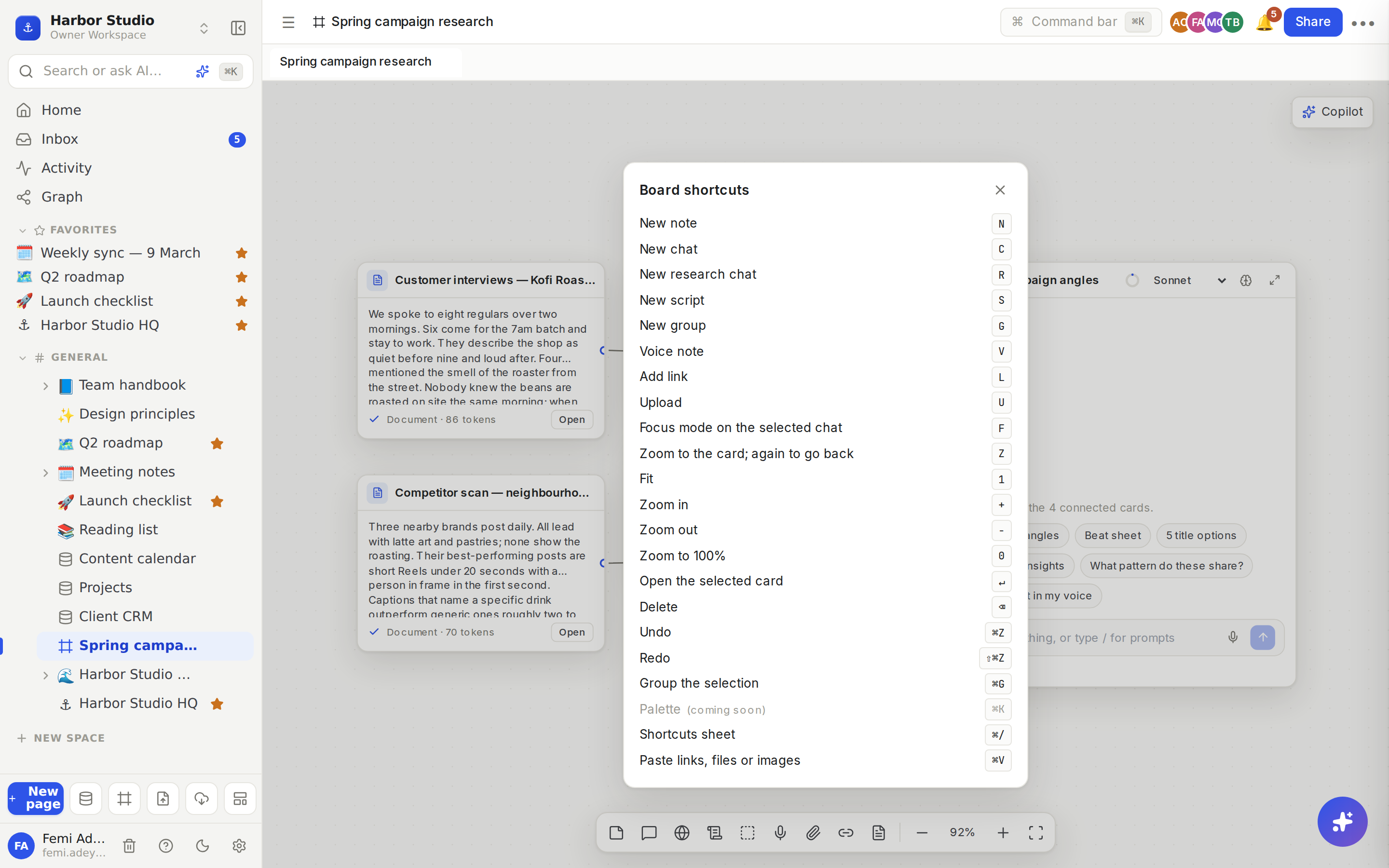
Single keys work when you aren't typing in a card. Press ⌘/ on a board to see this list. See What a board is.
Keys | Does |
|---|---|
N | New note |
C | New chat |
R | New research chat |
S | New script |
G | New group |
V | Voice note |
L | Add link |
U | Upload |
F | Focus mode on the selected chat |
Z | Zoom to the card; press again to go back |
1 | Fit everything on screen |
+ / − | Zoom in / out |
0 | Zoom to 100% |
Enter | Open the selected card |
Backspace | Delete the selection |
⌘G | Group the selection |
⌘Z / ⌘⇧Z | Undo / redo |
⌘V | Paste links, files or images onto the board |
⌘/ | Show the shortcuts sheet |
In a board chat or Ask AI, Enter sends and ⇧Enter starts a new line. In a board chat, ⌘Enter sends too.
Desktop app
The desktop app adds these from its menu bar. See Desktop app.
Mac | Windows | Does |
|---|---|---|
⌘⇧Space | Ctrl+Shift+Space | Quick capture, from any app (you can change it) |
⌘N | Ctrl+N | New page |
⌘⇧N | Ctrl+Shift+N | New database |
⌘⇧C | Ctrl+Shift+C | Copy link to the page |
⌘⇧F | Ctrl+Shift+F | Add to or remove from favorites |
⌘[ / ⌘] | Alt+Left / Alt+Right | Back / forward |
⌘⇧H | Ctrl+Shift+H | Go to Home |
⌘⇧I | Ctrl+Shift+I | Go to Inbox |
⌘, | Ctrl+, | Open settings |
⌘\ | Ctrl+\ | Show or hide the sidebar |
⌘T | Ctrl+T | New tab (pick a page) |
⌘W | Ctrl+W | Close the tab, or the window when no tab is open |
⌃Tab / ⌃⇧Tab | Ctrl+Tab / Ctrl+Shift+Tab | Next / previous tab |
⌘⇧T | Ctrl+Shift+T | Reopen the last closed tab |
⌘1 to ⌘8 | Ctrl+1 to Ctrl+8 | Go to tab 1 to 8 |
⌘9 | Ctrl+9 | Go to the last tab |
⌘⇧W | Ctrl+Shift+W | New window |
⌘= / ⌘- / ⌘0 | Ctrl+= / Ctrl+- / Ctrl+0 | Zoom in / out / actual size |
In the browser, these are commands in the ⌘K menu instead.