Rodeo on desktop, mobile and the web | Rodeo Docs
Rodeo works in any modern browser, and the same workspace also comes as a desktop app for Mac and Windows, a companion app for your phone, and a browser extension that saves web pages straight into Rodeo, so your work is wherever you are.
Everything stays in sync. A page you edit on your laptop is there on your phone a moment later, and a clip you save in your browser shows up for your whole team. You sign in to each one with the same account. See Sign up and sign in.
Do it
The web app
Go to rodeo.so and sign in.
That's all. Bookmark it, or pin the tab. Nothing to install, and it's always the latest version.
The desktop app
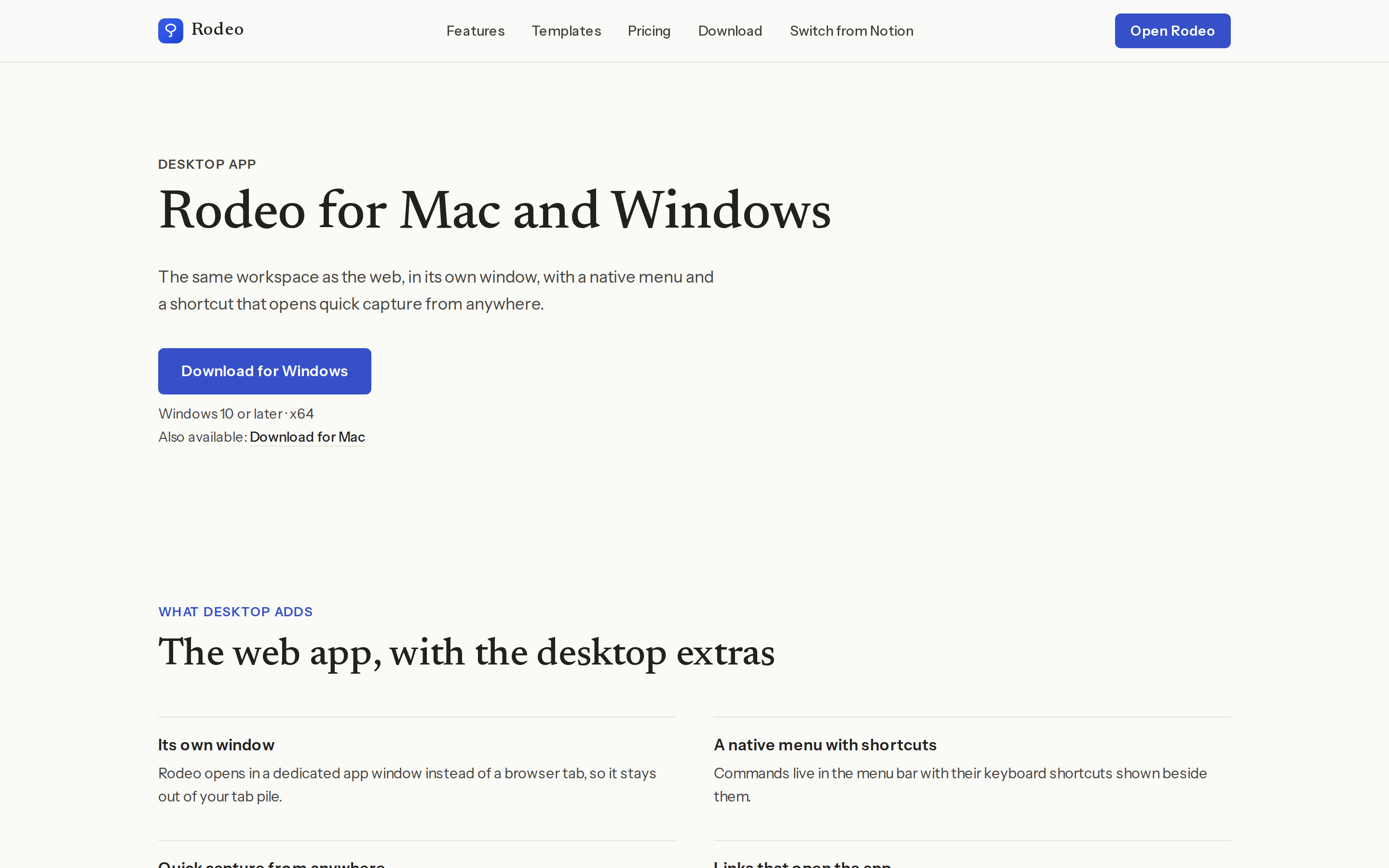
Go to rodeo.so/download and download the app for your computer.
Install it and sign in. With Google, sign-in finishes in your browser and then hands you back to the app.
Press Cmd+Shift+Space on a Mac, or Ctrl+Shift+Space on Windows, from any app to open quick capture and jot something into Rodeo without switching windows.
The desktop app gives Rodeo its own window instead of a browser tab, a menu bar with every command and its keyboard shortcut, and rodeo:// links that open the right page in the app. It updates itself in the background. Full details in Desktop app.
The mobile app
Install Rodeo on your iPhone or Android phone. The app is on its way to the App Store and Google Play; this page will link to it as soon as it's listed.
Sign in with an email link or Google. On iPhone you can also use Sign in with Apple.
Browse your spaces and pages, search, read, comment and make quick edits. Tap the capture button to start a new page in a second.
The phone app is a companion, built for reading, capturing and light editing on the go. Pages you've opened stay readable when you lose signal. Full details in Mobile app.
The web clipper
Add the Rodeo Clipper to Chrome, Edge or Firefox.
Click the Rodeo Clipper button in your browser's toolbar and choose Sign in to Rodeo.
On any web page, open the clipper, choose Whole page or Selection, pick where to save it under Save to, add Tags if you like, and click Clip.
Click Open in Rodeo to see the saved clip.
You can save into your Clips database, under a page, or as a new row in any database. Full details in Web clipper.
Tips and limits
One account everywhere. Use the same email or Google account in every app and you'll see the same workspaces.
Desktop requirements: macOS 13 (Ventura) or later, as one download for both Apple silicon and Intel Macs, or Windows 10 or later, 64-bit (x64).
Change the quick capture shortcut in the desktop app if Cmd+Shift+Space or Ctrl+Shift+Space clashes with another app.
Clips are capped at 2 MB. A very long page may be too large to clip whole; clip a selection instead.
Your Clips database is shared. The clipper creates it in the workspace you choose, and members of that workspace can see it.
Firefox needs version 140 or later for the clipper.
All three apps work on every plan, including Free.
Ideas
Capture between meetings. Tunde keeps the desktop app open all day and hits the quick capture shortcut whenever a content idea strikes, then sorts the captures into the content calendar on Friday.
Client review on the train. Femi reads the "Kofi Roasters" brief on his phone on the way to the café and leaves comments for Ada before he walks in.
A research wall for every pitch. Mia clips competitors' menus and press coverage into one database with the tag "Kofi Roasters", then the team turns the best of it into a board. See What a board is.