Lists, to-dos and toggles | Rodeo Docs
Lists turn a wall of text into steps, options and to-dos, and toggles fold the detail away until someone needs it, so a checklist or a plan stays short enough to read.
Do it
Make a list
At the start of a line, type:
Type | To get |
|---|---|
| Bullet list |
| Numbered list |
| Check list (an unticked to-do) |
| Check list, already ticked |
Or choose Bullet List, Numbered List, Check List or Toggle List from the / menu.
Press Enter for the next item. Press Enter on an empty item to end the list.
Nest items
Press Tab to indent an item under the one above it.
Press Shift+Tab to bring it back out.
Numbered lists number each level on their own, so sub-steps count 1, 2, 3 again.
Tick things off
Click the box beside a check list item to tick it. Everyone on the page sees it ticked straight away.
Add a toggle
Type /toggle and choose Toggle List, or press ⌘⇧6 (Ctrl+Shift+6 on Windows).
Type the toggle's title, then press Enter and Tab to put lines inside it.
Click the arrow on the left to open or close it. An empty open toggle says "Empty toggle. Click to add a block."; click that to start filling it.
Anything can go inside a toggle: paragraphs, lists, images, even other toggles.
Tips and limits
Shortcut | What it does |
|---|---|
⌘⇧7 | Numbered list |
⌘⇧8 | Bullet list |
⌘⇧9 | Check list |
⌘⇧6 | Toggle list |
Tab / Shift+Tab | Indent / outdent |
On Windows, use Ctrl for ⌘.
Turn a list into another kind by right-clicking an item and choosing Turn into. See Text and headings.
Toggle headings fold a whole section under a heading. See Text and headings.
Tasks with owners and due dates belong in a database, where they show up on Home under Your tasks. See Database basics.
Lists and toggles work the same on every plan.
Ideas
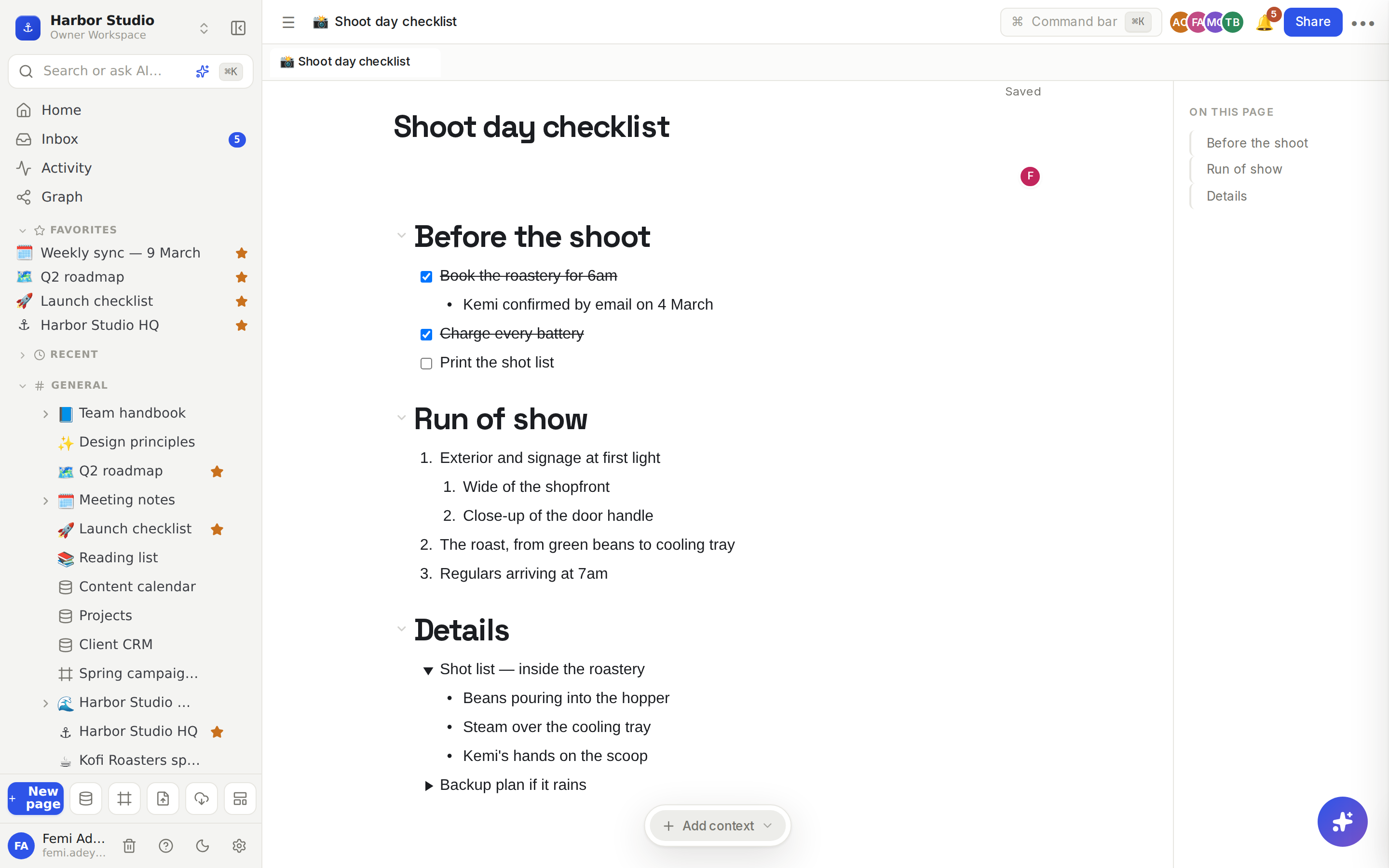
A shoot-day checklist. A check list for the night before, a numbered run of show with sub-steps for each set-up, and the shot list folded into a toggle so the page fits on a phone screen.
Meeting actions with owners. Under "Action items", one check list item per task, starting with an @ mention of who owns it, for example "@Tunde draft the launch post". See Page mentions and links.
An FAQ that answers itself. Each question is a toggle; the answer sits inside. Readers open only what they need.