Database basics | Rodeo Docs
A database is a collection of pages that share the same fields, so a content calendar, a client list or a hiring pipeline stays tidy, searchable and easy to see from any angle.
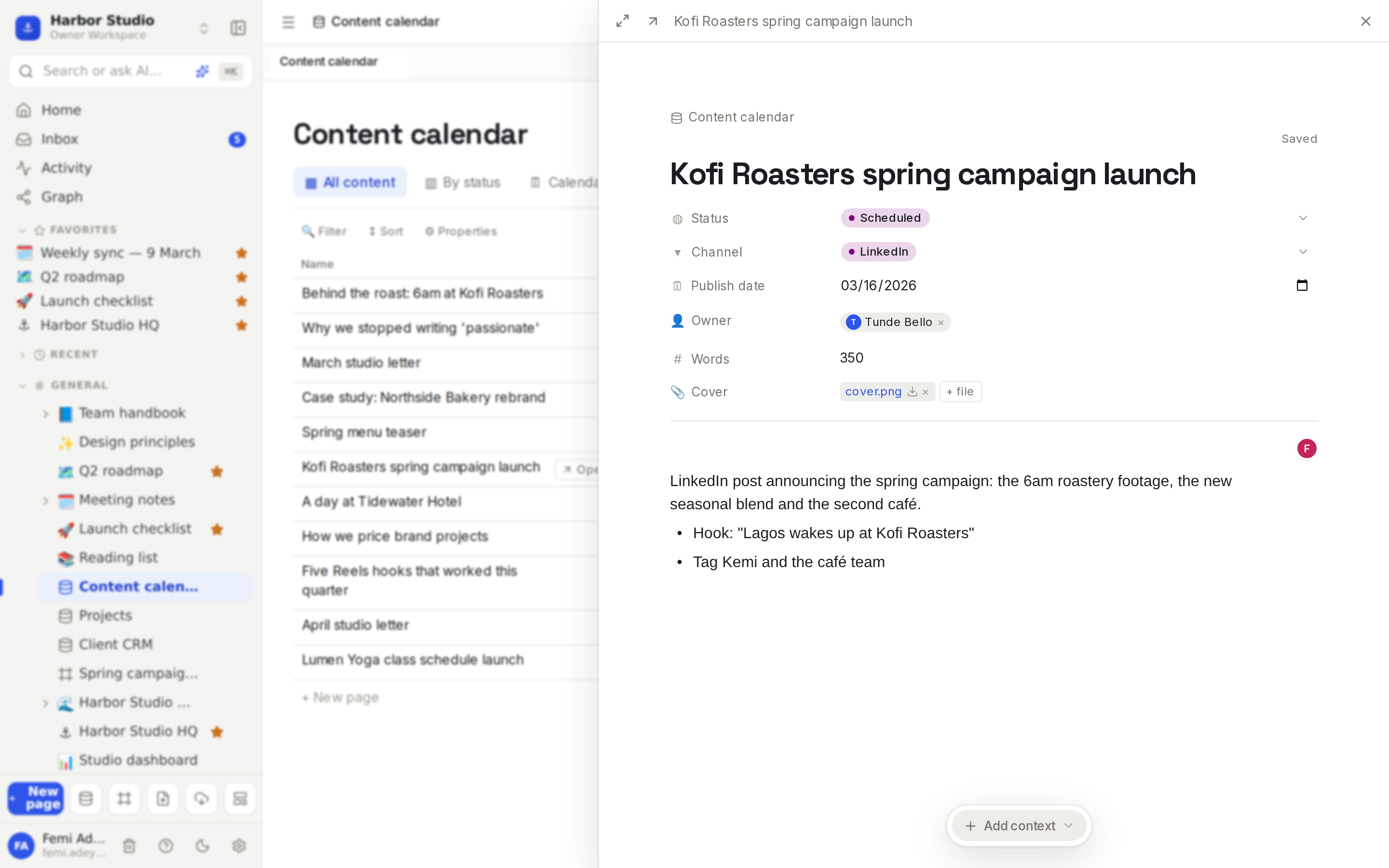
Three ideas make a database:
Rows are pages. Every row opens as a full page you can write in, comment on and link to. See Row pages and row templates.
Properties are columns. Each row has the same typed fields: a status, a date, an owner, a number. See Properties.
Views are ways of looking. The same rows can be a table, a board, a calendar and more, each with its own filters and sorts. Change a row in one view and every view shows it.
Do it
Create a database
Pick whichever is closest:
Click the database button next to New page at the bottom of the sidebar (its tooltip says New database).
Press ⌘K (Ctrl+K on Windows) and run New database.
On Home, click New database under Create.
Hover a page in the sidebar, click More actions (⋯) and choose Add sub-database to put the database inside that page.
Type / on a page, choose Database view, then + New database to create one and show it right there. See Linked databases.
Turn a spreadsheet into a database with Import from CSV, or start from a ready-made one in Templates.
A new database is called Untitled Database. It has one property, Name, and one view, Table. Click the title to rename it, for example "Content calendar", and press Enter.
Add rows
Click + New page at the top right of the view, or + New page under the last row of the table.
Type the row's name in the first column. That's the row's title, and the title of its page.
Click any other cell to fill it in. Changes save as you go.
Boards, calendars and galleries have their own + buttons that create a row already in the right column, on the right day, and so on.
Add views
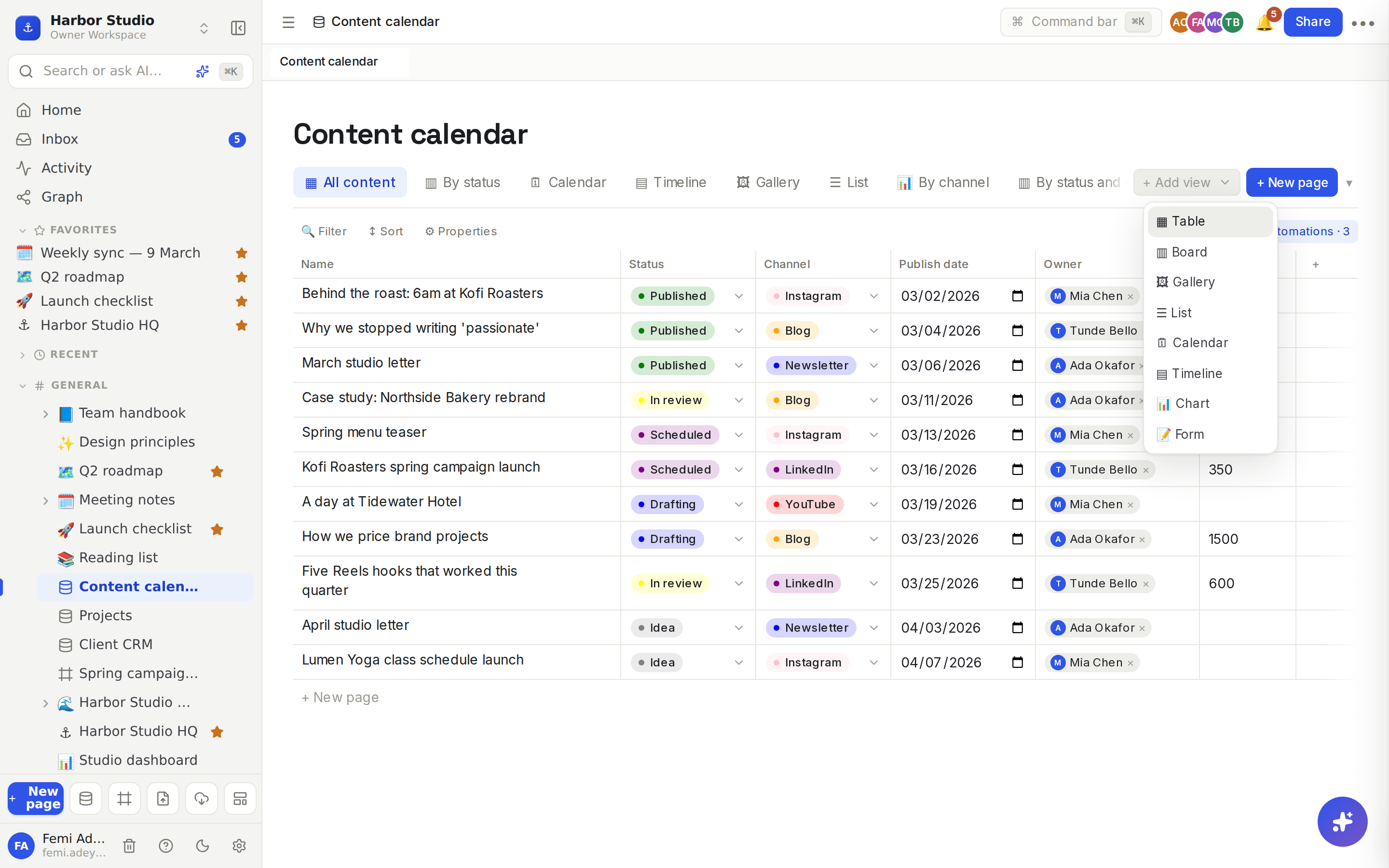
Click + Add view to the right of the view tabs.
Choose ▦ Table, ▥ Board, 🖼 Gallery, ☰ List, 🗓 Calendar, ▤ Timeline, 📊 Chart or 📝 Form.
The new view appears as a tab, named after its type. Double-click the tab to rename it, for example "By status".
A board and a chart group by the first select or status property they find, and a calendar and a timeline use the first date property. You can change all of these afterwards.
Manage views
Right-click a view tab for its menu:
Action | What it does |
|---|---|
Rename | Rename the tab. Double-clicking the tab does the same. |
Edit view | Opens the view's filters. See Filters, sorts and grouping. |
Display as | Show the tab as Icon and name, Name only or Icon only. |
Copy link to view | Copies a link that opens the database on this view. |
Duplicate view | Makes a copy with the same settings, to tweak. |
Delete view | Removes the view. The rows stay. A database always keeps at least one view. |
Tips and limits
Views share rows, not settings. Each view has its own filters, sorts, visible properties, column widths and grouping, and everyone who opens the database sees the same views.
Opening a row opens its page in a side panel, so you keep your place. See Peek and tabs.
Big databases load as you go. Rows arrive 100 at a time. Table, list and timeline views fetch more as you scroll; board, gallery and calendar views show a Load more rows button. Charts and board column counts always cover every row.
Deleting a row moves it out of the database with an Undo in the message that appears. Deleted rows don't show up in Trash, so use Undo while you can.
Databases live in the sidebar with a database icon, and move, nest and share like pages. See Pages and nesting and Sharing and access requests.
Plans. Databases, every view, forms and templates work on every plan, including Free.
Ideas
A content calendar. One row per post, with Status, Channel, Publish date and Owner. Tunde plans in the board, Femi checks the calendar, and Ada reads the chart on Fridays.
A client CRM. One row per client with their stage, contact and retainer, and each row's page holds the call notes. Link it to projects with Relations and rollups.
A hiring pipeline. One row per candidate, a board by stage, and a form on the careers page that drops applicants straight in. See Forms.