What a board is | Rodeo Docs
A board is a canvas with no edges, where you lay out the material behind a project side by side, see how it connects, and ask AI about exactly the pieces you choose, so a pile of links and notes becomes an answer, a script or a plan.
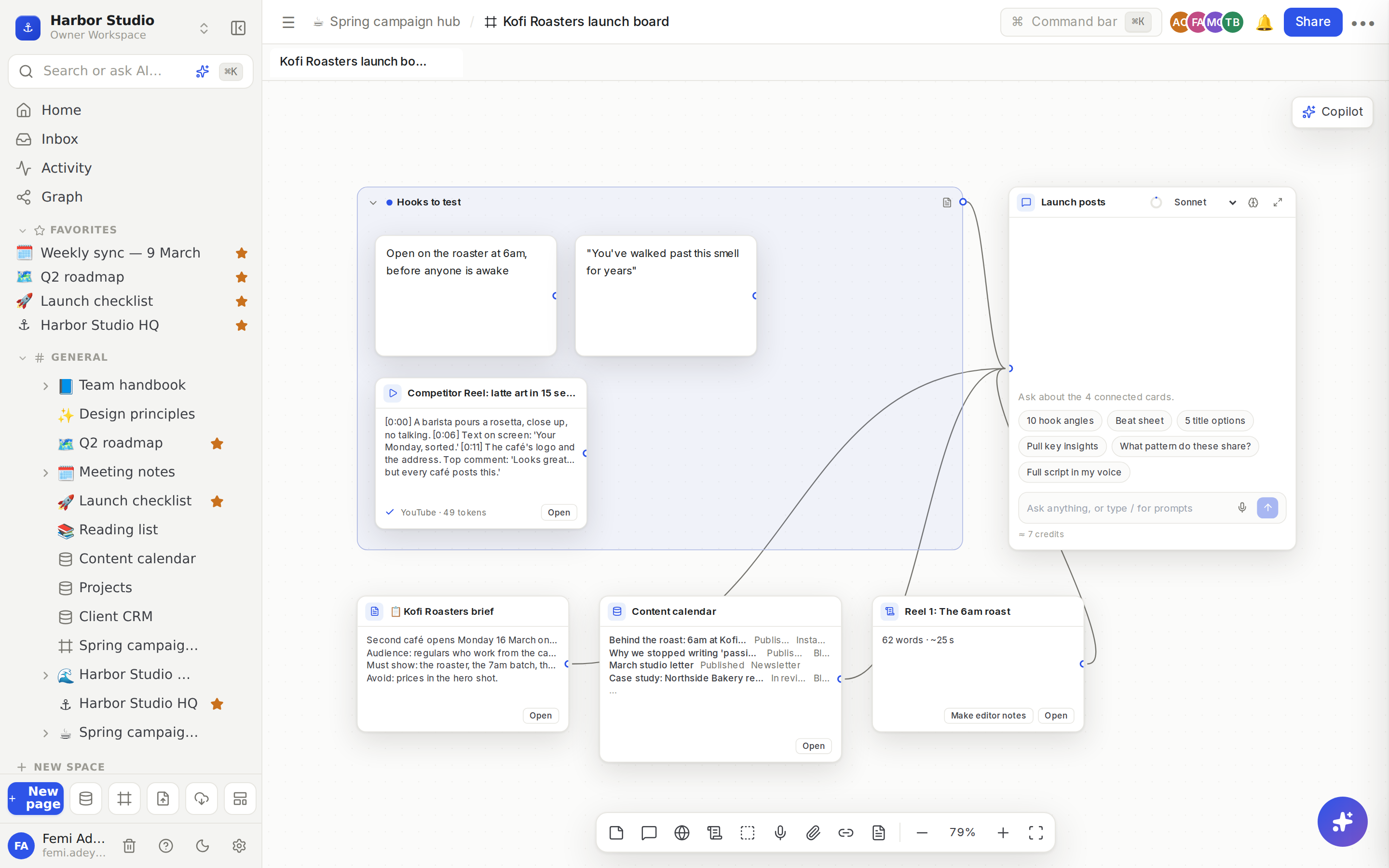
Pages are for writing in a straight line. Boards are for the messy part before that: comparing a competitor's Reel with your customer interviews, sorting ideas into groups, and asking "what pattern do these share?" Everything on a board is a card, and wires connect cards to the AI chats that read them. See Nodes and wires.
A board lives in your workspace like a page does. It sits in the sidebar with its own icon, can go inside a page, and follows the same access rules. See Share a board.
Do it
Create a board
Click New board at the bottom of the sidebar (the frame icon beside New page). A new, empty board called "Untitled board" opens.
Or, on any page, type /board and choose Board to create a board inside that page and show it there as a card. See Embed a board.
To rename it, hover the board in the sidebar, click More actions (⋯) and choose Rename.
Add things
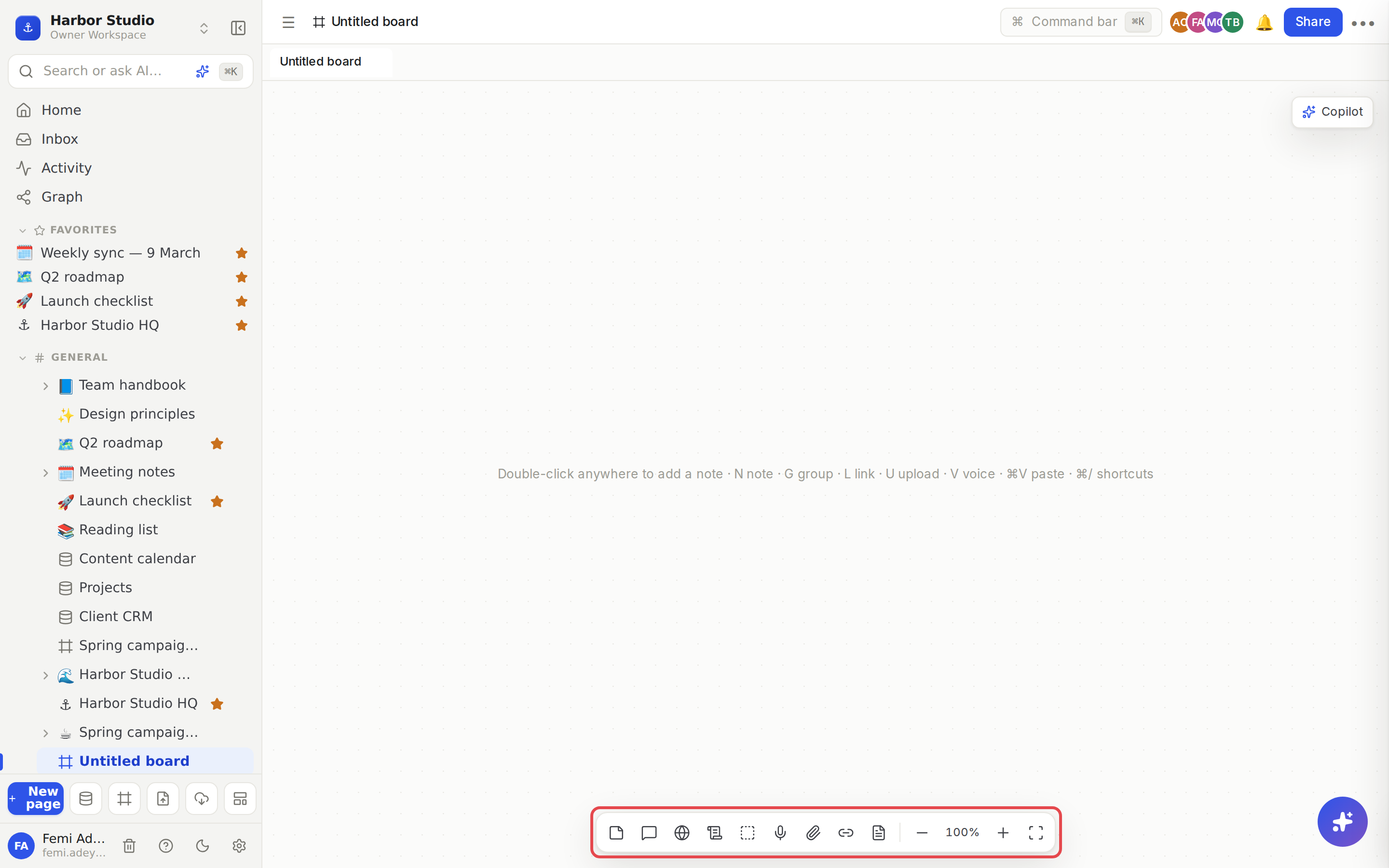
The dock at the bottom of the board holds every tool: New note, New chat, Research chat, New script, New group, Record voice note, Upload, Add link and Summary to page, then the zoom controls. Each tool has a one-key shortcut, shown when you hover it.
You can also:
double-click empty canvas to drop a note there;
paste (⌘V) a link, an image or a file straight onto the board;
drag files from your computer onto the board;
drag a page or database row from the sidebar onto the board.
Move around
Pan: drag the empty canvas, or scroll with two fingers on a trackpad.
Zoom: pinch, or hold ⌘ and scroll. The dock shows the zoom level; click it to go back to 100%.
Fit: press 1 to see every card at once.
Zoom to a card: select it and press Z. Press Z again to go back.
When you zoom out far enough, cards turn into large title labels so you can still read the layout.
Work together
Everyone who opens the board sees the same canvas, live. You see your teammates' cursors with their names, and the cards they have selected. AI replies stream in for everyone watching. Each person keeps their own place on the board: where you last panned and zoomed is remembered for you.
Keyboard shortcuts
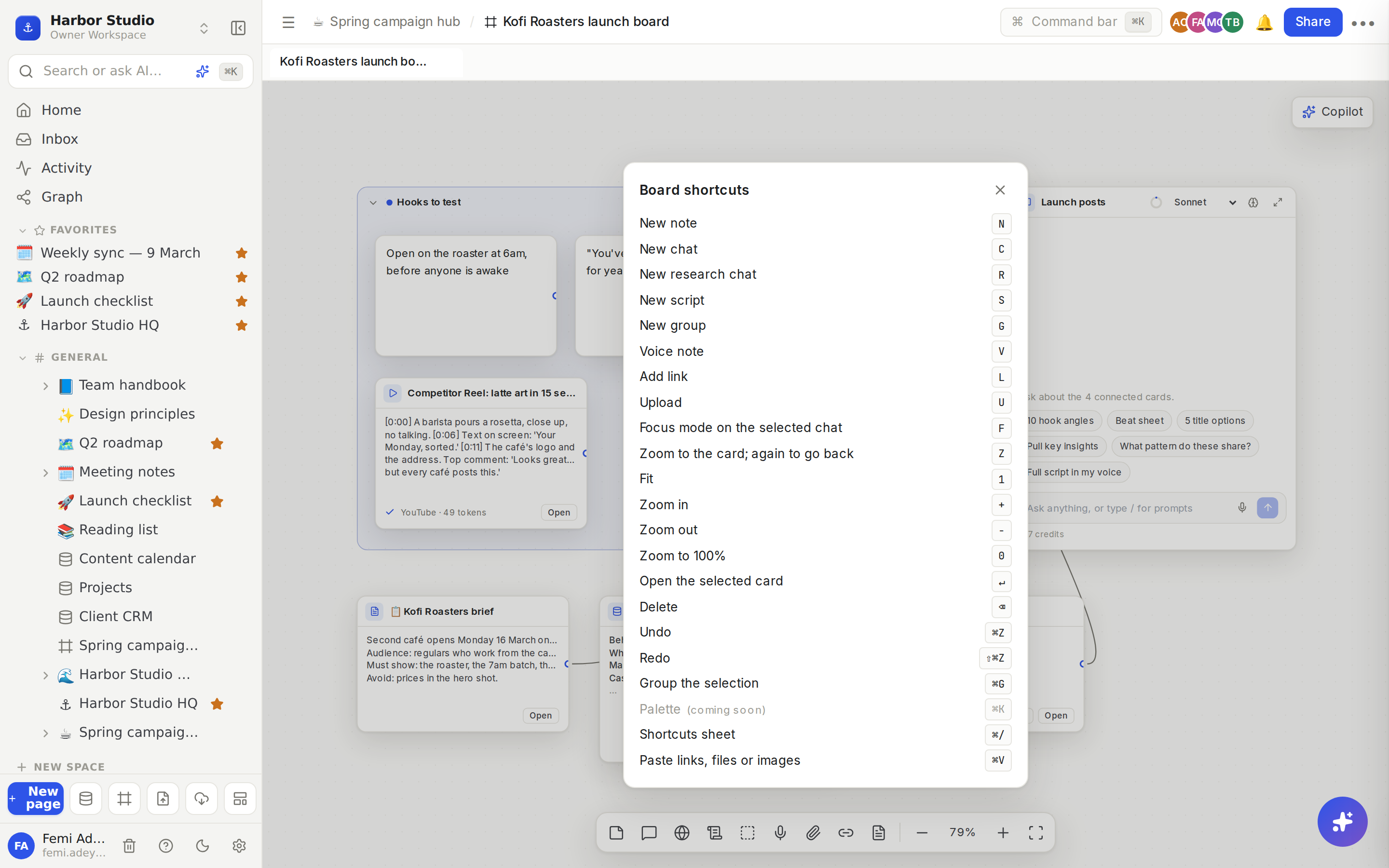
Press ⌘/ on a board to see every shortcut.
Tips and limits
Key | What it does |
|---|---|
N | New note |
C | New chat |
R | New research chat |
S | New script |
G | New group |
V | Record a voice note |
L | Add a link |
U | Upload files |
F | Open the selected chat in focus mode |
Z | Zoom to the selected card, then back |
1 / 0 | Fit everything / zoom to 100% |
+ / − | Zoom in / out |
↵ | Open the selected card |
⌫ | Delete the selection |
⌘Z / ⇧⌘Z | Undo / redo |
⌘G | Group the selection |
⌘V | Paste links, files or images |
⌘/ | Show the shortcuts |
On Windows, use Ctrl for ⌘. Single-key shortcuts never fire while you're typing.
Undo is yours. ⌘Z undoes your own changes, not a teammate's.
Select several cards by holding Shift as you click, or hold Shift and drag a box on empty canvas.
A board holds up to 5,000 cards.
Plans. Boards are on every plan. Free includes 3 boards; Starter, Team, Business and the Founders' Deal have no limit. Boards in the trash don't count. AI uses credits: see AI chats and credits.
Deleted a board? It goes to the Trash, like a page.
Ideas
A launch war room. Ada drops the client brief, the content calendar and the competitor Reels onto one board, groups the hooks worth testing, and wires it all into a chat that drafts the launch posts.
A pitch board. Before a new-client call, Mia collects their website, their last ten Instagram posts and a voice note of her first impressions, then asks a chat for three angles to open with.
A weekly ideas wall. Tunde keeps one board per month. Every content idea goes in as a note, and on Friday he groups the best ones and turns the group into a page. See Turn a board into a page.
Troubleshooting
My shortcut keys don't do anything. Click an empty part of the canvas first.
I can't add anything to the board. You may have view-only access: the dock then shows only the zoom controls. See Share a board.
"This plan includes 3 boards. Upgrade to add more." Your workspace is on the Free plan and already has 3 boards. Move one you no longer need to the trash, or upgrade. See Plans and limits.