SEO for published pages | Rodeo Docs
Every published page carries the title, description and image that search engines and link previews show, so when someone finds your site on Google or shares it on LinkedIn, it looks like you meant it to.
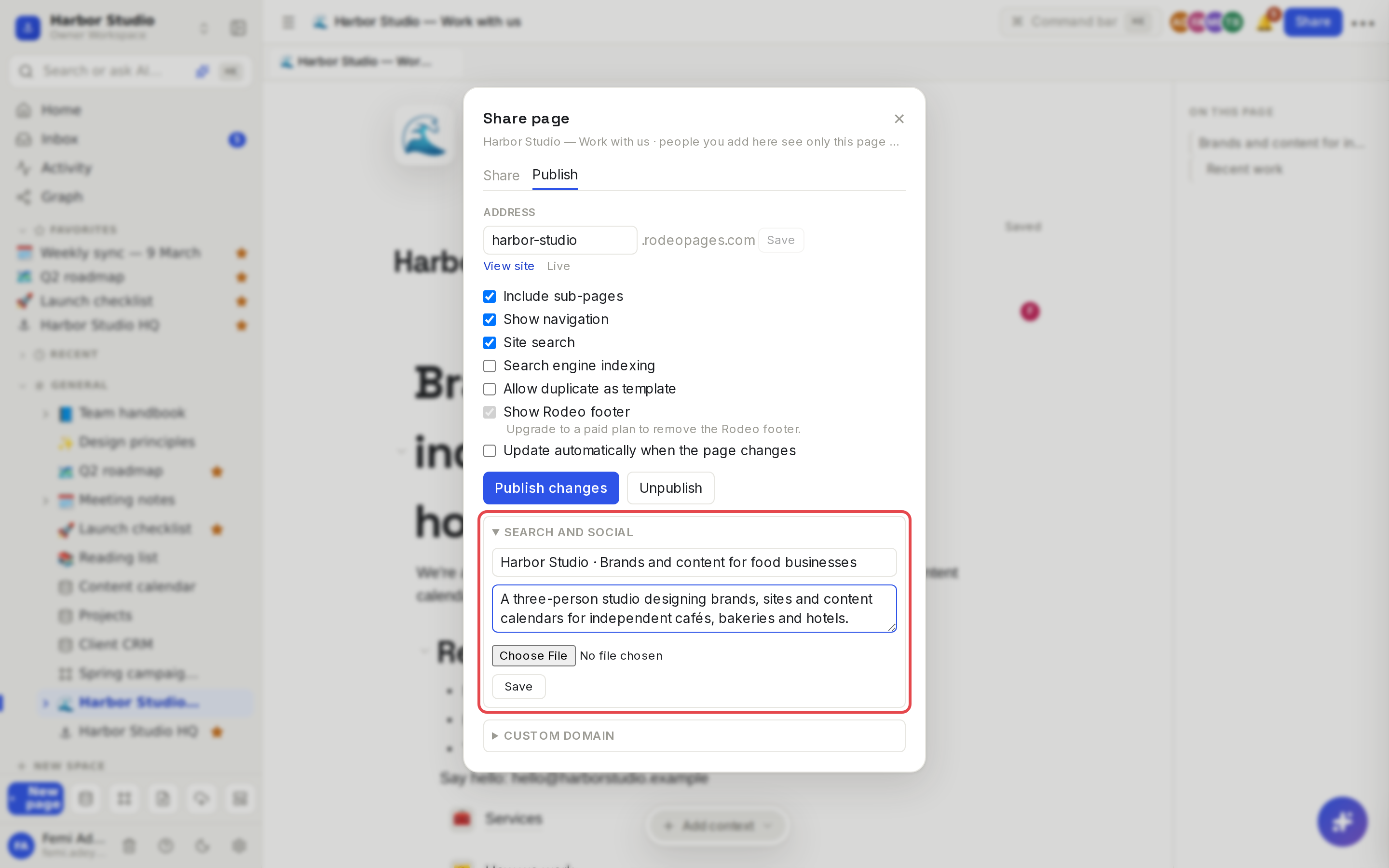
Rodeo handles the technical side for you on every site: a sitemap, a robots file, a canonical address, link-preview tags for social networks, structured data for search engines, and a favicon made from your page icon. All you choose is the words and the picture.
Do it
Set a page's title, description and image
Open the published page, or any sub-page of the site.
Click Share → Publish, then open Search and social.
Fill in any of:
Title: what search results and link previews show as the headline.
Description: the line or two under it.
The image picker: a picture for link previews on social networks and chat apps.
Click Save. Rodeo says "Search and social saved" and republishes the site.
Each page has its own settings, so set them on the home page and on the pages you most want people to find.
Keep a site out of search engines
In the Publish tab, turn off Search engine indexing. Rodeo then asks search engines not to list any page of the site and stops publishing a sitemap. The site still works for anyone with the link.
What Rodeo uses when you leave a field empty
Field | Empty means |
|---|---|
Title | The page's own title |
Description | The page's first paragraph, cut to 160 characters |
Social image | The page's cover image, if it has one |
Favicon | The page's icon |
Tips and limits
Length: titles up to 200 characters and descriptions up to 500. Search results only show the start, so put the important words first.
Write for people. A good description says what the page is and who it's for: "Brand and content for independent food businesses in Lagos" beats a list of keywords.
Remove image, then Save, clears the social image, so the cover is used again.
Your own domain. With a custom domain, search engines and previews use it as the page's address. See Custom domains.
Previews update when sites refresh them. Social networks keep old previews for a while after you change them.
Plans: SEO settings are available on every plan, like publishing.
Ideas
A home page that sells. Give "Harbor Studio — Work with us" the title "Harbor Studio · Brands and content for food businesses" and a two-sentence description, so search results read like an ad you didn't pay for.
Shareable case studies. Set a striking social image on each case study page, so every link Tunde posts on LinkedIn shows the work.
A private preview first. Turn indexing off while the client reviews the site, then switch it on at launch.
Troubleshooting
Search and social isn't there. The page isn't published yet, or isn't part of a published site. Publish first. See Sites.
"Couldn't load the saved settings." Click Retry. Save stays disabled until the saved values load, so nothing gets overwritten with blanks.
Google still shows my old title. Search engines revisit pages on their own schedule. The new title appears after their next visit.