Import from Notion, Confluence and Evernote | Rodeo Docs
Moving to Rodeo doesn't mean starting over: export your workspace from Notion, Confluence or Evernote, drop the file into Rodeo, and your pages, sub-pages, databases and the links between them come across in one go.
Do it
1. Export from your old tool
From | What to export | The file you get |
|---|---|---|
Notion | Settings → Export, format Markdown & CSV | a |
Confluence | Export the space as HTML | a |
Evernote | Export your notes | an |
Keep the file as it is. Don't unzip it.
2. Import it into Rodeo
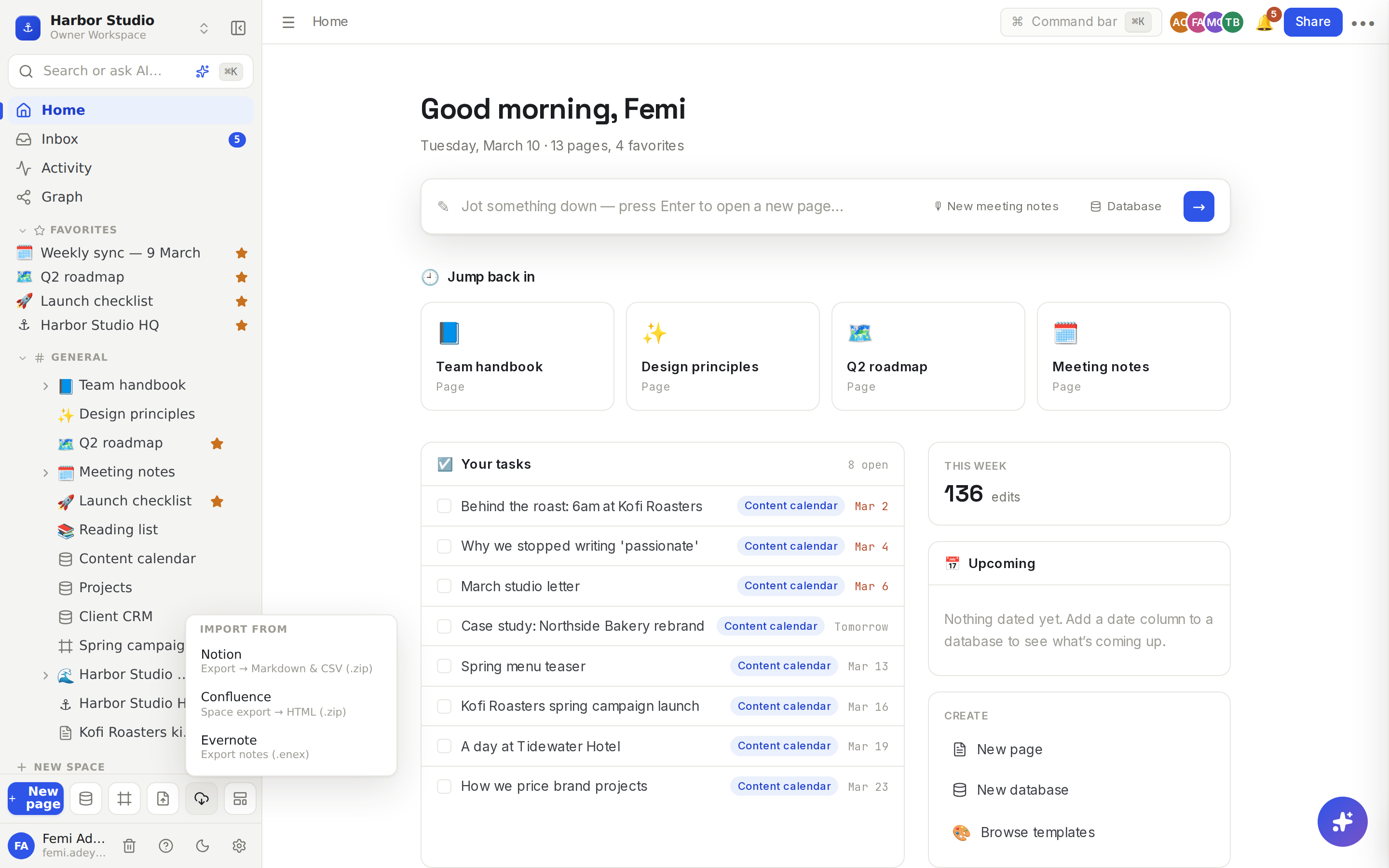
At the bottom of the sidebar, click the Import button (the cloud icon in the row of buttons beside New page).
Under Import from, choose Notion, Confluence or Evernote.
Pick your export file.
Rodeo reads the file in your browser and shows its progress. Keep the tab open until it finishes.
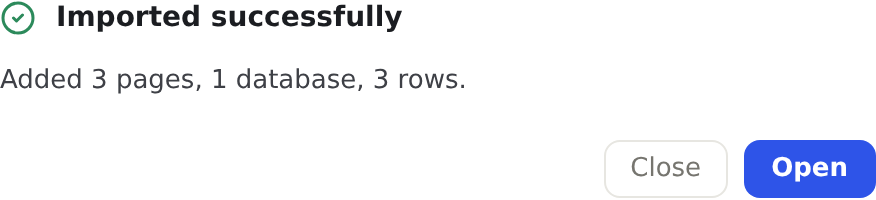
When it says Imported successfully, it tells you what it added, for example "Added 3 pages, 1 database, 3 rows." Click Open to go to the first imported page.
Nothing is written to your workspace until the whole file has been read, and then everything lands at once. If something goes wrong part-way, you're not left with half an import.
What comes across
From Notion:
Pages, with sub-pages kept under their parent page.
Page text and formatting.
Each database, from its CSV, with each row's page text. The first column becomes the row title, and Rodeo works out each column's type from its values: text, number, checkbox, select, multi-select or date.
Links between pages, turned into page mentions, so they still take you to the right page.
Images in PNG, JPEG, GIF or WebP.
From Confluence: each page with its text and images, arranged in the same page tree as the space. Links between pages still work.
From Evernote: each note becomes a top-level page with its text and images.
What stays behind:
Database views, filters and sorts. Imported databases open as a table; add the board, calendar or other views you need afterwards. See Database basics.
Live relations, rollups and formulas. Their columns arrive as the values your old tool exported.
Comments, page icons and sharing settings.
Attached files other than images.
Tips and limits
Images must be PNG, JPEG, GIF or WebP, up to 10 MB each. If some can't be uploaded, Rodeo says how many, for example "2 of 14 images couldn't be imported", and asks first. Click Continue without images to import everything else, or Cancel to stop with nothing written.
Up to 20,000 items per import. Pages, rows and every block of content count. A bigger export is refused before anything is written; split it into smaller exports and import them one by one.
Imports land at the top of your workspace, after your existing pages. Drag them into a space or under another page afterwards.
Warnings. If Rodeo had to skip something, such as an empty database or a non-image attachment, the summary shows a warning(s) list. Open it to see what.
One page at a time. You don't have to move everything. Export a single Notion page, with its sub-pages, and import it the same way.
You need edit access to the workspace to import into it.
Spreadsheets have their own importer: see Import from CSV.
Importing works on every plan.
Ideas
Move the team wiki first. Export just your Notion handbook, import it, then turn it into a Rodeo wiki with owners and verification. See Wiki and page verification.
Bring a client CRM across. Import your Notion "Clients" database, then add a board view grouped by status and a relation to your projects. See Board view and Relations and rollups.
Rescue old Evernote notes. Import your .enex, then drag the notes you still need under a "Reading list" page and send the rest to trash.
Troubleshooting
The import failed with "Import too large". Your export has more than 20,000 items. Export smaller parts, for example one top-level page or one Confluence space at a time.
My database has no board or calendar view. Views aren't part of the export. Open the database and add the views you used to have.
Some links show as plain text. Only links to pages that were inside the same export become page mentions. Links to pages you didn't export can't point anywhere yet; re-link them with @ once those pages are in Rodeo. See Page mentions and links.
It's taking a while. Large exports with many images take longer, because every image is uploaded. Leave the tab open until you see Imported successfully.