Connect Claude and Cursor to Rodeo with MCP | Rodeo Docs
Connect your AI assistant to Rodeo and it can search your workspace, read pages in as context, and write back, drafting pages, updating databases and resolving comments, as you and with only the access you already have.
MCP (Model Context Protocol) is an open standard that AI tools use to talk to other apps. Rodeo runs an MCP server, so any tool that supports remote MCP servers can connect. There are no keys to create or paste.
Connector URL: https://api.rodeo.so/mcp
Do it
1. Add Rodeo to your AI tool
Claude (claude.ai or the Claude desktop app): open Settings → Connectors → Add custom connector, and paste the connector URL.
Claude Code: run
claude mcp add --transport http rodeo https://api.rodeo.so/mcpCursor: add Rodeo as a remote MCP server in your mcp.json:
{
  "mcpServers": {
    "rodeo": { "url": "https://api.rodeo.so/mcp" }
  }
}
Any other MCP client: add a custom remote MCP server with the connector URL. The client registers itself with Rodeo automatically.
2. Approve it
Your tool opens Rodeo in the browser. Sign in if asked.
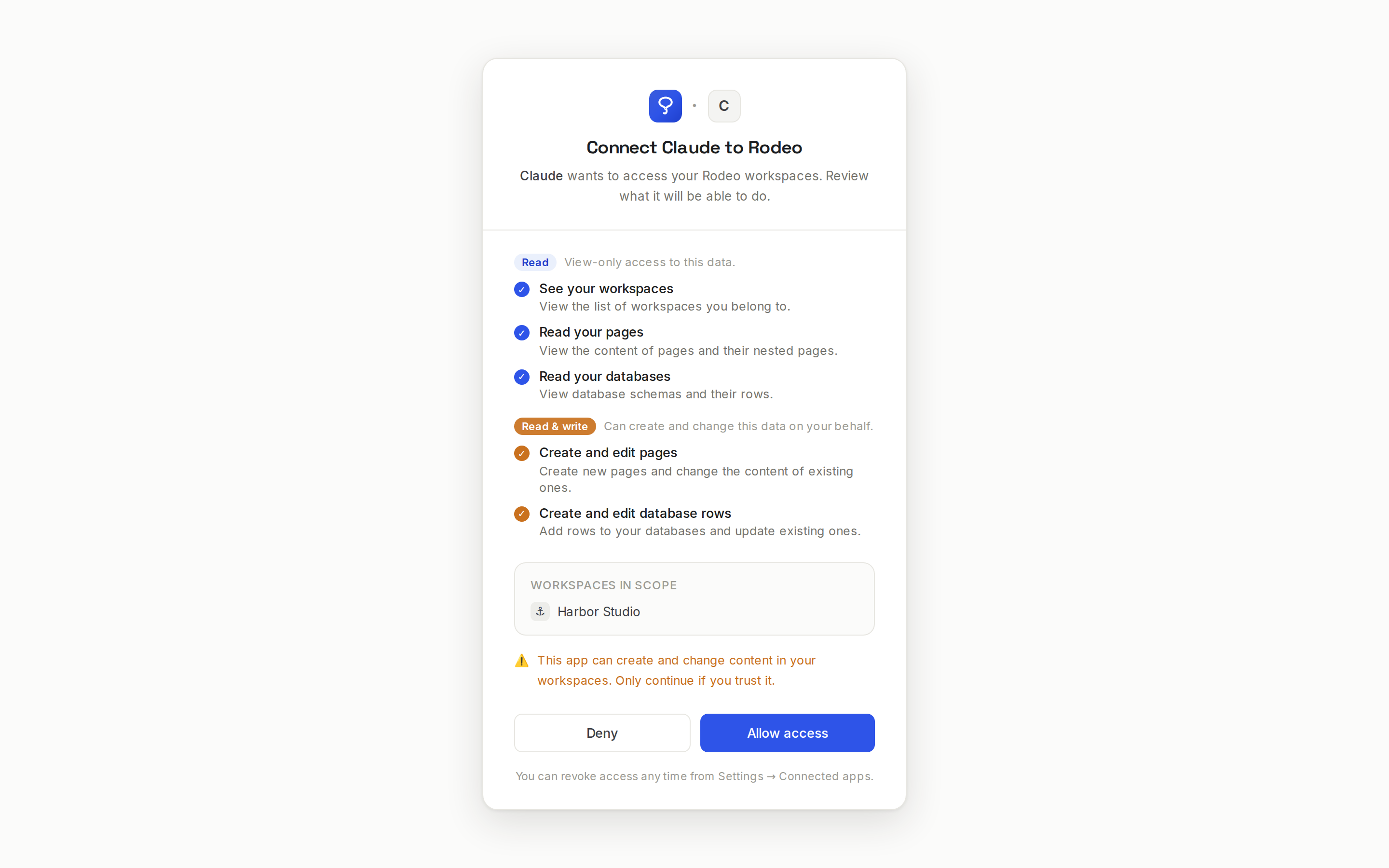
Read the consent screen, "Connect Claude to Rodeo". It lists what the app may do, grouped into reading and writing, and the workspaces it applies to.
Click Allow access, or Deny to cancel.
You return to your AI tool, connected. Next time it reconnects with the same access, Rodeo skips the screen.
3. Ask
Just describe what you want. For example:
"Find the Kofi Roasters launch plan and add a summary of this week's comments at the top."
"Add three Instagram posts for the spring menu to the Content calendar, scheduled for next week."
"Turn the action items in Monday's weekly sync into rows in our Tasks database."
Review or revoke access
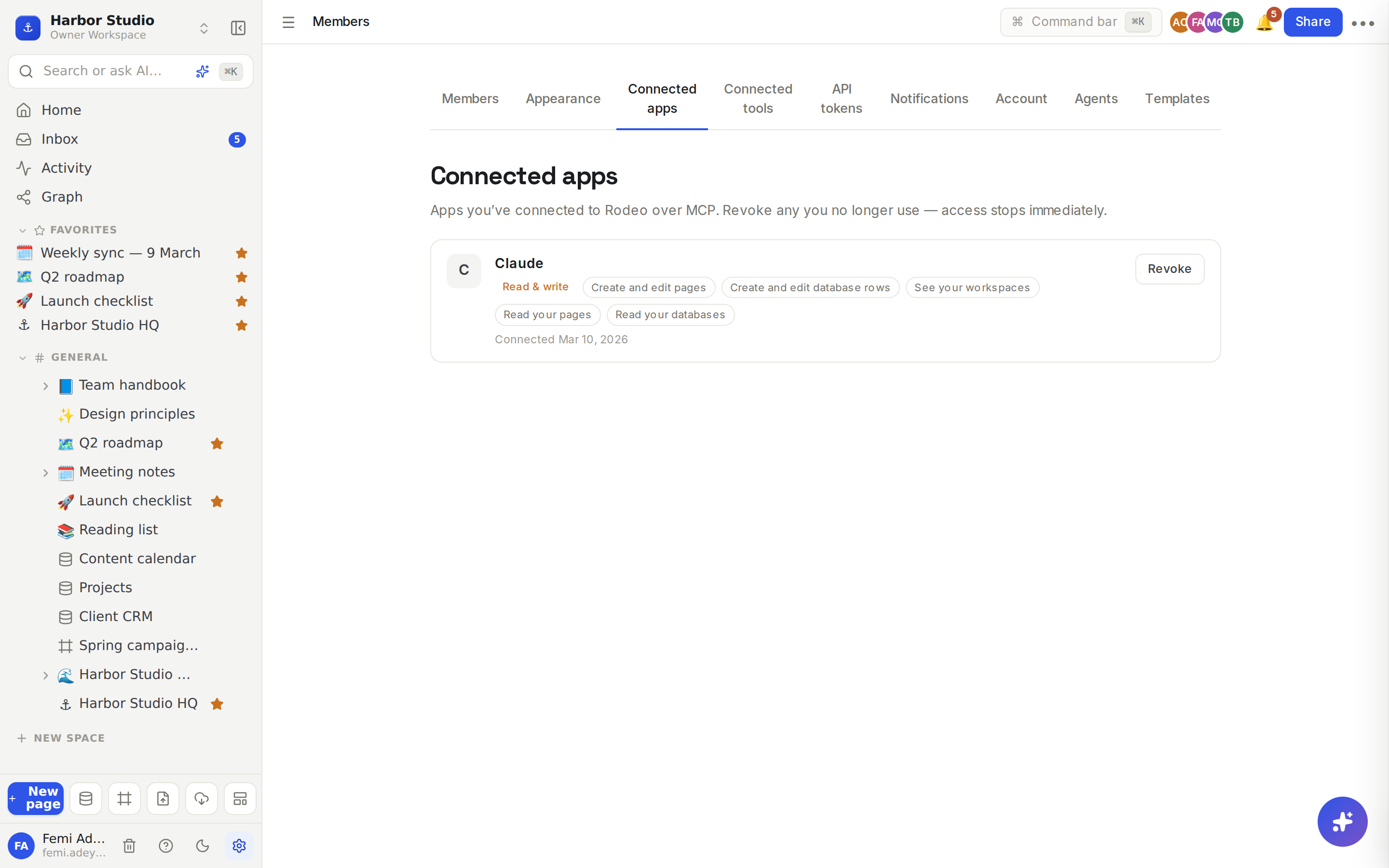
Click Members & settings, then the Connected apps tab.
Each app shows Read only or Read & write, what it can do, when you connected it and when it was last used.
Click Revoke, then Revoke access. The app loses access immediately; to use it again, you approve it again.
What your AI can do
Area | It can |
|---|---|
Search and read | Search every workspace you're in, read pages as Markdown, list pages, backlinks and activity |
Pages | Create pages, append to them, add blocks, update title, icon, cover and width; trash, restore and permanently delete |
Suggested edits | Propose a change for you to review, and accept or reject suggestions (see Suggested edits) |
Version history | List and read earlier versions and restore one (see Version history) |
Databases | Create databases (also from a CSV), query rows, add, update and delete rows, edit properties, views, row templates and automations, and preview a formula before saving it |
Comments | List, add, resolve and delete comments |
Reminders | Create, list and delete reminders |
Meetings | List meeting notes, read transcripts, turn action items into tasks |
Wiki | Read a page's verification state and verify pages |
Workspaces | List, create and archive workspaces; list and remove members |
Permissions
You approve | Lets the app |
|---|---|
See your workspaces | View the list of workspaces you belong to |
Read your pages | View the content of pages and their nested pages |
Create and edit pages | Create new pages and change existing ones; also comments, reminders, suggestions and restores |
Read your databases | View database schemas and their rows |
Create and edit database rows | Add and update rows; also properties, views, templates and automations |
| Create and archive workspaces and remove members |
Tips and limits
It sees only what you see. Private spaces, page shares and guest access apply to every request. Connecting an app never widens your access, and its edits are credited to you.
All your workspaces. Approval applies to every workspace you belong to.
Edits show up live. Anyone with the page open sees the AI's changes appear as a teammate's would.
Verifying wiki pages also needs Let connected AI tools verify pages for me, in Members & settings → Notifications. See Email preferences and Wiki and page verification.
The connector is separate from Personal access tokens: no token is involved, and neither can be used in place of the other.
Plans. Works on every plan, including Free.
Ideas
Your AI as a project assistant. Femi asks Claude "What's still open for Kofi Roasters?" and gets an answer drawn from the launch plan, the CRM and the meeting notes.
Code and docs together. Tunde's Cursor reads the "API conventions" page before writing code, then updates the changelog page when he's done.
Troubleshooting
The consent screen says "An application". The app didn't register a name. Check the connector URL in your tool before allowing.
The app says it doesn't have permission. It was approved without that permission. Revoke it in Connected apps, reconnect, and approve again.
It can't find a page I know exists. You can't see that page either: it's in a private space or shared with others only. See Sharing and access requests.