Row pages and row templates | Rodeo Docs
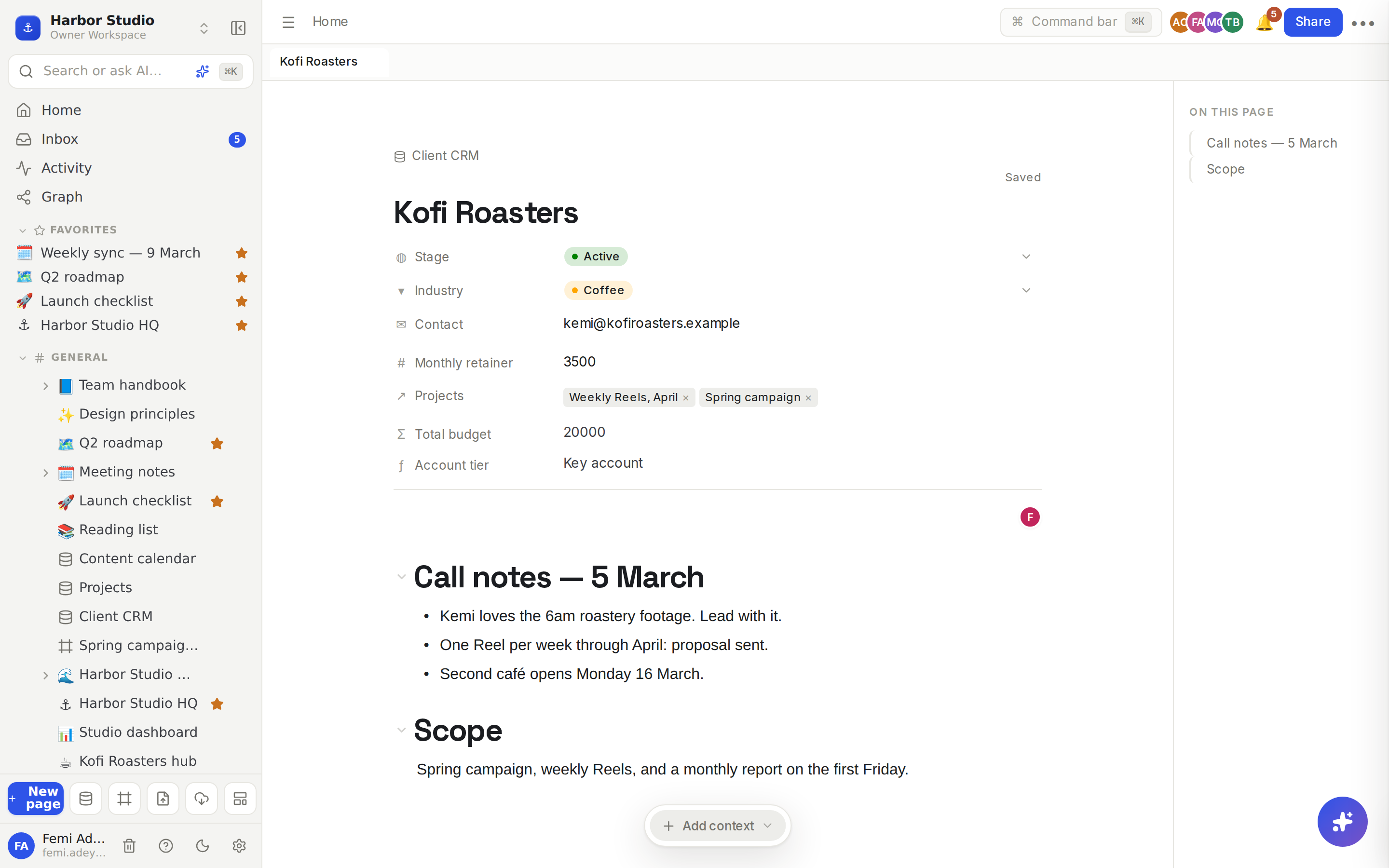
Every database row is also a full page, so a client in your CRM can hold its call notes, a post in your content calendar can hold its draft, and new rows can start from a template with the usual values already filled in.
Do it
Open a row
In a table: hover the row and click Open at the right of its title.
In a board, calendar, timeline, gallery or list: click the card, bar or line.
The row opens in a side panel over the database, so you keep your place. At the top of the panel:
Expand to center or Dock to the side switches between a centred window and a side panel.
Open as full page takes you to the row's own page.
Close goes back to the database.
To go straight to the full page from a table, ⌘-click (Ctrl-click on Windows) Open. See Peek and tabs.
Work on a row page
The title is the row's name. Change it and the database changes too.
The properties sit under the title, one per line with an icon for its type. Click a value to edit it, exactly as in a table.
The body is an ordinary page. Write notes, add a checklist, paste images, @-mention teammates and leave comments. See The editor in two minutes.
Click the database's name above the title to go back to the database.
Teammates can comment on a row page like any other page. See Comments.
Save a row as a template
In a table view, set up a row the way new rows should start, for example a client with Stage "Proposal" and a Monthly retainer of 2000.
Hover the row and click 📌 Save as template at the end of it.
The template is saved, named after the row.
Create a row from a template
Click ▾ next to + New page at the top right of the database.
Under Templates, click the template. A new row appears with its values filled in.
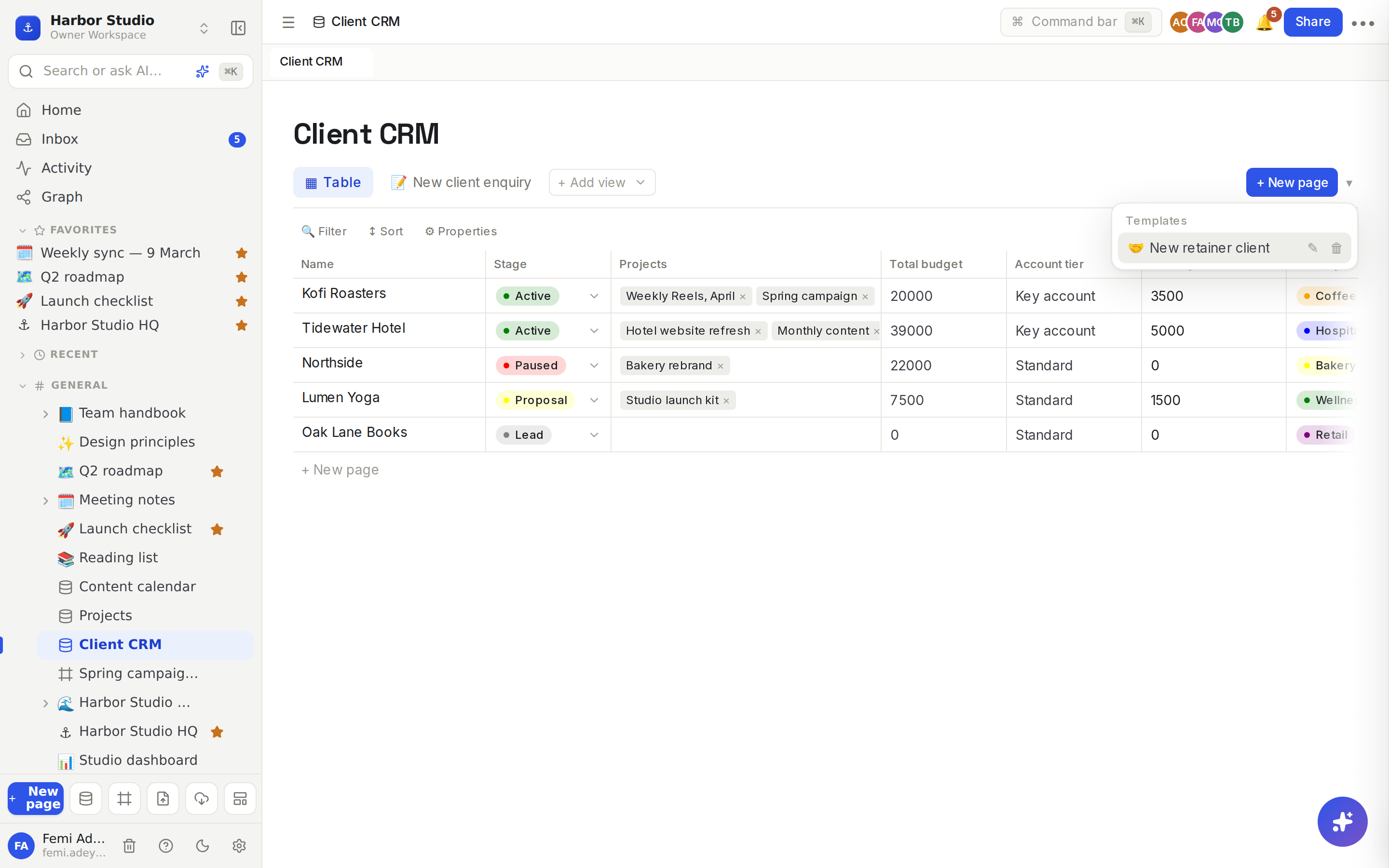
In the same menu, hover a template and click ✎ to rename it or 🗑 to delete it. With no templates yet, the menu says "No templates yet. Use “Save as template” on a row."
Tips and limits
Templates hold property values, not page content. The body of the row you saved stays with that row. For a reusable page layout, write it once and copy it, or use Templates.
Templates follow your properties. If you change a property's type, its templates are converted too, and the change summary tells you how many.
Templates work in every view. The ▾ menu sits next to + New page whatever view you're in.
Assigning someone on the row page notifies them, just like in a table.
Rows don't appear in the sidebar. Find them through their database.
Deleting a row is done from a table view, with an Undo in the message that follows. Deleted rows don't show up in Trash.
Buttons can make rows too. A Button block with Add database row creates a row in a chosen database and opens its page. See Buttons.
Row pages and row templates work on every plan.
Ideas
A client file. Kofi Roasters' row holds the brief, every call's notes and the signed scope, with Stage and retainer right above them. Nothing about a client lives anywhere else.
A post with its draft inside. Tunde writes each blog post in its content calendar row, so the status, the publish date and the words are one page.
One-click new clients. A "New retainer client" template starts every client at Proposal with the standard retainer, so the CRM stays consistent no matter who adds the row.