Spaces for teams and clients | Rodeo Docs
Spaces split your workspace into sections for each team, client or topic, each with its own members and visibility, so the studio's handbook stays open to everyone while client pricing stays with the people who need it.
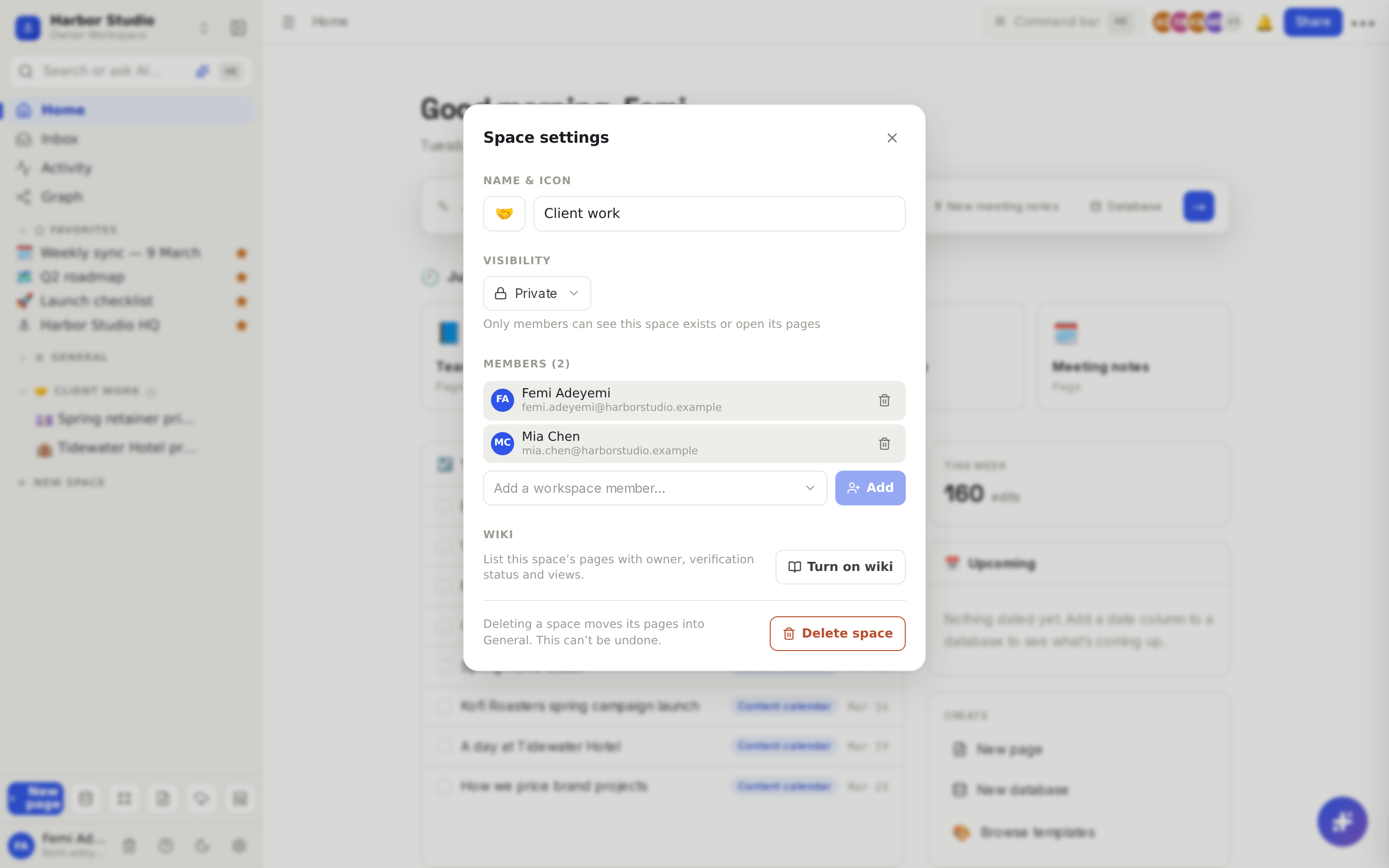
Every workspace starts with one space, General, which everyone can open. Your spaces appear as sections in the sidebar, each with its own pages beneath it.
Do it
Create a space
In the sidebar, below your spaces, click New space.
Type a name, for example "Client work", and press Enter.
The new space is Open, and you're its first member.
Choose who can see it
Hover the space's name in the sidebar and click Space settings (the ⋯ button), then Settings & members.
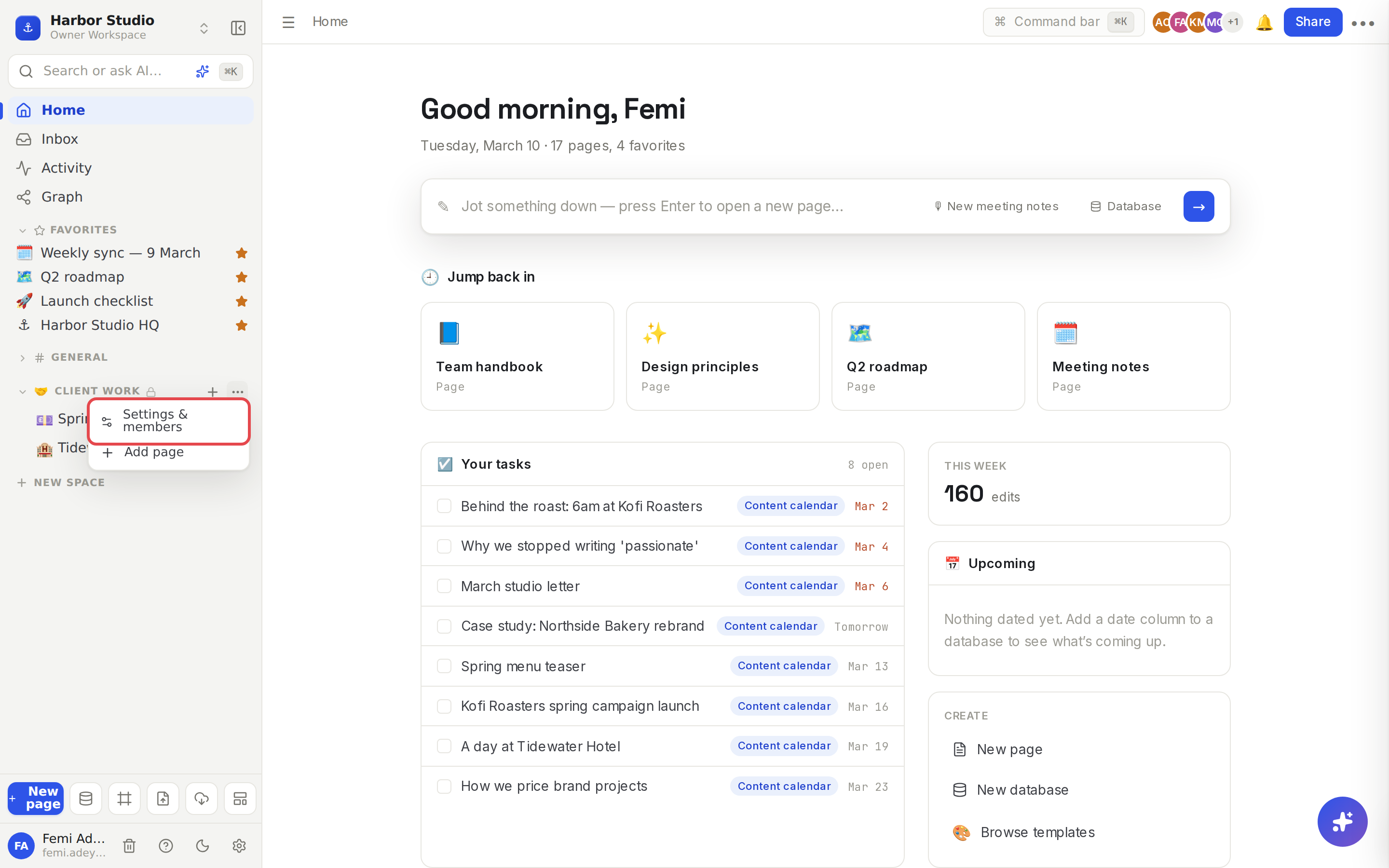
Under Visibility, pick one:
Visibility | Who sees it |
|---|---|
Open | Everyone in the workspace can see and open this space |
Closed | Everyone can see it exists, but only members can open its pages |
Private | Only members can see this space exists or open its pages |
A Closed or Private space shows a small lock or people icon next to its name in the sidebar.
Add or remove members
In Space settings, open Add a workspace member… and pick a teammate.
Click Add.
To take someone out, click the bin icon next to their name.
Space members must already be in the workspace. See Members, roles and invites.
Add pages to a space
Hover the space's name and click + (Add page), or choose Add page from its ⋯ menu.
To move an existing page, hover it in the sidebar, click ⋯ and choose Move to space. Its sub-pages move with it.
Rename, change the icon or delete
In Space settings, edit Name & icon; changes save when you click away. To delete, click Delete space, then Delete space again to confirm. Its pages move into General, so nothing is lost.
Tips and limits
Private and closed spaces are on Starter, Team, Business and the Founders' Deal. On Free, every space is Open, and Rodeo says "Private & closed spaces are a paid feature. Upgrade your plan to create them." See Plans and limits.
General always stays Open. You can't rename it, make it private or delete it.
Who can manage a space: the workspace's owners and admins, and any member who belongs to that space. Guests can't manage spaces.
Need just one page shared? You don't need a space for that. Share the page itself. See Sharing and access requests.
Turn a space into a wiki. Owners and admins see a Wiki section in Space settings: Turn on wiki lists the space's pages with owner, verification status and views. The wiki index is on Starter and up. See Wiki and page verification.
Ideas
One space per client. A private "Kofi Roasters" space holds the brief, meeting notes and pricing, with only Ada and Mia as members, while the rest of the studio works in General.
A closed leadership space. Everyone can see "Studio leadership" exists, so nobody wonders where decisions are made, but only Femi and Ada can open its pages.
A handbook space as a wiki. Put the team handbook in its own Open space and turn on its wiki, so new starters find every policy, its owner and whether it's still current. See Wiki and page verification.
Troubleshooting
I can't choose Private or Closed. Your workspace is on the Free plan. Upgrade to Starter or above.
A teammate can't find a page. It's probably in a private or closed space they aren't a member of. Add them to the space, or share that one page with them.
There's no Delete space button. You're looking at General, which can't be deleted.