Page mentions and links | Rodeo Docs
A page mention is a live link to another page, typed right into your sentence, so your notes point at the brief, the client or the decision they're about instead of making people search for it.
A mention shows the page's icon and current title. It stores the page itself, not its name, so when someone renames the page, every mention of it updates on its own.
Do it
Mention a page
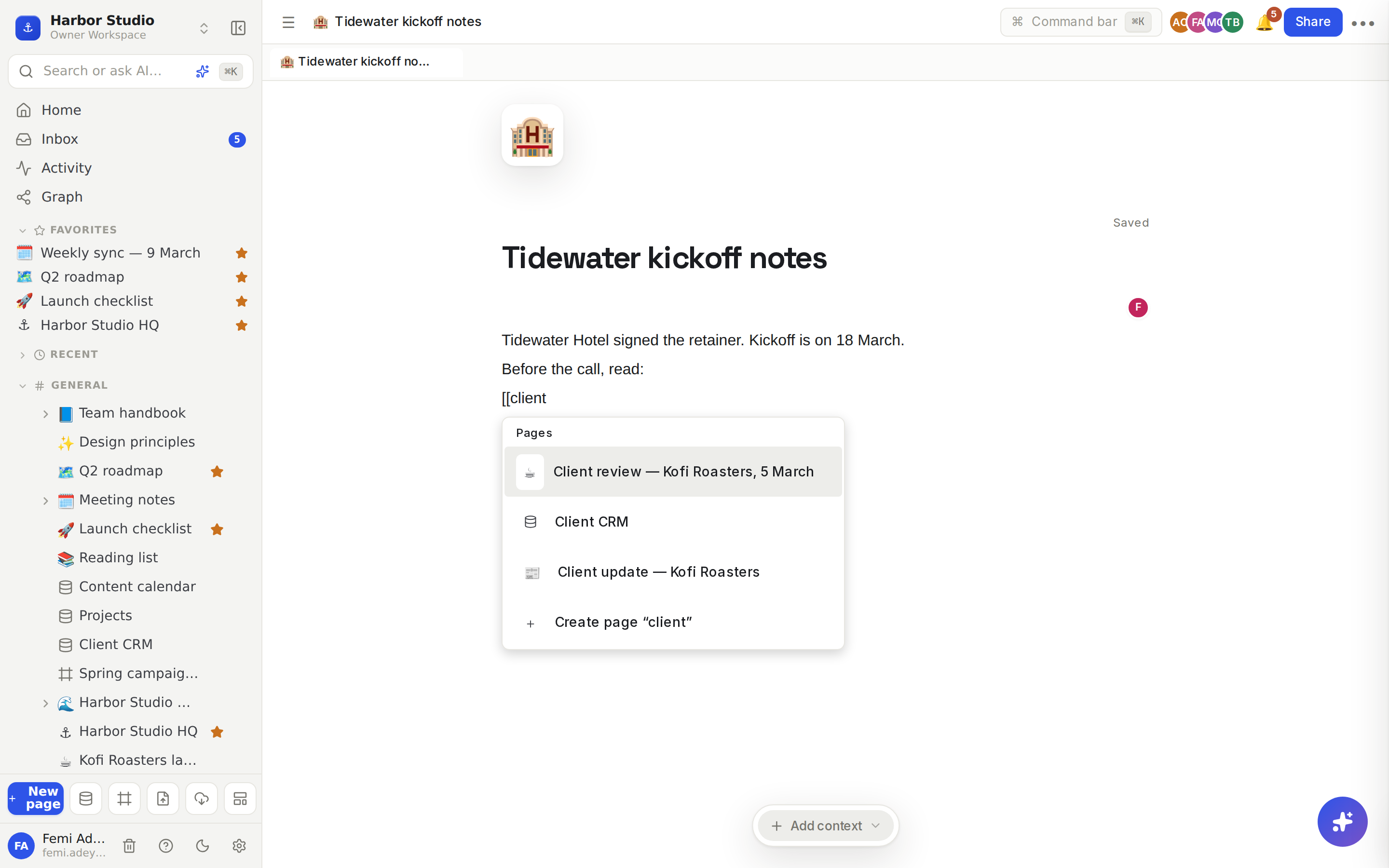
Type @ anywhere in your text, or two opening square brackets, [[, at the start of a line.
Keep typing part of the page's title. The menu filters as you go and lists matching People, Pages and Date entries.
Press Enter or click the page you want. It drops into your text as a pill.
The menu lists pages and databases you can open, and boards too. Mentioning a person or a date works from the same menu: see Members, roles and invites and Reminders and date mentions.
Create a page while you write
Type @ (or [[ at the start of a line) and the title of a page that doesn't exist yet, for example @Tidewater kickoff.
Choose Create page "Tidewater kickoff" at the bottom of the menu.
Rodeo creates the page at the top of your workspace and links it in place. Fill it in now, or come back later.
Add a sub-page
Type /page and choose Page ("Create a sub-page inside this one").
Rodeo creates the sub-page, puts a link to it in your text and opens it, so you can start writing straight away.
Open a mention
Click a mention to open the page in the side peek, next to the one you're reading. See Peek and tabs.
⌘-click (Ctrl-click on Windows) or middle-click opens the page in full instead. Databases and boards always open in full.
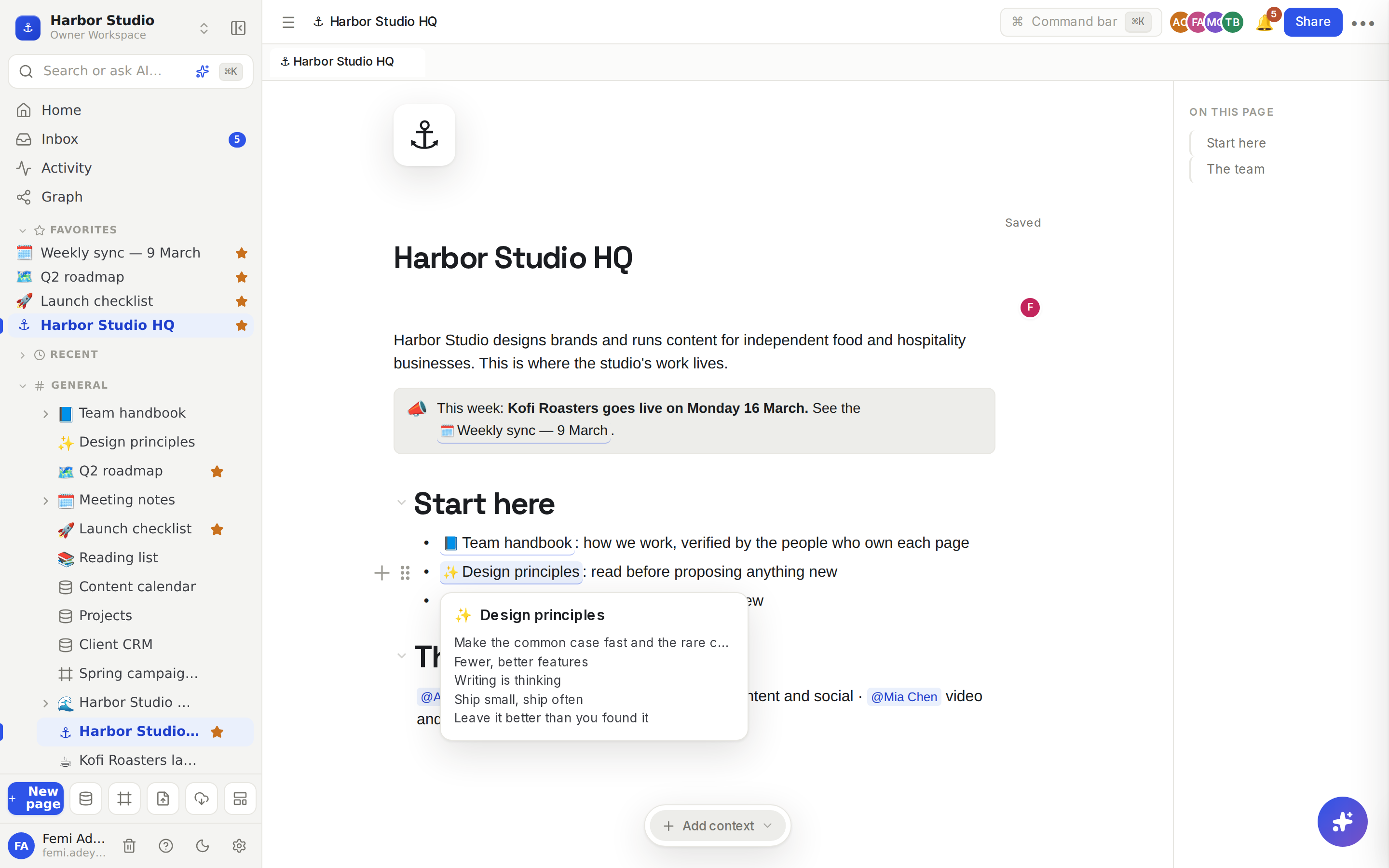
Hover over a mention for a moment to see a preview card with the page's title and first few lines.
Link to a web address
Select some text and click the link button in the formatting toolbar, then paste the address. See The editor in two minutes.
Copy a link to a page or a block
To share a page, open the command menu with ⌘K (Ctrl+K) and run Copy page link, or hover the page in the sidebar, click ⋯ and choose Copy link. Anyone with access to the page can open the link.
To point at one paragraph, right-click the block and choose Copy link to block. The link opens the page that block is on.
Tips and limits
Mentions stay correct. Renames update every mention. If the page is deleted, the mention shows a crossed-out "Untitled". If someone opens it without access to the page, they see No access instead of the title, so nothing private leaks.
Every mention counts. The page you mention lists yours under Backlinks, and the link appears in the Graph view.
People get notified, pages don't. Mentioning a teammate notifies them; mentioning a page simply links it.
Imports keep links. Links between pages in a Notion or Confluence export become mentions. See Import from Notion and other tools.
On a published site, a mention of another published page becomes a link to it. A mention of a page that isn't published shows as plain text. See Sites.
Mentions work on every plan.
Ideas
Meeting notes that lead somewhere. In "Weekly sync — 9 March", write "Next steps for [[Kofi Roasters launch plan" so everyone jumps from the decision to the plan in one click.
A glossary that writes itself. When a new term comes up, type [[Tasting notes and create the page on the spot. Fill in the definition later; the link is already there.
A home page that's a map. Make "Harbor Studio HQ" a short list of mentions: the handbook, the design principles, the meeting notes. Renames never break it.
Troubleshooting
The page I want isn't in the menu. The menu shows the first few matches, so type more of the title. Pages you can't open never appear.
A mention says "No access". The page is in a space or shared with people you're not part of. Ask its owner to share it with you. See Sharing and access requests.
A mention shows a crossed-out "Untitled". The page was deleted. If it's in the trash, restore it and the mention works again. See Trash.