Archive, transfer or leave a workspace | Rodeo Docs
Workspaces change hands as teams change, so Rodeo lets you rename a workspace, hand it to a teammate, step out of one you no longer need, or delete it, all from one small settings window.
Do it
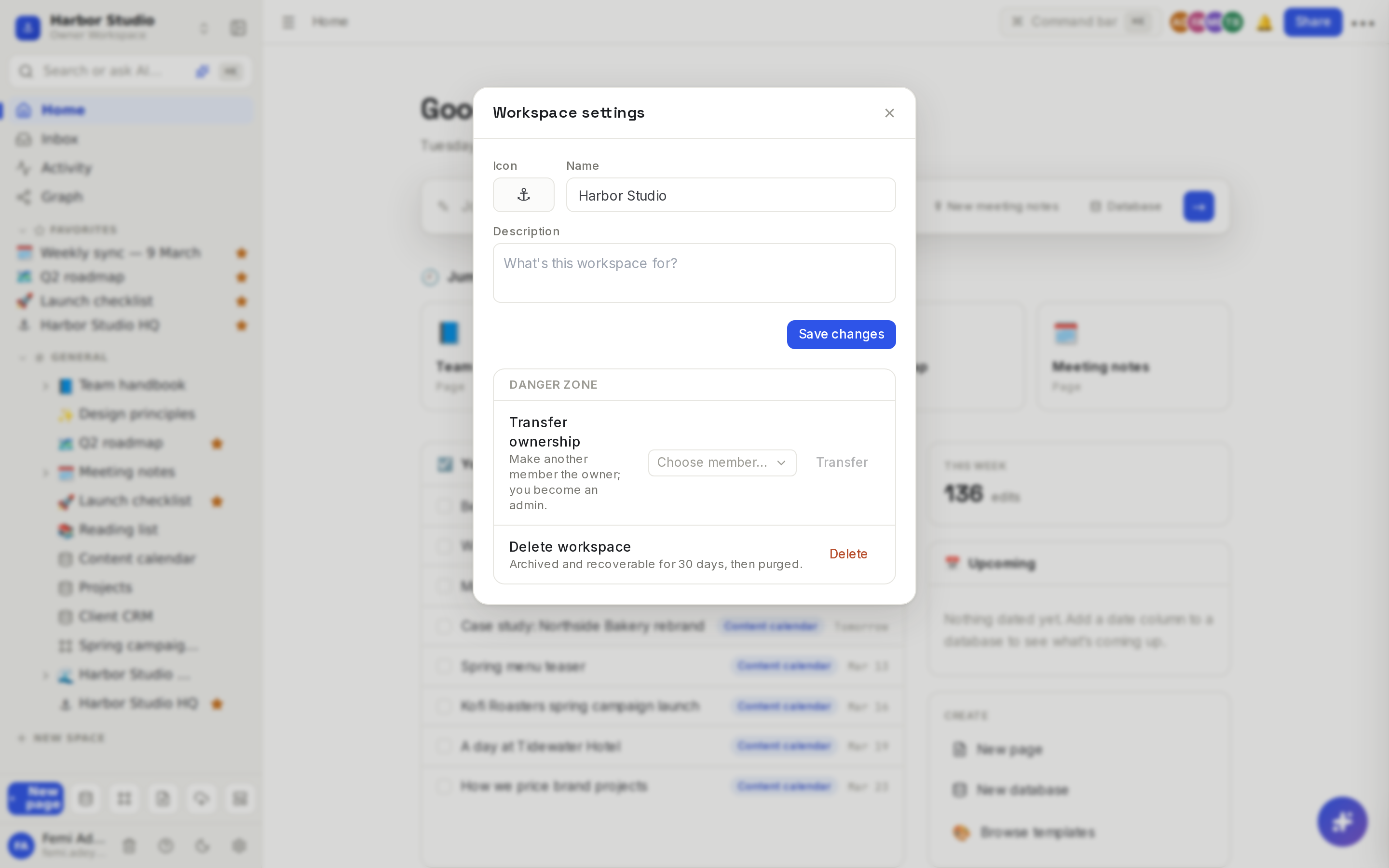
Open workspace settings
Click the workspace name at the top of the sidebar.
Choose Workspace settings.
Rename it, or change its icon and description
Owners and admins can edit these; everyone else sees them read-only.
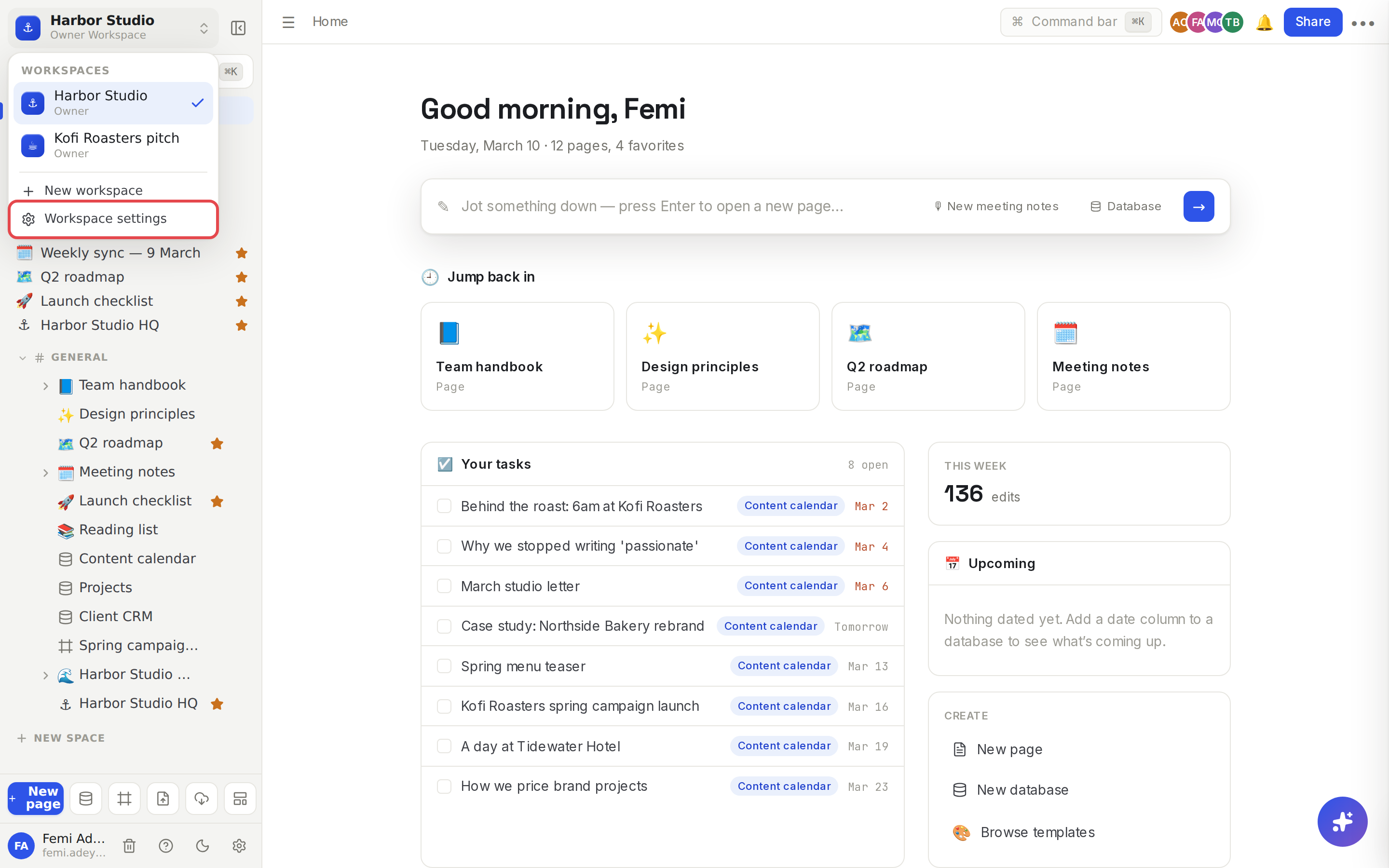
Change the Icon (an emoji), the Name, or the Description ("What's this workspace for?", up to 500 characters).
Click Save changes.
Transfer ownership
Only the owner can do this, and the new owner must already be a member.
Under Danger zone, find Transfer ownership: "Make another member the owner; you become an admin."
Pick the person from Choose member….
Click Transfer. Both of you get an email confirming the change.
You stay in the workspace as an admin, so you can keep working and still manage members.
Leave a workspace
Anyone except the owner can leave.
Under Danger zone, find Leave workspace: "You'll lose access to its pages."
Click Leave. Rodeo takes you back to your other workspaces.
To come back, someone has to invite you again. See Members, roles and invites.
Delete a workspace
Only the owner can delete a workspace, and it affects everyone in it.
If the workspace is on a paid plan, cancel the plan first in Members & settings (see Plans and limits). Deleting the workspace doesn't stop billing on its own.
Under Danger zone, find Delete workspace: "Archived and recoverable for 30 days, then purged."
Click Delete, then Delete again next to Sure?.
The workspace disappears for every member straight away, and any sites it published go offline.
Tips and limits
The owner can't leave. Rodeo says "Transfer ownership before leaving (or delete the workspace)." Transfer first, then leave.
One owner at a time. Transferring makes the other person the owner and you an admin. They can transfer it back.
Getting a deleted workspace back. There's no restore button in the app yet. Email hello@rodeo.so as soon as you can, from the owner's address, with the workspace's name.
Your other workspaces aren't affected. Leaving or deleting one workspace never touches the rest. Switch between them from the workspace menu.
Deleting your whole account is a separate step that can take your solo workspaces with it. See Delete your account.
Plans. All of this works on every plan.
Ideas
Hand over a client workspace at the end of a project. Harbor Studio built Kofi Roasters a workspace for its launch. When the project wrapped, Femi invited Kofi's manager, transferred ownership to her and left, so the café owns its own content.
The founder steps back. Femi transfers Harbor Studio to Ada when she becomes managing director. He stays on as an admin.
Tidy up after a hackathon. A weekend workspace with nothing worth keeping? Delete it so it stops cluttering your workspace menu.
Troubleshooting
I don't see Transfer ownership or Delete workspace. Only the owner sees them. Admins and members see Leave workspace instead.
The person I want to hand over to isn't in the list. They must be a member first. Invite them from Members & settings, wait for them to join, then transfer.
I'm still being charged for a workspace I deleted. Deleting doesn't cancel billing. Email hello@rodeo.so with the workspace's name so it can be cancelled.