Forms that fill a database | Rodeo Docs
A form turns a database into a questionnaire: each answer becomes a new row, so enquiries, requests and sign-ups land straight in the database where you track them, whether they come from your team or from anyone with a link.
Do it
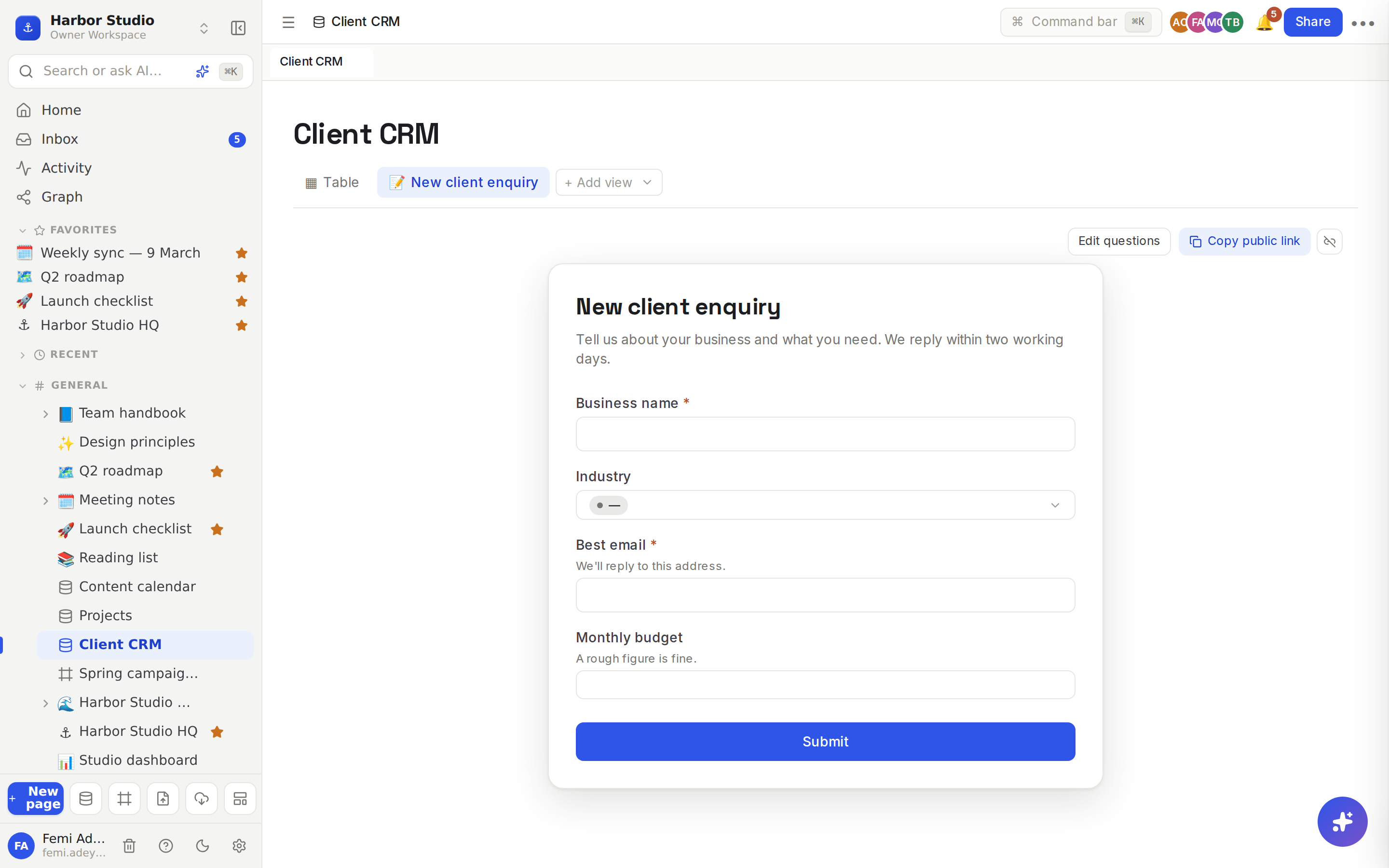
Make a form
Open the database, click + Add view and choose 📝 Form.
Click the form's title (it starts as the database's name) and type a better one, for example "New client enquiry".
Click Add a description… under it and say what the form is for.
Choose the questions
Click Edit questions. The Questions panel opens above the form.
Tick a property to ask about it, untick it to leave it out.
Tick Required for questions that must be answered.
Give a question a friendlier Label, for example "Best email" instead of "Contact", and add Help text under it.
Reorder questions with ↑ and ↓.
Write a Thank-you message, shown after someone submits.
Click Done editing. The panel says Saved once your changes are stored.
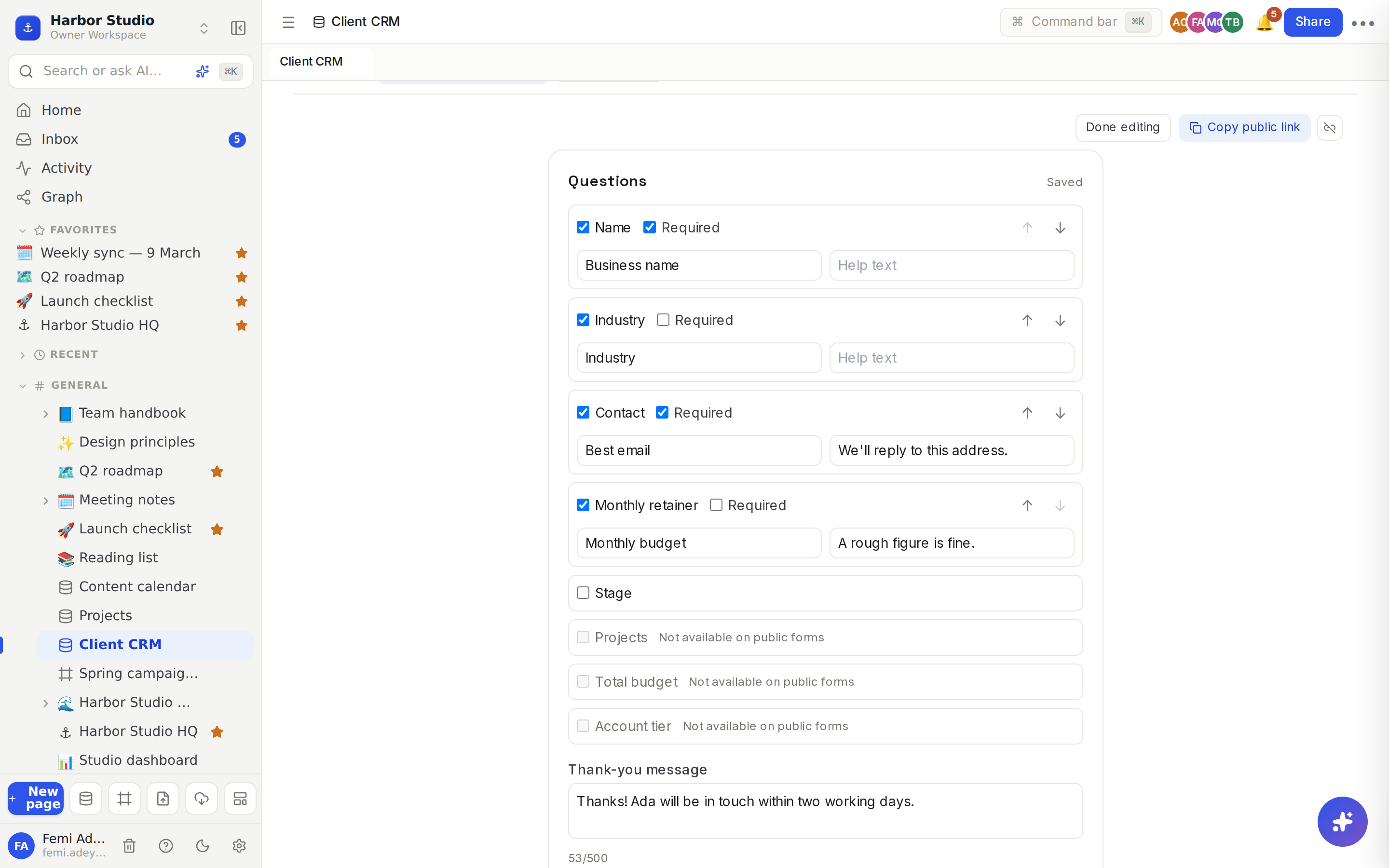
A form can ask about Text, Number, Select, Status, Multi-select, Date, Checkbox, URL, Email and Phone properties. Other types are listed greyed out with "Not available on public forms".
Fill it in yourself
Members can use the form right in the database: answer the questions and click Submit. You see Response submitted and your thank-you message, and Submit another response starts again. Missing required answers are marked "This question is required".
Share it publicly
Click Share next to Edit questions.
Rodeo publishes the form and copies its link: "Form published — link copied".
Paste the link anywhere: an email, your website, a social bio. Anyone can fill it in, no account needed.
Later, click Copy public link to copy it again, or the unlink button beside it to unpublish.
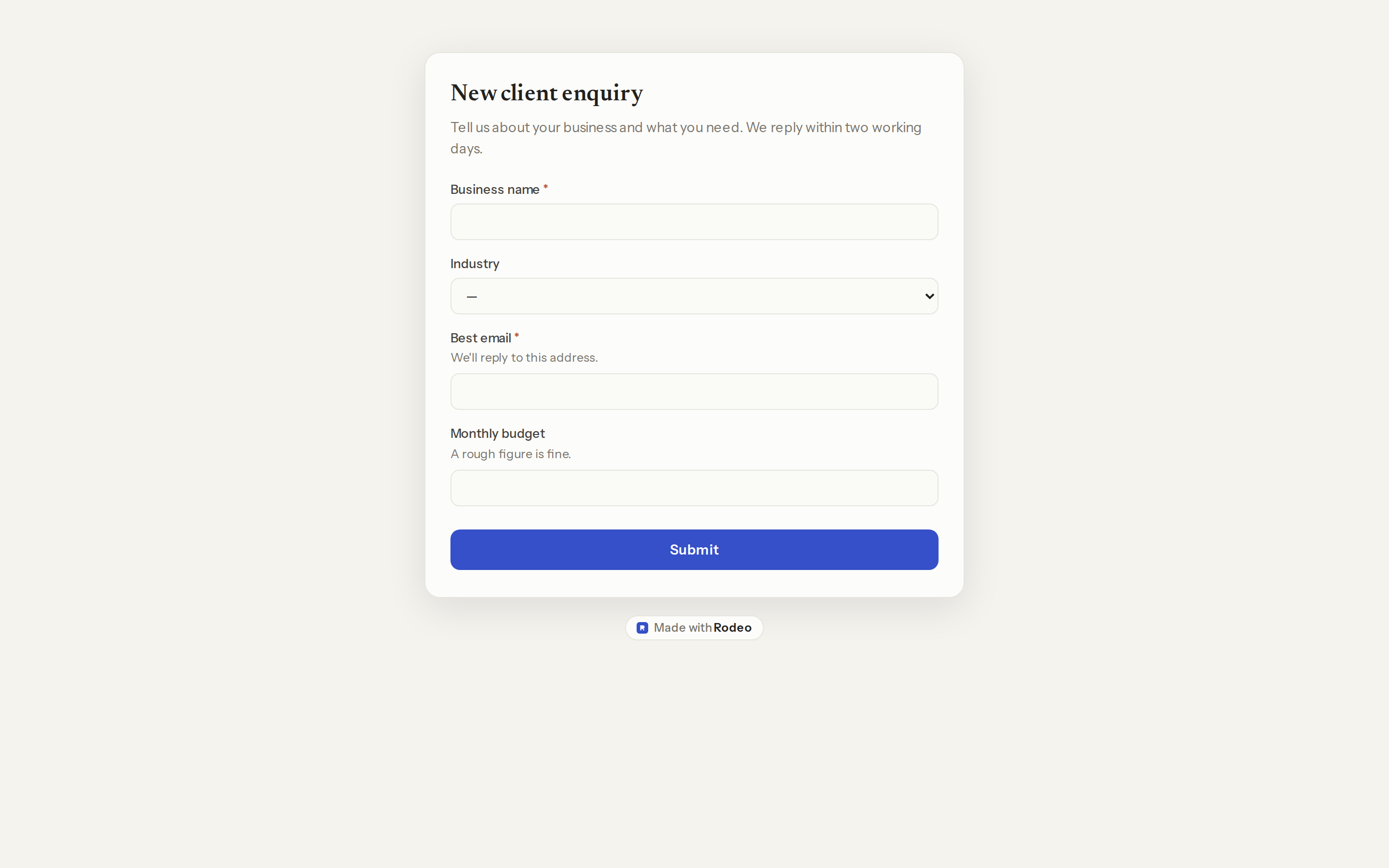
After submitting, visitors see "Thanks!" and your thank-you message. An unpublished link shows "Form not found".
Tips and limits
Each response is a new row, so it shows in every view, can be assigned, commented on and moved along a board straight away.
Responses are saved as you, the person who published the form. Your Automations run on them, so a notify rule on a row is created tells you about each response.
Only the questions on the form are accepted. Visitors can't set anything else on the row.
Publishing again reuses the same link, so an unpublished form can come back without breaking links you've shared.
Who can publish: workspace members. Guests can't. See Members, roles and invites.
Limits: a thank-you message of up to 500 characters, labels up to 200 and help text up to 500; answers of up to 4,000 characters; up to 60 questions on a public form; and 10 submissions a minute from the same connection, to keep out spam.
Branding: public forms show "Made with Rodeo" on Free and the Founders' Deal, and not on Starter, Team or Business. They follow your workspace's house style. See Looks and house style.
Several forms, one database. Add a form view for each audience, each with its own questions.
Forms work on every plan.
Ideas
Client enquiries. A "New client enquiry" form on the Client CRM, linked from Harbor Studio's site, plus an automation that sets Stage to Lead. Every enquiry arrives ready to drag along the sales board. See Sites.
Content requests. An internal form on the content calendar where anyone can pitch a post with a title, channel and date. Tunde triages them on the board.
Event sign-ups. A form for Kofi Roasters' cupping evening with name, email and a checkbox for the newsletter, then a chart of sign-ups by date.