The Rodeo editor in two minutes | Rodeo Docs
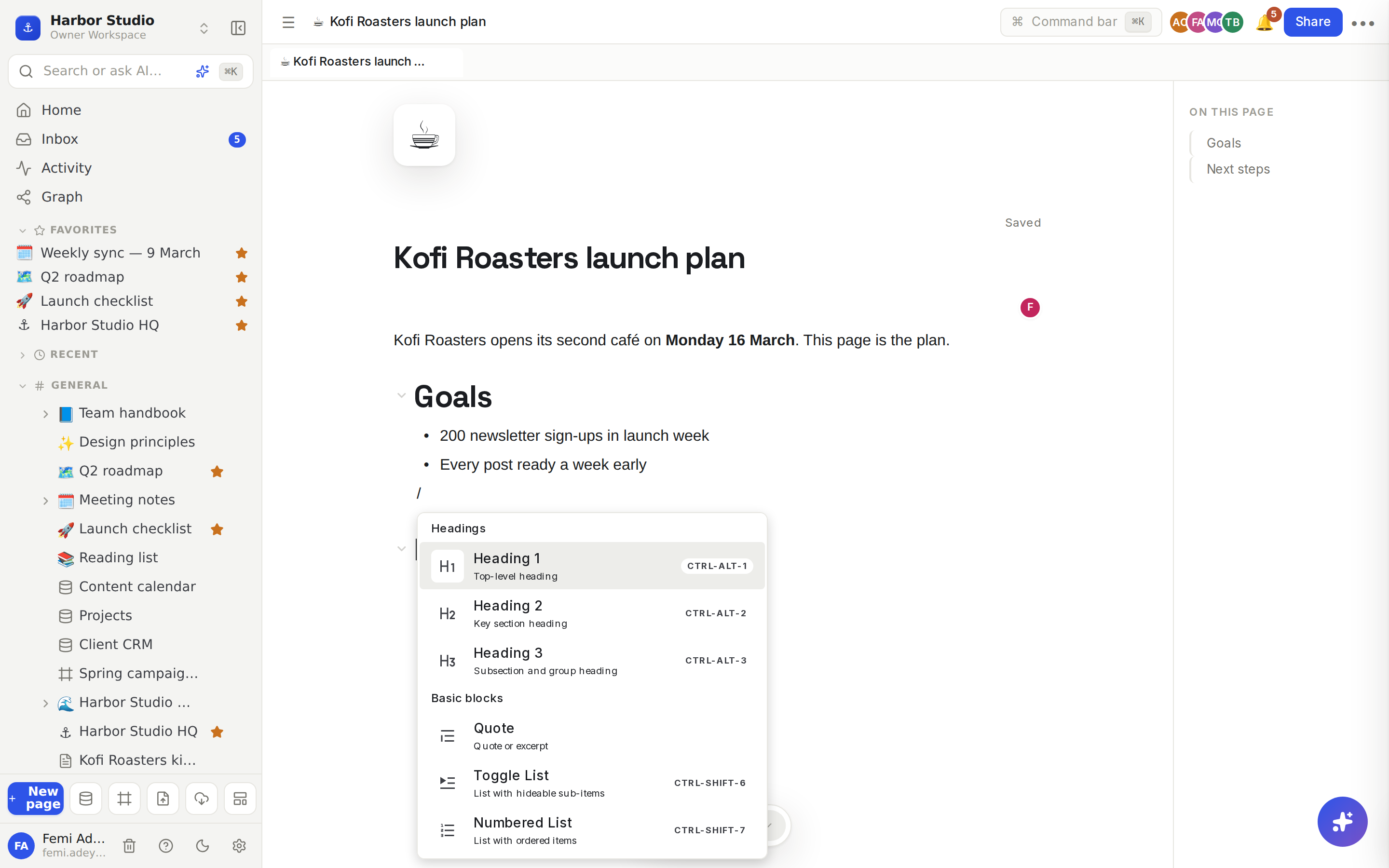
Every Rodeo page is built from blocks, so a meeting note, a launch plan and a client wiki all start the same way: you type, and press / whenever you want something more than text.
A block is one piece of a page: a paragraph, a heading, a to-do, an image, a table or a whole database. Blocks can be moved, nested and turned into other blocks.
Do it
Insert anything with /
Click on an empty line, or press Enter at the end of a line to make one. An empty line says "Enter text or type '/' for commands".
Type /. The menu lists everything you can add.
Keep typing to filter, for example /table, /callout or /embed, then press Enter or click the block you want.
What's in the menu:
Group | Blocks |
|---|---|
Headings | Heading 1, Heading 2, Heading 3 |
Basic blocks | Quote, Toggle List, Numbered List, Bullet List, Check List, Paragraph, Code Block, Divider, Callout, 2 columns, 3 columns, Button, Page, Meeting notes |
Subheadings | Heading 4 to 6, and Toggle Heading 1, 2 and 3, whose content folds away |
Media | Image, Video, Audio, File, Embed, Web bookmark |
Advanced | Table, Equation, HTML, Diagram, Database view, Board |
Others | Emoji |
Ask AI appears too when AI is available in your workspace. See The AI block.
Type Markdown as you go
You don't have to open the menu for the everyday blocks. At the start of a line, type:
Type | To get |
|---|---|
| Heading 1, 2 or 3 |
| Bullet list |
| Numbered list |
| Check list (to-do) |
| Quote |
| Code block |
| Divider |
Format text
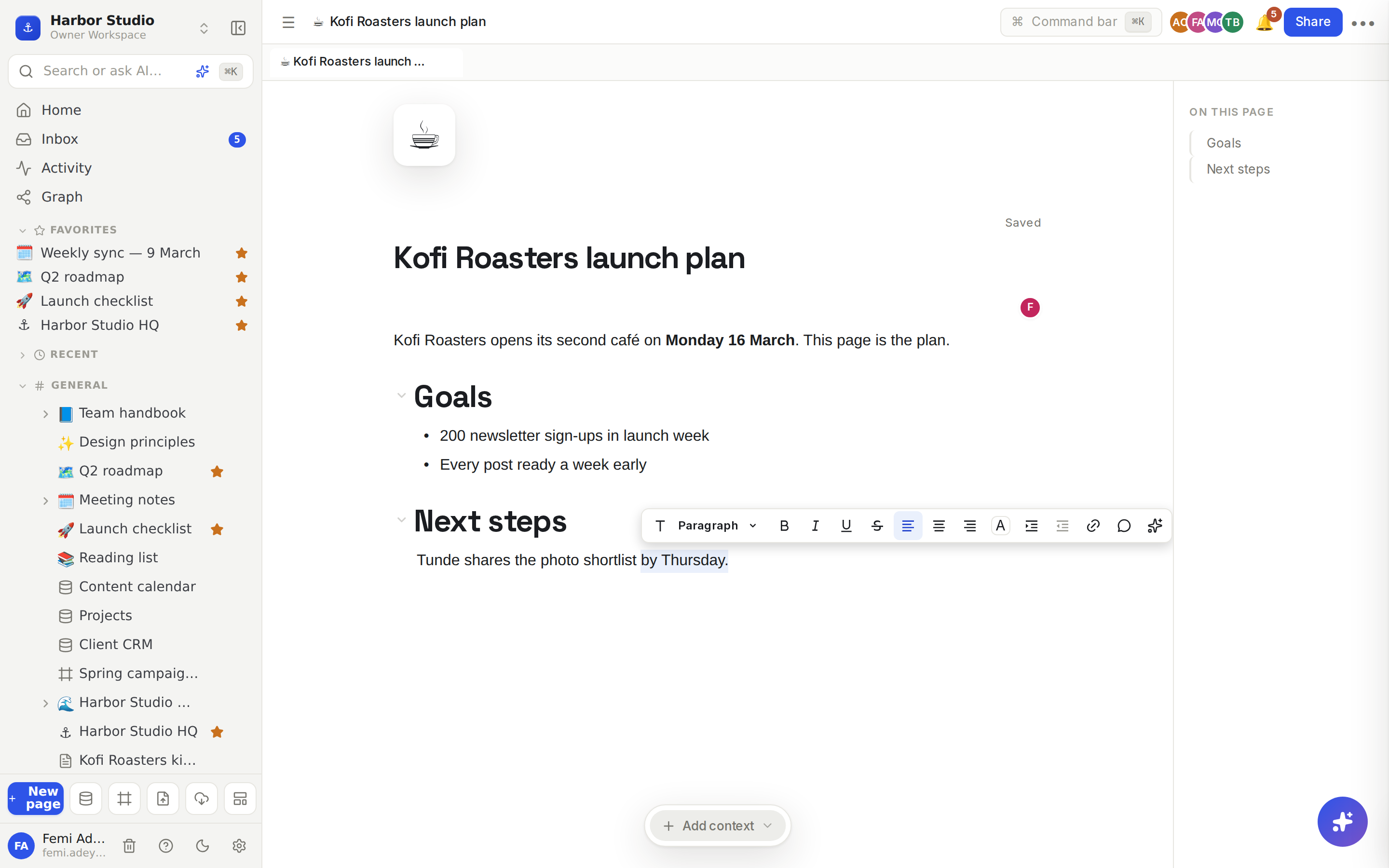
Select some text and a toolbar appears above it. From there you can turn the block into another type, make text bold, italic, underlined or struck through, align it, change its colour, indent it, add a link, or leave a comment. When AI is on, the sparkle button at the end rewrites or improves your selection. See Editor AI: transform and generate.
Mention people, pages and dates
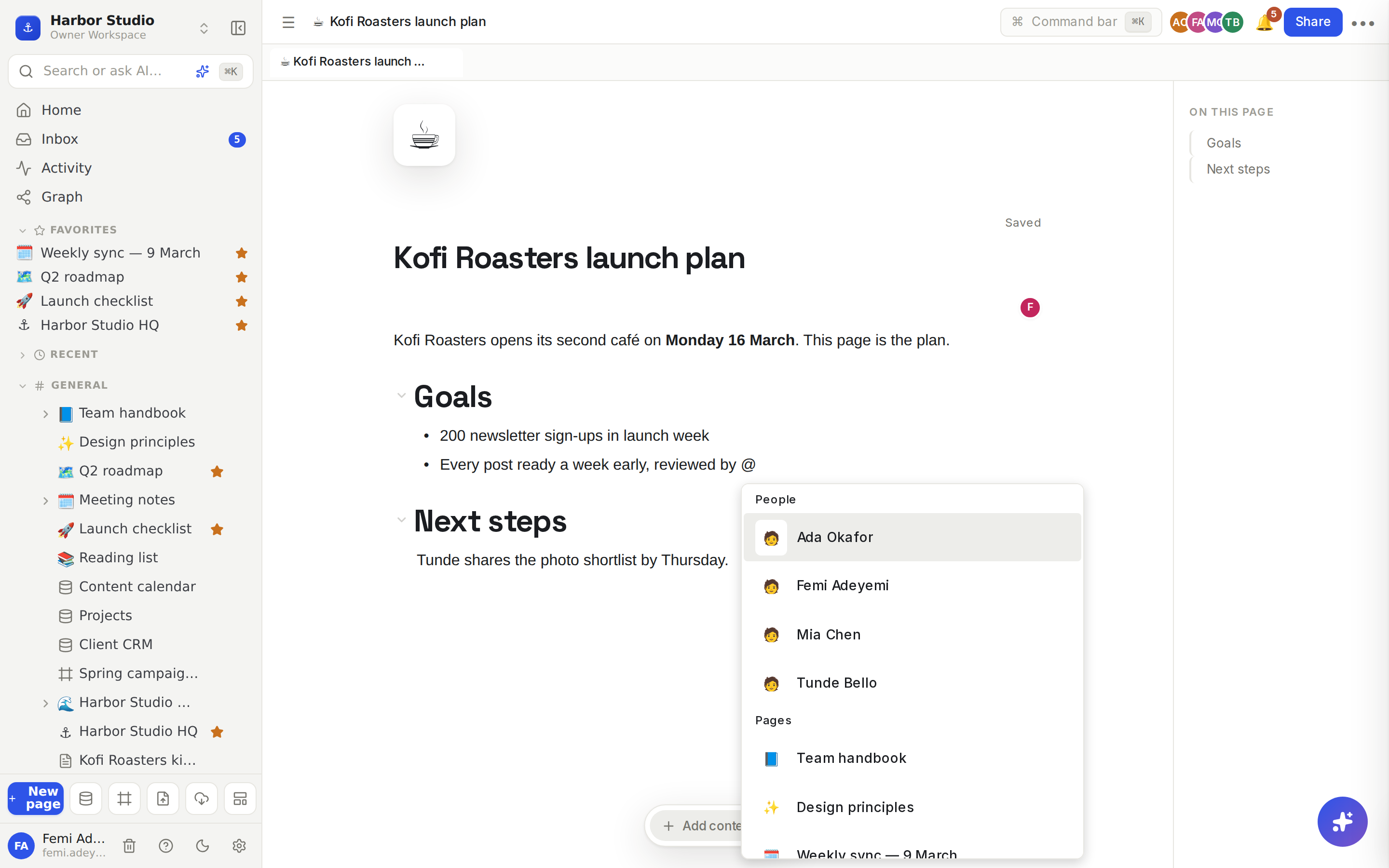
Type @ to mention a teammate, link another page or drop in a date. Mentioned teammates get a notification. Today, Tomorrow and Remind me tomorrow 9am sit under Date. Typing two opening square brackets opens the same list. See Page mentions and links and Reminders and date mentions.
Move blocks around
Hover over a block to see two handles on its left. Click + to add a block below, or drag ⋮⋮ to move the block anywhere on the page. Press Tab to nest a block under the one above it, and Shift+Tab to bring it back out. Right-click a block for more options.
Jump anywhere with ⌘K
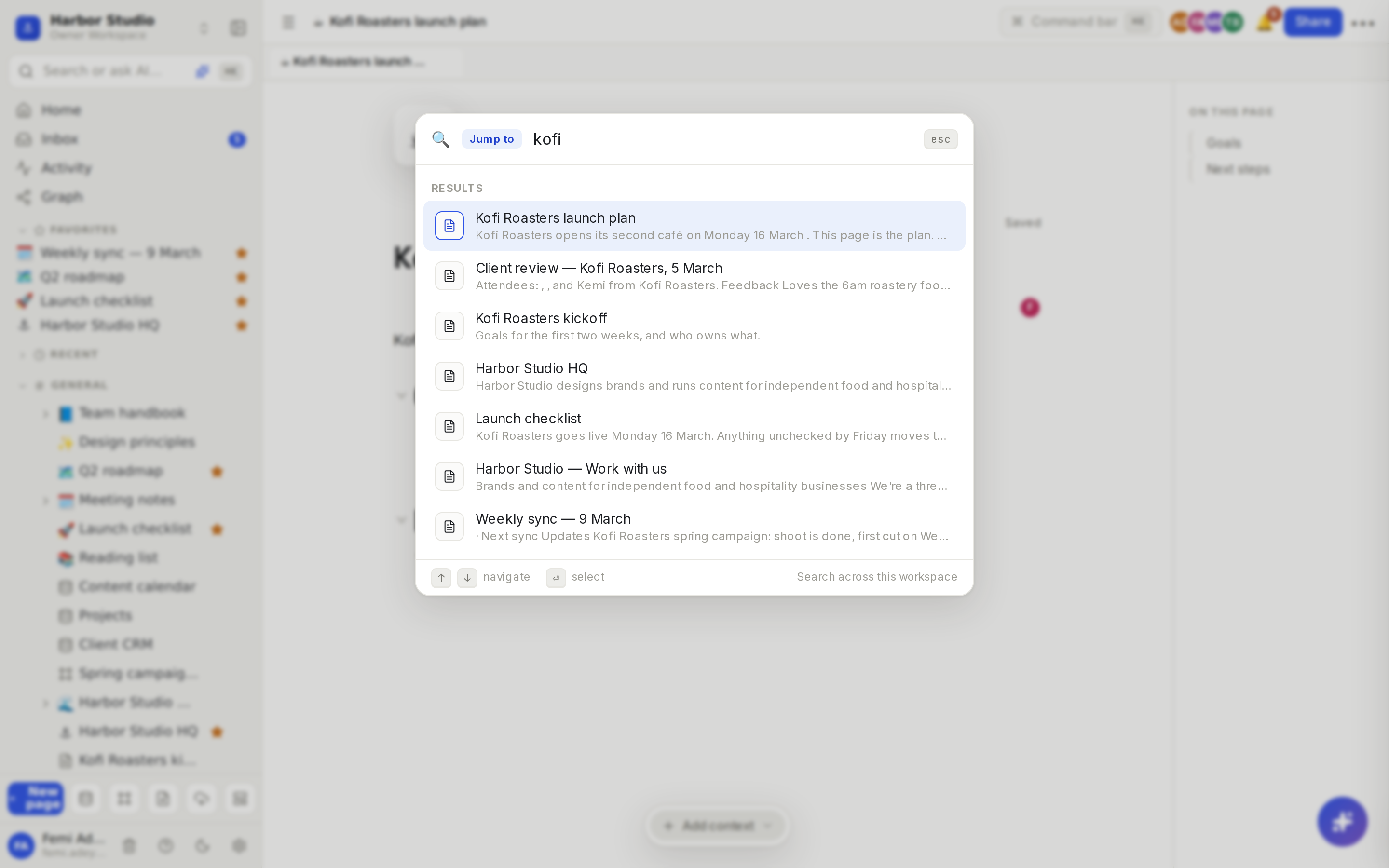
Press ⌘K (Ctrl+K on Windows) or click Search or ask AI… at the top of the sidebar. Type a few letters to jump to any page, or run an action such as New page, Toggle dark mode or Sign out.
Tips and limits
Shortcut | What it does |
|---|---|
⌘K / Ctrl+K | Search, jump to a page or run a command |
| Insert a block |
| Mention a person, page or date |
⌘B, ⌘I, ⌘U | Bold, italic, underline |
⌘. / ⌘⇧, | Superscript / subscript |
⌘⌥1 to ⌘⌥3 | Turn the line into Heading 1 to 3 |
⌘⇧7, ⌘⇧8, ⌘⇧9 | Numbered, bullet or check list |
⌘⇧P | Present the page as slides |
⌘Z / ⌘⇧Z | Undo / redo |
On Windows, use Ctrl for ⌘ and Alt for ⌥. The full list is in Keyboard shortcuts.
There is no Save button. Rodeo saves as you type. The top of the page says Saved once your latest change is stored.
Write together. When teammates open the same page, you see their cursors and edits live. See Comments and Suggested edits.
Changed your mind? Every page keeps its earlier versions. See Version history.
The editor works the same on every plan.
Ideas
A weekly sync in five minutes. Type ## Updates, ## Decisions and ## Actions, add a Check List under Actions and @-mention who owns each one, so every owner gets a notification.
A launch plan that explains itself. Add a Callout for the launch date, 2 columns for "In scope" and "Out of scope", and a Database view of the content calendar below, so the plan and the work sit on one page.
A client brief people actually read. Put the short version at the top, and fold the details into Toggle Headings, so Kofi Roasters sees the summary first and opens only what they need.