Synced blocks | Rodeo Docs
A synced block is one piece of content that lives on several pages at once: edit it on any of them and every copy updates, so launch dates, contact details and standard wording never drift out of date in the places you forgot.
Do it
Make a synced block
Select the blocks you want to share. For a single block, you don't need to select anything.
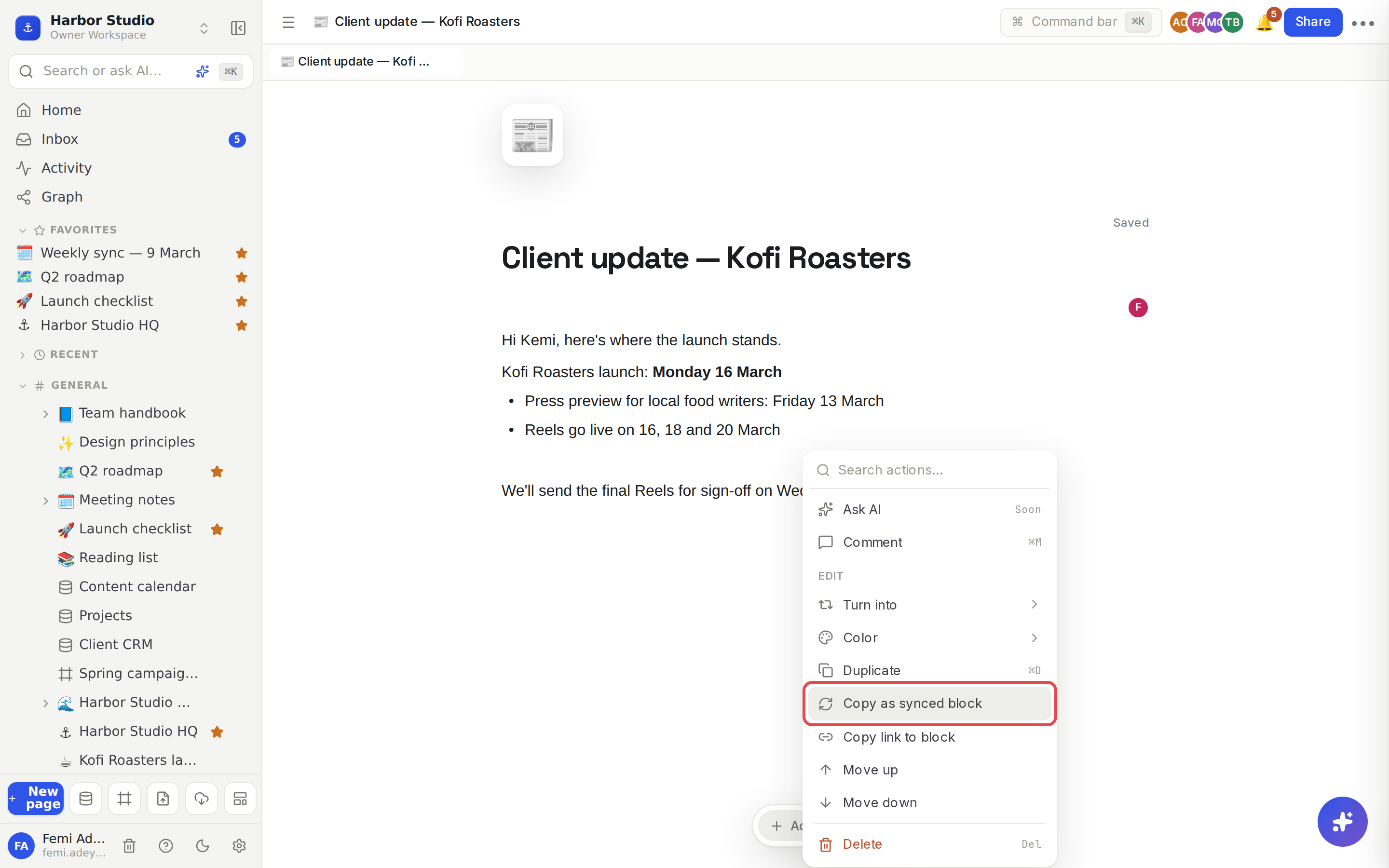
Right-click the block (inside your selection, if you made one) and choose Copy as synced block.
Rodeo turns those blocks into a synced block, puts it on your clipboard and says "Synced block copied. Paste it on any page to keep it in sync."
Open another page, click where you want it and paste (⌘V, or Ctrl+V on Windows).
You can keep pasting the same block onto as many pages as you like.
Edit it
Click into any copy and type. Changes show up in every other copy as you make them, even for teammates who have those pages open.
See where it lives
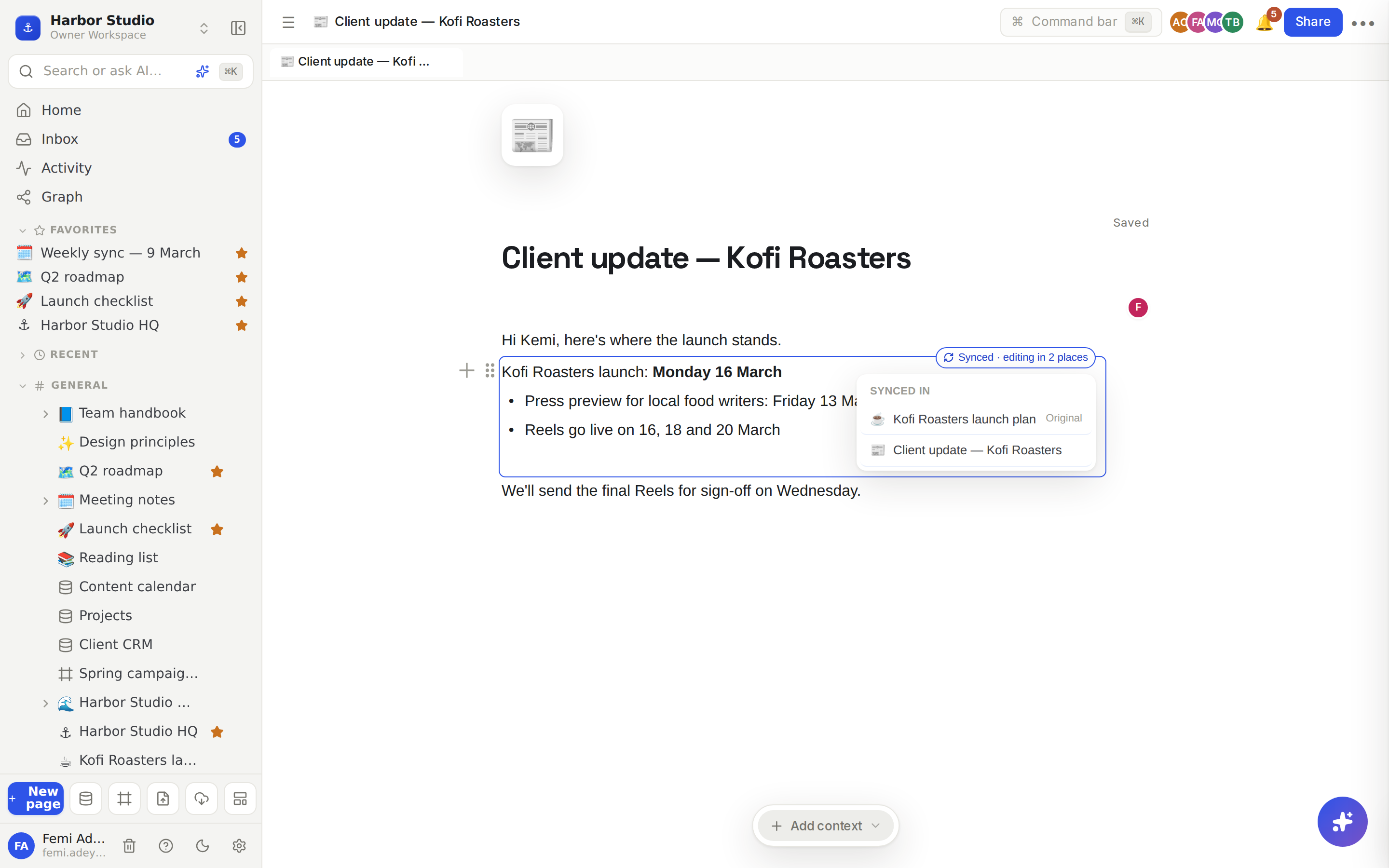
Each copy carries a small label. It says Synced on its own, or Synced · editing in 2 places once it's on more than one page. Click the label to see the list under Synced in: each page holding a copy, with the page it was made on marked Original. Click a page to go there.
Stop syncing one copy
Right-click the copy and choose:
Unsync to turn this copy back into ordinary blocks. It keeps its current content; the other copies stay synced.
Delete copy to remove it from this page only.
Duplicate to add an ordinary, unsynced copy of its content.
Tips and limits
Who can edit. A synced block belongs to the page it was made on. You can edit a copy if you can edit that original page; otherwise you can read it but not change it.
No access to the original? The copy shows "Synced from a page you can't open" with a Request access button that asks the page's owners. You then see Request sent, or Already requested today.
Original in the trash? Copies show "Source page is in trash", with the content still readable. Click Restore to bring the page back, or Keep as normal blocks to keep the content on this page as ordinary blocks.
What can't be synced: a sub-page, or a block that already holds a synced block.
Mentions inside synced blocks count as links from the original page. See Backlinks.
On a published site, synced content appears as normal text when you can see the original page. See Sites.
Synced blocks work on every plan.
Ideas
One set of launch dates. Put "Kofi Roasters launch: Monday 16 March" and the key dates in a synced block on the launch plan, then paste it into the client update and the content calendar page. Move a date once and it's right everywhere.
Studio contact card. Keep the studio's address, phone and invoice email in one synced block and paste it at the bottom of every client brief.
Standard intro for proposals. Sync the "How we work" paragraph into every proposal page, so a wording change reaches them all before the next pitch.
Troubleshooting
I don't see Copy as synced block. You may have right-clicked a sub-page or an existing synced block, which can't be synced. You also need to be able to edit the page.
I pasted, but it's ordinary text. Use Copy as synced block again and paste right after. A normal copy (⌘C) copies the text, not the sync.
My edit didn't reach a copy. Check that the label still says Synced. If someone chose Unsync on that copy, it's ordinary blocks now.