Graph view of your workspace | Rodeo Docs
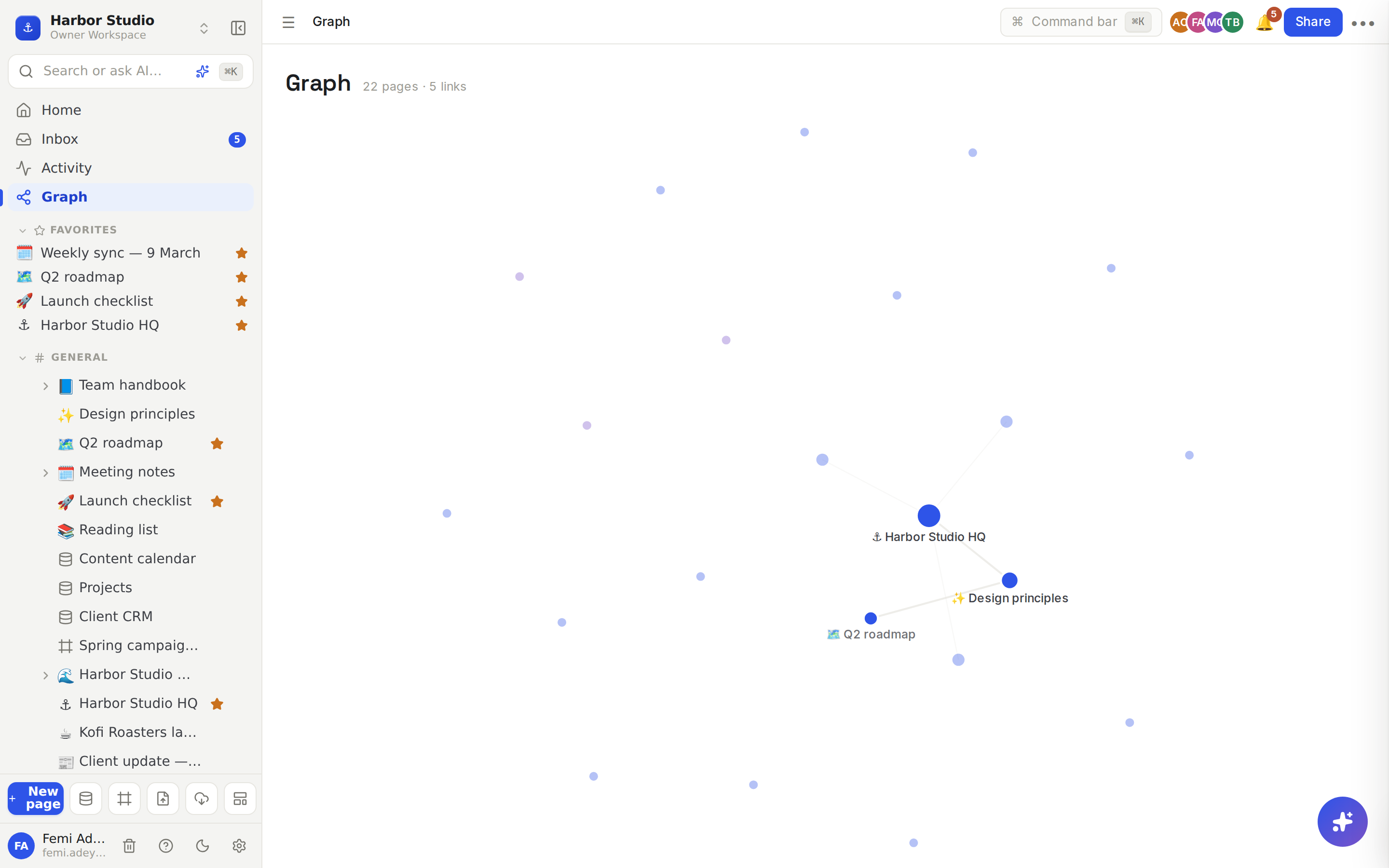
The Graph view draws your whole workspace as a map, with a dot for each page and a line for each link between them, so you can see at a glance what's central, what's connected and what's drifting on its own.
Do it
Click Graph in the sidebar, under Home, Inbox and Activity.
Next to the Graph heading, Rodeo counts the pages and links on the map.
Hover over a dot. The page and its direct neighbours stay bright and the rest fade, so you can follow one page's connections.
Click a dot to open that page.
How to read it:
A dot is a page, a database or a board you can open. Databases are drawn in purple.
A line is a link: one page mentions the other.
Bigger dots have more links. The pages your team keeps coming back to stand out on their own.
Labels show the page's icon and the start of its title. Labels of well-linked pages are drawn darker.
Tips and limits
Links come from mentions. Mention a page with @ to add a line. See Page mentions and links. Putting a page inside another one doesn't draw a line.
Private stays private. You only see pages you can open, and a line only appears when you can open both ends, so the map never reveals a page you can't see.
The layout is stable. The map is drawn the same way each time, so a page stays roughly where you last saw it.
An empty map? A new workspace with no mentions yet shows "Link pages with @ or [[ mentions and they'll connect here."
The Graph view works on every plan.
Ideas
Spot orphans. Small dots with no lines are pages nobody links to. Link them from a hub page, or move them to trash.
Check a wiki's shape. After building a handbook, open the graph to see whether new hires can reach every page from "Team handbook", or whether some only exist in the sidebar.
Find your hubs. The biggest dots are the pages everything points to. Make sure those are the ones you keep verified. See Wiki and page verification.