Board AI chats and credits | Rodeo Docs
A chat on a board is an AI assistant that reads only the cards you wire into it, so you can ask "give me ten hooks from these interviews" and get an answer grounded in your own material, with the cost shown before you send.
Do it
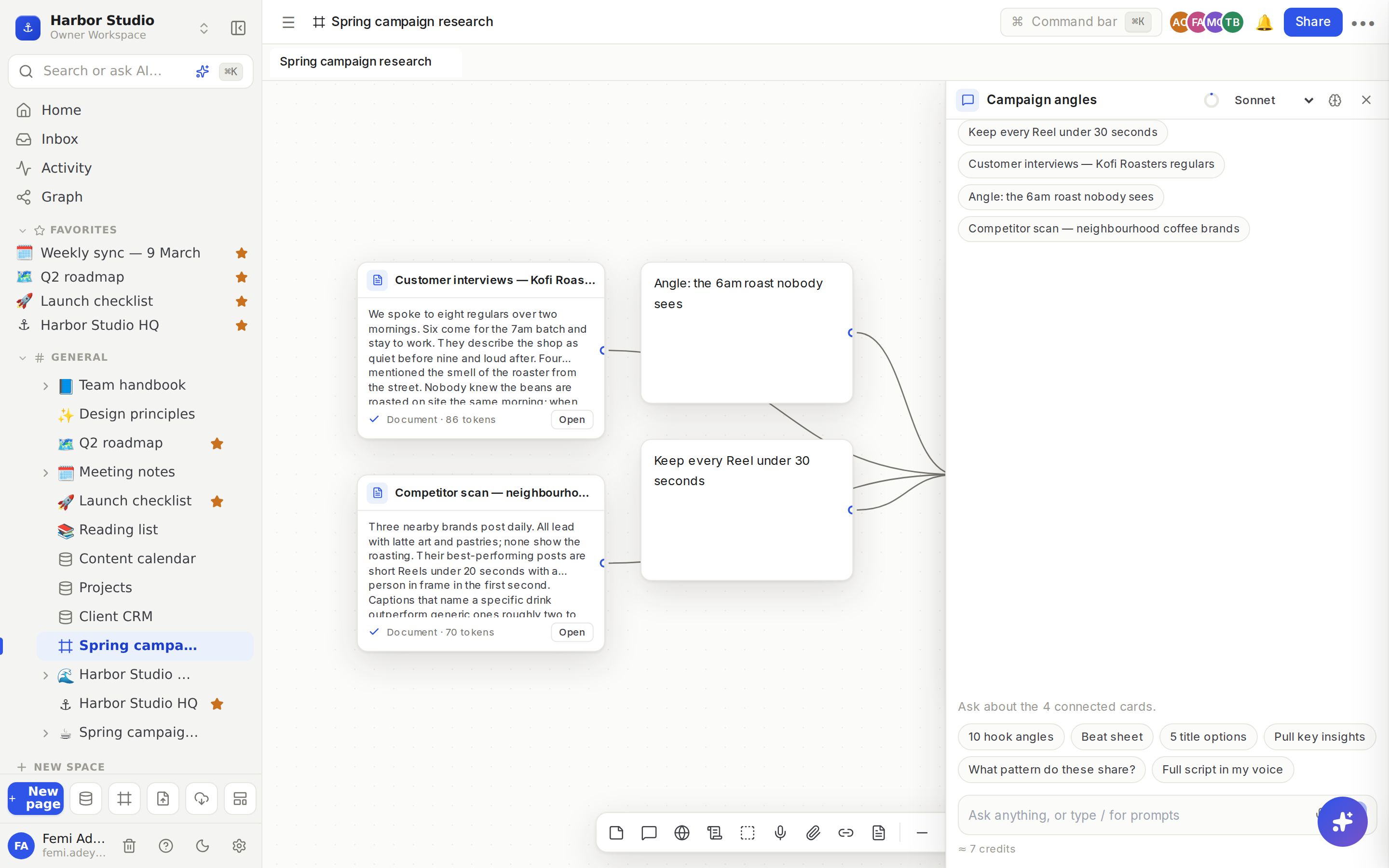
Start a chat
Press C, or click New chat in the dock. A chat card appears on the board.
Wire cards into it: drag from the handle on the right of each card to the chat. See Nodes and wires.
The empty chat tells you how many cards it can read, for example "Ask about the 4 connected cards.", and offers Saved prompts as chips.
Type your question in the box, which says "Ask anything, or type / for prompts", and press Enter. Shift+Enter adds a new line.
The reply streams in live, for you and anyone else looking at the board. The wires into the chat light up while it writes. Click Stop (the square) to stop a reply early.
Give it room
Click Open in side panel (the arrows at the top right of the chat) for a full-height panel; × puts it back. Or select a chat and press F for focus mode, which also lists the wired cards as chips at the top.
Choose a model and thinking
In the chat's title row:
Model: Sonnet (the default), Haiku (fast) or Opus.
Thinking (the brain icon): turns on extended thinking, for questions that need more reasoning.
The small ring shows how full the chat's context is: everything wired in, plus the conversation so far. Hover it for the exact number of tokens.
You can also click the microphone in the message box to Dictate a question instead of typing it.
Use the reply
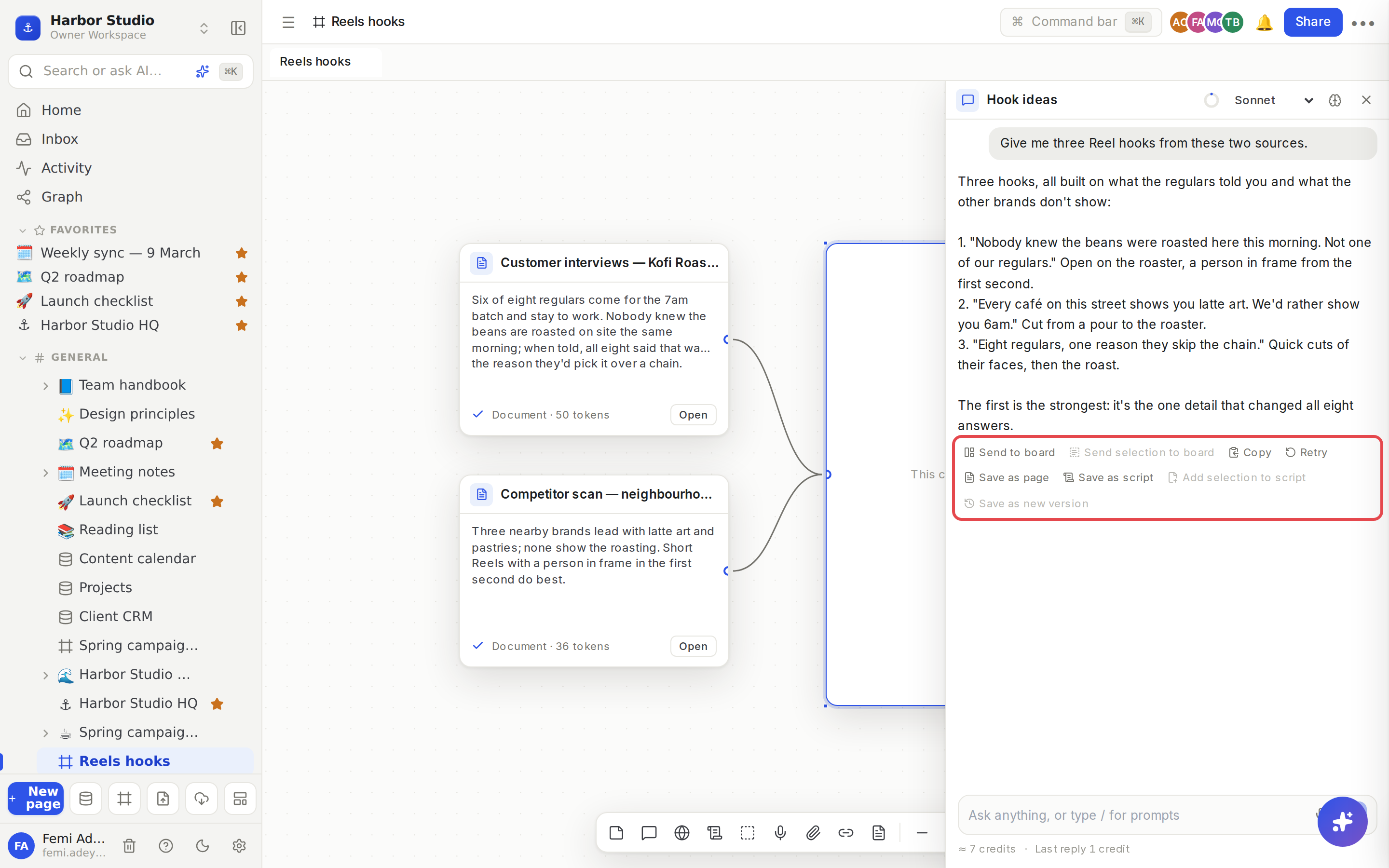
Under each reply:
Action | What it does |
|---|---|
Send to board | Puts the reply on the board as a note beside the chat. |
Send selection to board | Select part of the reply first; just that part becomes a note. |
Copy | Copies the reply. |
Retry | Asks again for a new answer (newest reply only). |
Save as page | Saves the reply as a page under the board. See Turn a board into a page. |
Save as script, Add selection to script, Save as new version | Write into a script. See Scripts and editor notes. |
Credits
Every AI reply on a board uses AI credits from your workspace's monthly allowance. The bigger the context, the longer the reply and the larger the model, the more it uses.
Under the message box, ≈ N credits is the most the next message can cost. It's an upper bound, so you usually pay less.
After a reply, Last reply N credits shows what it actually cost.
When the workspace has none left, chats show You're out of AI credits this month. Owners and admins see Upgrade; everyone else sees Ask an admin. Click Try again after credits are added.
A reply that has started always finishes, even if it takes the workspace past its allowance. The next message is then refused until credits reset.
Plan | AI credits per month | Opus |
|---|---|---|
Free | 150 for the workspace | No |
Starter | 100 per member | No |
Team | 200 per member | Yes |
Business | 350 per member | Yes |
Founders' Deal | 200 per member | Yes |
The copilot
The Copilot button at the top right of every board opens an assistant that changes the board for you. Ask it to "group the YouTube sources and wire them into a new chat" and it adds, moves, groups and wires cards. Anything it wants to remove waits for you: click Allow or Deny on each change, or Allow all for this run. Revert run undoes what one request did. Each request counts as an agent run and uses AI credits.
Tips and limits
A chat reads exactly its wires, nothing cut short. If the context ring fills up, sending is blocked with Disconnect or shorten sources: remove a wire or two. Sources must show a ✓ to be read.
"Sources changed since this reply" appears under the last reply when its wired cards or wires changed. Ask again for a fresh answer.
One reply at a time per chat. A message can be up to 50,000 characters.
Private material stays private. A reply built from a page you can't open shows "This reply used pages you can't open".
View-only? You can read every chat but not send. The box says "View only".
Ideas
Hooks in one minute. Wire your customer interviews and a competitor scan into a chat, pick 10 hook angles, and send the best three to the board as notes.
A cheap first pass, a careful second. Draft with Haiku (fast), then switch to Sonnet with Thinking on for the final outline.
Two chats, one board. Wire the same sources into an "Instagram" chat and a "Newsletter" chat, and get both versions side by side.
Troubleshooting
"Opus is available on the Team and Business plans". Your workspace is on Free or Starter. Pick Sonnet or Haiku (fast), or upgrade. See Plans and limits.
The reply ignores a card. Check the card has a wire into this chat and a ✓. Press F to see the wired cards listed.