Share pages and handle access requests | Rodeo Docs
Share a single page, and everything nested under it, with exactly the people who need it, at exactly the level they need, so a client can read and comment on their brief without ever seeing the rest of your workspace.
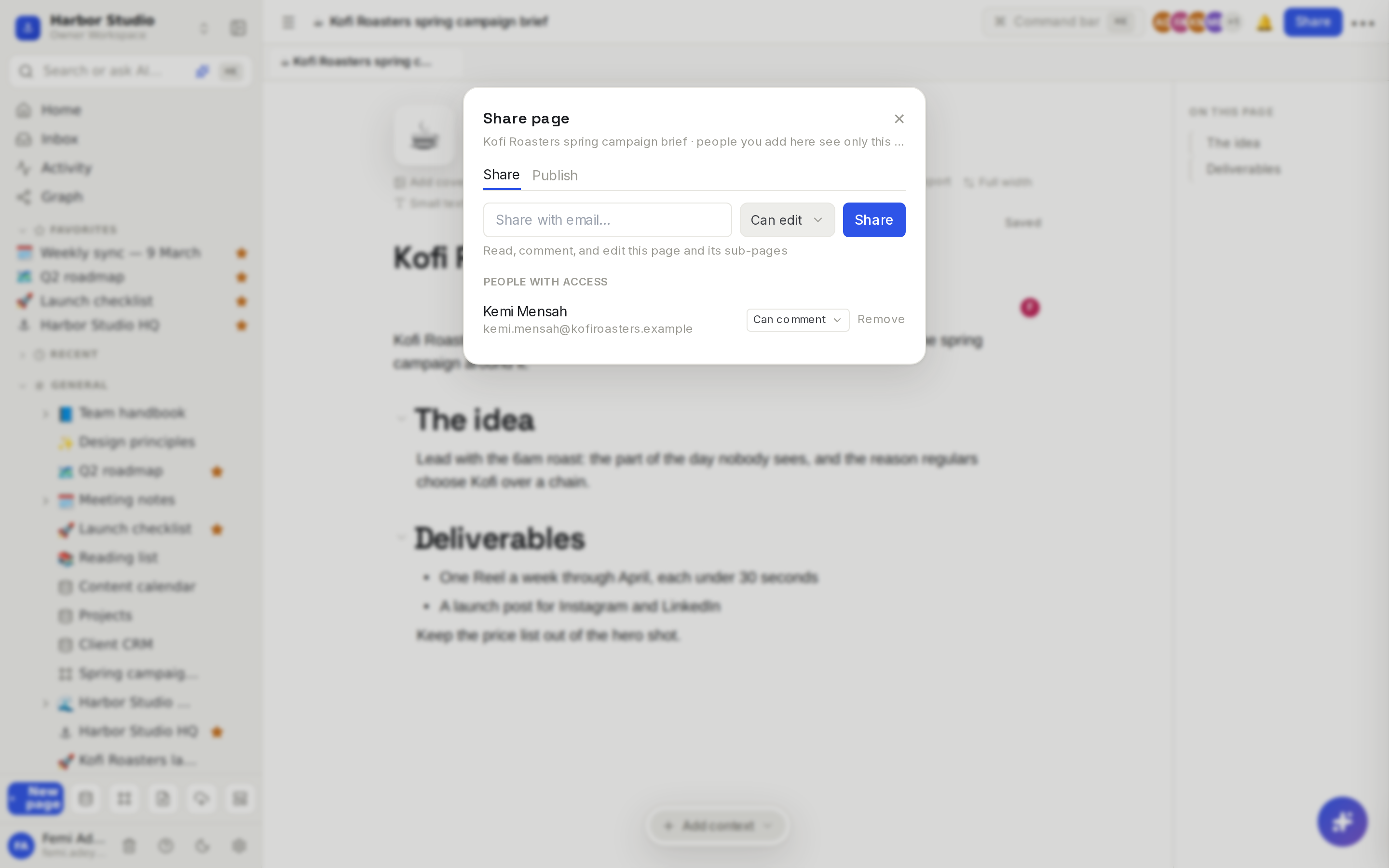
Sharing a page is different from inviting someone to the workspace. Workspace members already see pages according to their Spaces. A page share adds one person to one page and its sub-pages, and nothing else.
Do it
Share a page
Open the page and hover its title. Click Share in the row of buttons above it.
On the Share tab, type an email into Share with email….
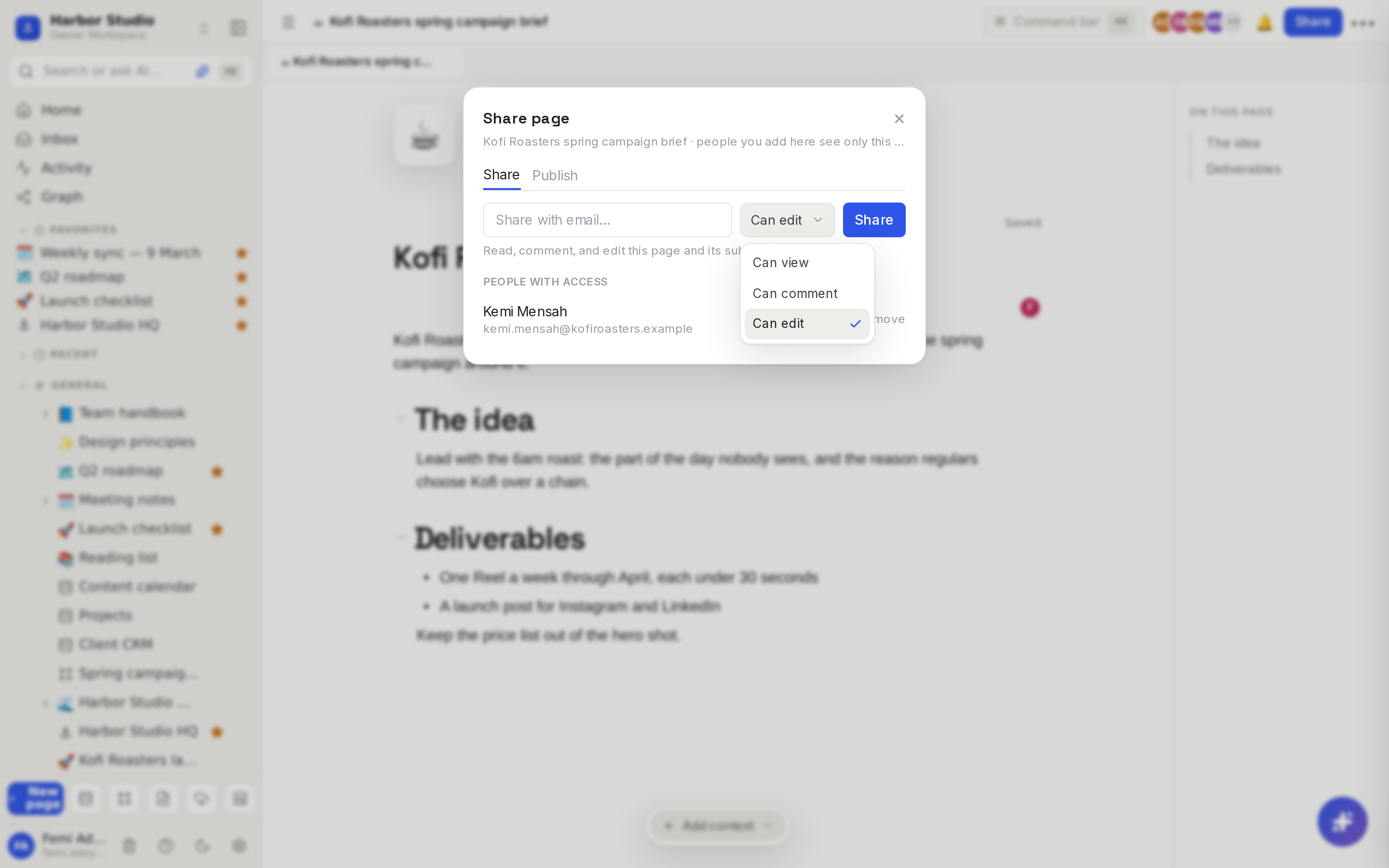
Pick an access level:
Level | What they can do |
|---|---|
Can view | Read this page and its sub-pages — no changes |
Can comment | Read and leave comments, but not edit |
Can edit | Read, comment, and edit this page and its sub-pages |
Click Share. Rodeo confirms, for example "Kemi Mensah can now comment on this page."
If the person isn't in your workspace yet, Rodeo adds them as a guest. Guests see only the pages shared with them.
Change or remove someone's access
Open Share on the page again. Everyone with their own access is listed under People with access.
Pick a new level from the menu next to their name, or click Remove, then Remove access. They can no longer open the page.
What people see
Can view and Can comment open the page read only, with a View only or Can comment label above the title.
People with Can comment can leave Comments and propose Suggested edits.
People with Can edit can edit the page and share it onward.
Answer an access request
Sometimes a teammate lands on content they can't open, such as a synced block whose source page is private to them. It shows "Synced from a page you can't open" with a Request access button. When they click it:
The page's creator, plus the workspace's owners and admins who can open the page, get an inbox item: "Ada Okafor requested access to Spring retainer pricing".
Click it. The page opens with its Share window ready.
Share the page with them at the level you choose, or leave it.
See Inbox and notifications and Synced blocks.
Tips and limits
You need edit access to share a page. Without it, there's no Share button.
Sharing flows down. Sharing a page also shares every page nested under it, so share the parent "Kofi Roasters" page to give a client the brief, the meeting notes and the launch plan in one go.
They need a Rodeo account first. If no account uses that email yet, Rodeo says "No Rodeo account uses that email yet — invite them to the workspace first, or ask them to sign up." Send them to rodeo.so/signup, then share again. See Sign up and sign in.
Guest limits: Free includes 3 guests; Starter, Team, Business and the Founders' Deal have unlimited guests. Guests never take a member seat. See Plans and limits.
Removing a guest from the workspace removes their page access too, even on pages that were shared with them.
One request a day. A teammate can ask for access to the same page once every 24 hours; a second click says "Already requested today".
Publishing is different. The Publish tab in the same window puts a page on the open web for anyone with the link. See Sites.
Ideas
A client review space without the risk. Share "Kofi Roasters spring campaign brief" with Kemi at Kofi Roasters as Can comment. She reads the latest version, leaves notes on the copy, and never sees another client's work.
A freelancer's working page. Share a shot list with a freelance photographer as Can edit, so they tick off shots on set, then remove them when the shoot wraps.
Read-only policies for contractors. Share the "Expense policy" page from the team handbook as Can view, so contractors know the rules without seeing the rest of the handbook.
Troubleshooting
"No Rodeo account uses that email yet." The person hasn't signed up. Ask them to sign up with that address, or invite them to the workspace as a guest first. See Members, roles and invites.
"This workspace is at its Free plan member limit." You've used the Free plan's 3 guests. Remove a guest you no longer need, or upgrade.
My client can see the page but can't type. They have Can view or Can comment. Change their level to Can edit if they should edit.
There's no Share button above the title. You have view or comment access on this page. Ask someone who can edit it.